Skip to content

Nitro PDF: Optical Character Recognition (OCR)

Nitro's OCR technology converts scanned documents and image-based PDFs into searchable, editable text, making it easy to digitize, organize, and work with your content across business and professional workflows.
0EMQC000008KbGZ-3

OCR: From static images to actionable PDFs

Scanning or receiving image-based PDFs is common in business, but without Optical Character Recognition (OCR), those files are essentially locked images - difficult to search, edit, or repurpose. That creates bottlenecks in everything from archiving records to preparing documents for review.

Nitro PDF Pro’s OCR feature transforms those static files into fully usable PDFs by recognizing text and making it searchable and editable. This helps teams save time, improve accuracy, and unlock the full value of their information.

  • Convert scanned paper or image-based PDFs into searchable, editable text

  • Quickly find keywords, phrases, and data across long documents

  • Maintain document layout and formatting while enabling text extraction

  • Streamline compliance, archiving, and review processes

  • Empower teams in finance, healthcare, legal, government, and other document-heavy industries

Icon-48px-Search Files

Searchable PDFs

Instantly find words, phrases, or numbers inside scanned or image-based documents, saving hours of manual review.
Icon-48px-Edit

Editable Text

Convert static text into live, editable content while preserving your document’s original layout and formatting.
Icon-48px-Completion Page Check

Accuracy Built In

Nitro’s OCR engine includes dictionaries for legal and medical terms, helping compliance-heavy industries capture text more precisely.
icon of a pen with a gear

Customizable OCR

Run OCR automatically on scanned files, apply it manually page by page, or process entire document sets with batch OCR.
icon of a toolbox

Helpful OCR Tools

Tools like deskewing and image adjustment improve recognition accuracy, so your team spends less time correcting errors.
icon of integration and automation

Integrated with Nitro’s PDF Suite

Combine OCR with editing, conversion, eSign, and collaboration tools, all in one platform - no need for separate software.

See Nitro's OCR tools in action

This quick demo walks you through how Nitro PDF Pro converts scanned or image-based PDFs into searchable, editable text. You’ll see how to run OCR automatically, apply it manually, and fine-tune results with tools like deskewing and batch processing—so you can get the most accurate output from every document.

What is OCR and how does it work in Nitro PDF?

OCR, or Optical Character Recognition, is a technology that converts scanned paper documents or image-based PDFs into machine-readable text.

In Nitro, OCR analyzes the shapes of letters and words in a document image and creates a hidden text layer behind the visible scan. This makes the PDF searchable, selectable, and in many cases editable.

For example, you can scan a paper contract, run OCR, and then search for a specific clause, copy text to another document, or make small edits while keeping the original layout intact.

Why would I need to use OCR on a PDF?

Without OCR, a scanned document is essentially just a picture. You can’t search within it, select text, or copy information.

By applying OCR, you unlock the content of that file. This is useful in countless scenarios: quickly finding numbers in invoices, searching medical or legal records, preparing government archives for public access, or digitizing educational materials for online learning. OCR saves time, reduces manual work, and ensures that information inside PDFs can be reused instead of being trapped in an image.

How do I perform OCR in Nitro PDF?

Nitro makes OCR easy to use. When you open a scanned PDF, the software automatically detects it and asks if you’d like to run OCR.

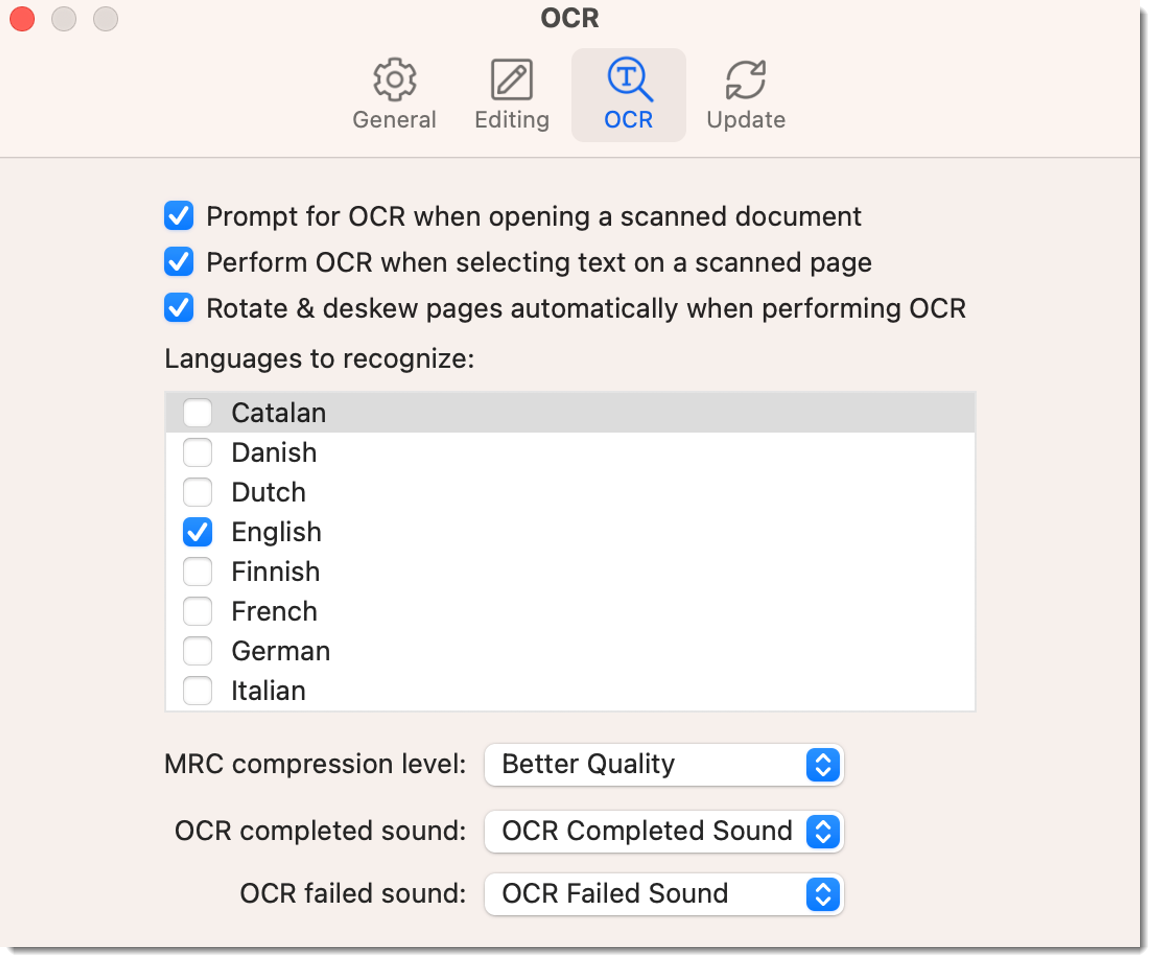
You can choose to apply it to just one page or the entire document. OCR can also be applied manually at any time by going to the “Edit” menu and selecting OCR options.

For more advanced needs, Nitro offers batch OCR, which lets you process multiple documents at once. As the OCR runs, you’ll see a progress bar, and once complete, the text will be available for searching, copying, and editing.

Visit our OCR user guide to learn more.

Can I choose which parts of a document to OCR?

Yes. Nitro gives you control over OCR scope.

You can run OCR on an entire document, a single page, or even selected page ranges. This is especially helpful if you only need a portion of a large file to be searchable or editable.

For example, finance teams might OCR only the attachments of a scanned report, while real estate professionals may focus on specific sections of contracts.

What affects the accuracy of OCR?

OCR accuracy depends on the quality of the original document. Clean, high-contrast scans with straight text lines produce the best results.

Nitro includes tools to improve accuracy, such as deskewing (straightening tilted pages) and adjusting contrast so text stands out more clearly.

Nitro also has built-in dictionaries—including medical and legal vocabularies—that help improve recognition of specialized terms.

While OCR is highly effective, results may still need light proofreading to correct occasional misread words, especially in older or low-quality scans.

Does Nitro’s OCR support multiple languages?

Yes. Nitro PDF Pro supports OCR in multiple languages, which can be selected in the software’s preferences.

This is useful for organizations working with international documents or multilingual archives. Selecting the correct language helps the OCR engine recognize words more accurately and reduce errors in the text layer.

What are the main benefits of using Nitro for OCR compared to other tools?

Nitro PDF Pro’s OCR is integrated into a full-featured PDF platform, which means you don’t just get searchable text—you also have editing, conversion, eSign, and collaboration tools in one place. The benefits include:

  • Searchable PDFs: Quickly find information in long documents.

  • Editable text: Make changes while preserving formatting.

  • Flexibility: Apply OCR automatically, manually, or in batches.

  • Accuracy: Specialized dictionaries and image-adjustment tools improve results.

  • Integration: Combine OCR with other Nitro features for a complete PDF workflow.

This all-in-one approach reduces the need for multiple software subscriptions and makes OCR a seamless part of your daily document management.

  • Spr25_Grid Leader
  • Spr High Performer
  • Spr25_ROI MidMarket
  • Spr25_HighPerformerSmall
  • Sp25_Enterprise
  • Spr25_HighPerformerMid
  • Spr25_User Adoption

Try Nitro's OCR tools for free today

Experience Nitro’s OCR capabilities with a full-featured 14-day free trial. No credit card required.