


/Card-Page%20Previews-AI.png?width=1200&height=800&name=Card-Page%20Previews-AI.png)

Instant, Accurate Redaction You Control
Nitro Smart Redact is an AI-powered redaction tool that uses natural language processing to instantly detect over 30 categories of sensitive PII in a document, then lets you review, adjust, and publish permanent, untraceable redactions.
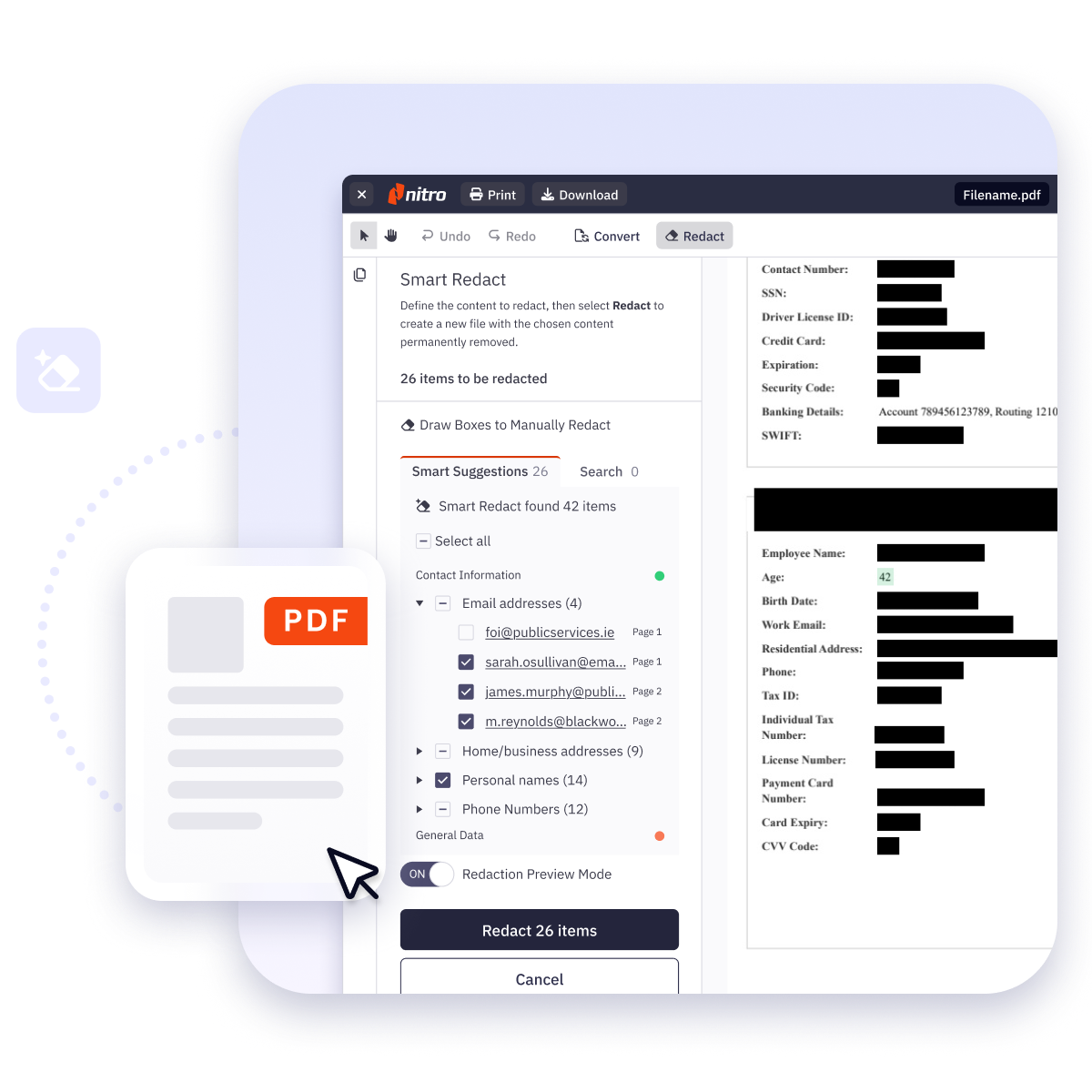
Built for speed, control, and enterprise-grade security

Identify and redact sensitive data in seconds

Complete coverage for complex documents

Instantly redact scanned files
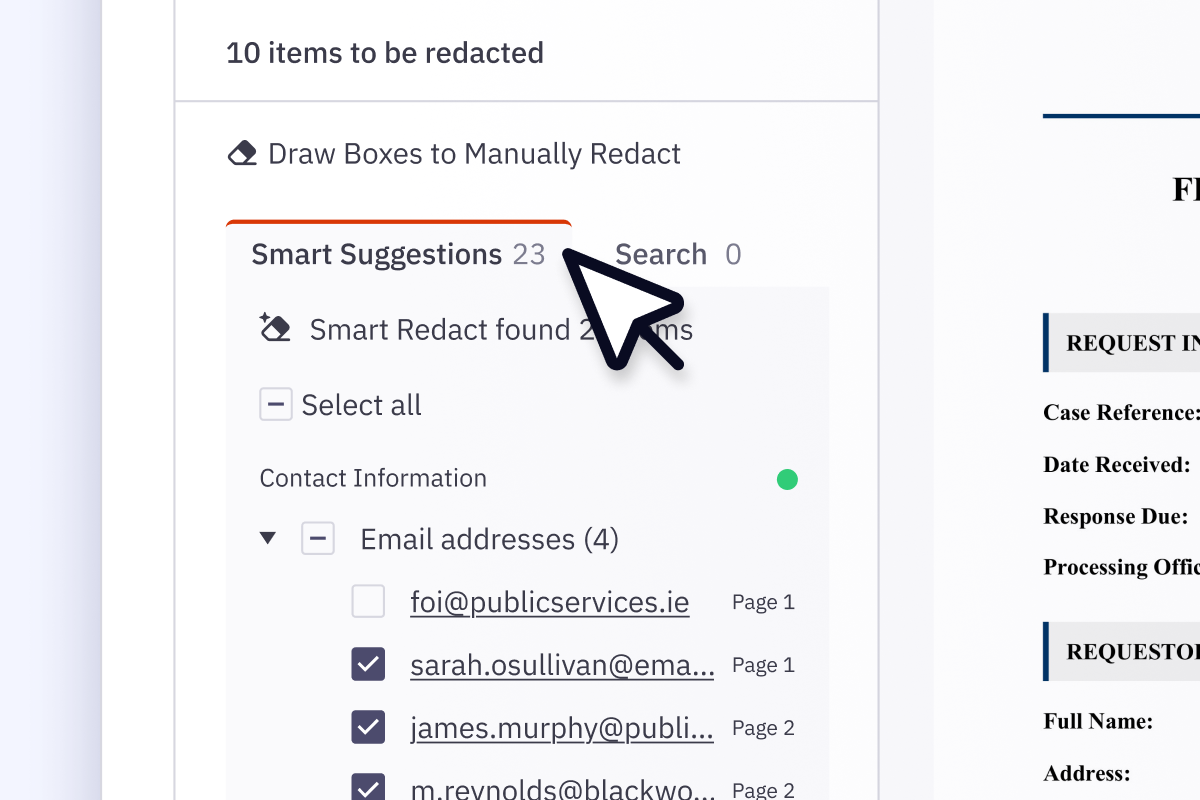
Identify and redact sensitive
data in seconds
Instantly identify over 30+ categories of PII—including unstructured data that pattern-based tools miss—automating manual redaction workflows and freeing your team to focus on higher-value tasks.
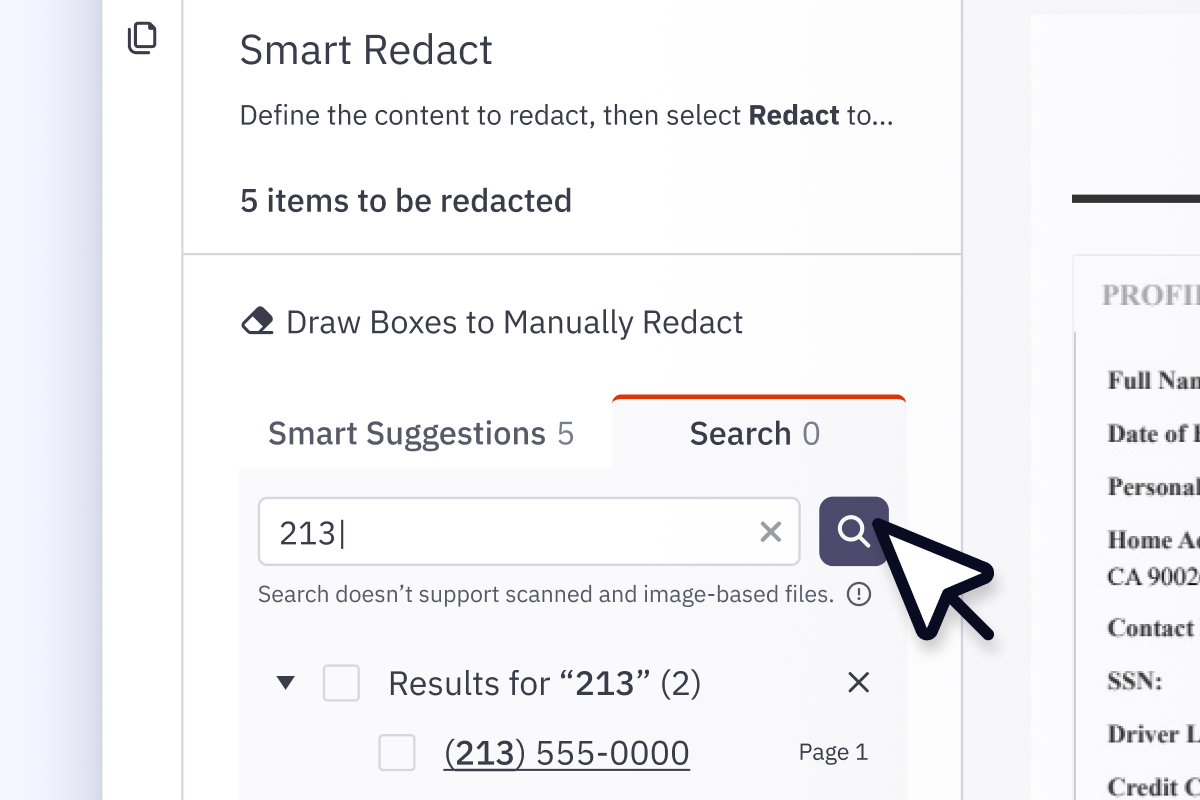
Complete coverage for complex documents
Advanced Natural Language Processing (NLP) ensures accurate detection of unstructured PII that manual or basic pattern searches miss, at enterprise scale.
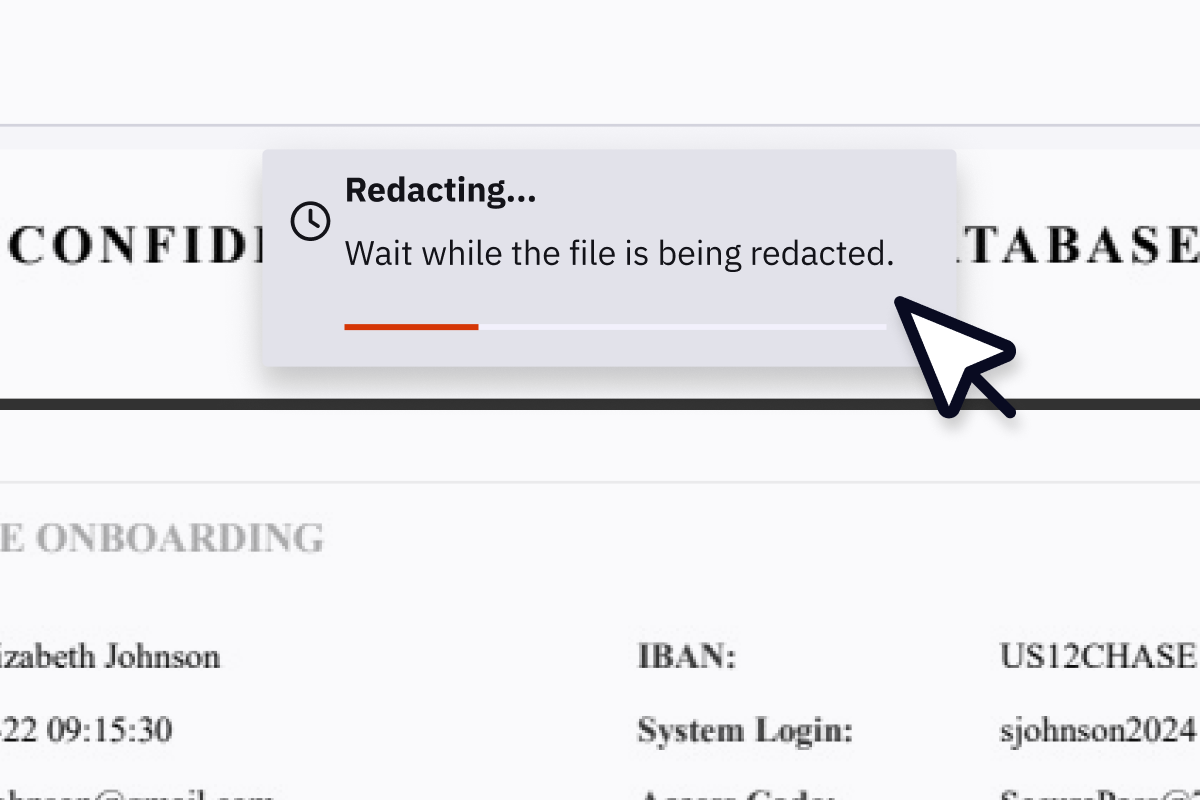
Instantly redact scanned files
Automatically find and redact sensitive PII from scanned documents and image files, dramatically improving compliance coverage.













Total visibility. Complete control.
Every suggested redaction is grouped by category and quality-tested for precision, giving you total visibility and complete control to instantly add, adjust, remove, or customize any redaction.
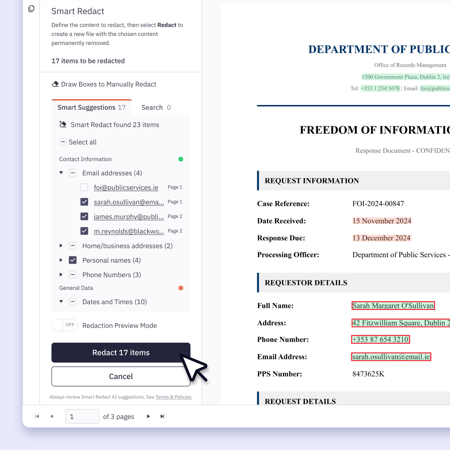
Organized, validated suggestions
Suggestions are automatically validated against strict confidence thresholds and grouped by category, ensuring your time is spent on reliable outputs, not false positives.
Manual control when needed
Search and redact specific terms, create Custom Terms to always flag or ignore repeated items, or use pixel-perfect drawing tools to permanently remove images, signatures, visual elements, or freeform text—capturing anything AI detection may miss.
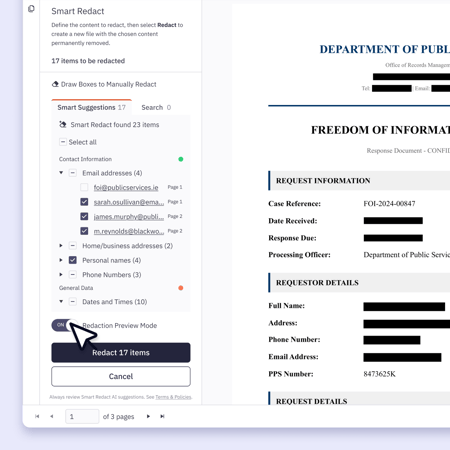
Preview redactions in
real time
Toggle preview mode to spot any gaps and check for quality before creating and publishing your fully redacted file.
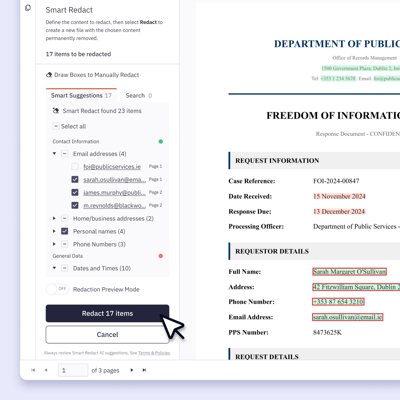
Organized, validated suggestions
Suggestions are automatically validated against strict confidence thresholds and grouped by category, ensuring your time is spent on reliable outputs, not false positives.
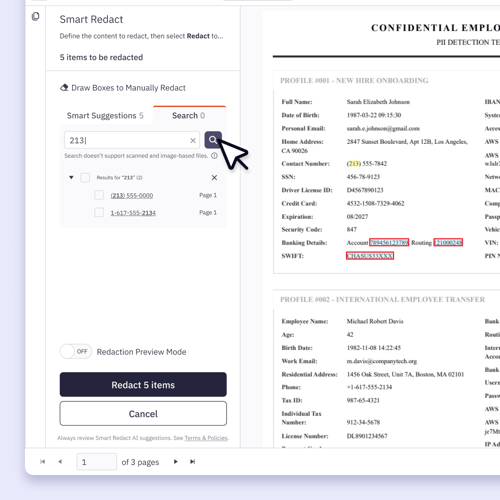
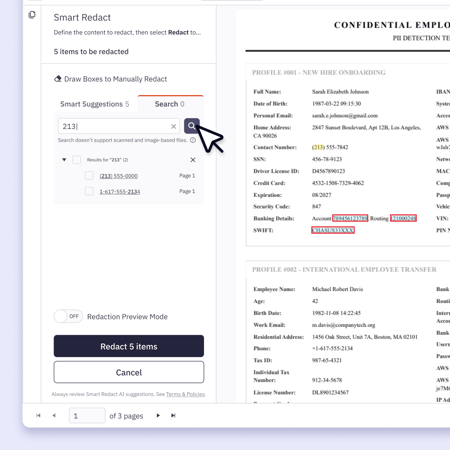
Manual control when needed
Search and redact specific terms across your document or use pixel-perfect drawing tools to permanently remove images, signatures, visual elements, or freeform text—capturing anything AI detection may miss.
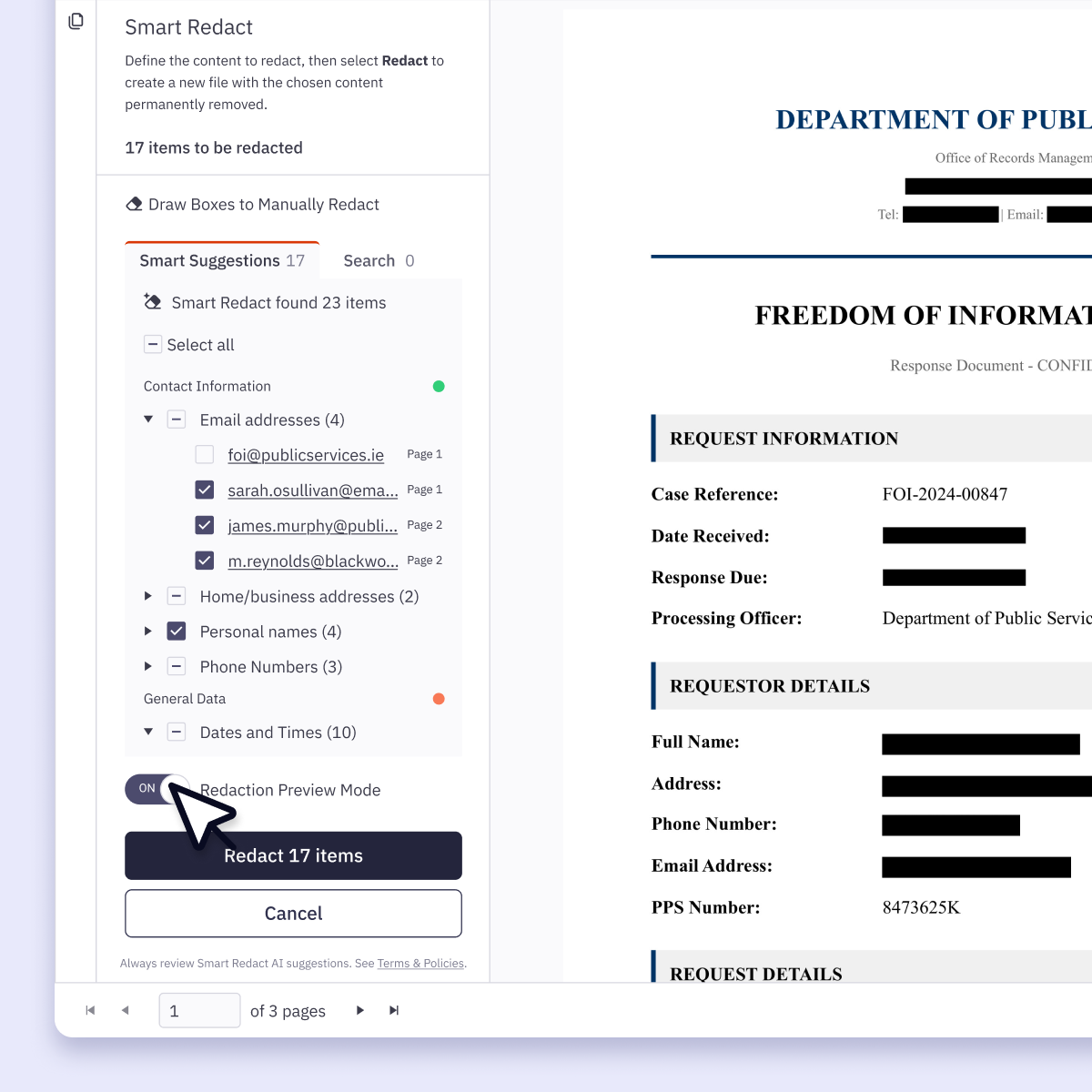
Preview redactions in real time
Toggle preview mode to spot any gaps and check for quality before creating and publishing your fully redacted file.
Built to meet the highest security standards
Certified to the highest global security standards, every file is encrypted, stored temporarily during redaction, and each redaction permanently strips all visible and hidden data.

Proven security and compliance
Nitro meets internationally recognized standards and certifications to protect your data and documents, including ISO 27001, SOC 2, HIPAA, and the EU–U.S. Data Privacy Framework.
Permanent, untraceable redactions
All documents are encrypted, stored temporarily during processing, and deleted once the task is complete. They are permanently stripped of all relevant metadata and scripts, rendering them completely unrecoverable.
Strict access controls
Secure processing ensures your data is never used for training generative AI. It is protected by encryption during transmission and storage with strictly controlled access.
Every regulated industry. Every redaction workflow.
Government

Healthcare

Insurance

Legal

What are the differences between Nitro's PDF plans?
Learn more about Nitro PDF Standard, Plus and Classic.
|
Nitro PDF Standard
Get Nitro PDF Standard
|
Nitro PDF Plus
Get Nitro PDF Plus
|
Nitro PDF Classic
Get Nitro PDF Classic
|
|
|---|---|---|---|
Top Features |
|||
| Interact with, create, edit & review PDFs on your Windows device | |||
| Interact with, create, edit & review PDFs on your Mac device | |||
| Interact with, create, edit & review PDFs on your iOS device | |||
| Edit text and images, reorder and delete pages in a PDF | |||
| Convert PDFs and export to Word, Excel and PowerPoint | |||
| Reassign licenses in the web-based Admin Console | |||
| Add security & password protect PDF files | |||
| Turn scanned documents into editable searchable PDFs | |||
| Compare two versions of a PDF to review all differences | |||
| Access advanced 24/7 tech support | 2+ users | 2+ users | |
| Access Nitro Analytics to understand PDF software usage, ROI, and sustainability savings | |||
| Automatically extract table & form data from PDFs with Nitro Table & Form Extract | |||
| Summarize, rewrite, and extract key data from your document with Nitro AI Document Assistant | |||
| Easily create, fill, sign, send, and store forms | |||
| Automatically create fillable forms with Nitro Automatic Form Creation | |||
| Enable single sign-on for users across the organization | |||
Interact with PDFs |
|||
| View, interact and comment on PDF content from your computer, mobile device or web browser | |||
| Track activity across desktop, mobile and web for documents sent for viewing & reviewing | |||
| Access, edit and store files in your Box, Dropbox, Google Drive and Microsoft OneDrive accounts | |||
| Compare two versions of a PDF to review all differences | |||
| Measure the distance, area and perimeter of objects in PDFs | |||
| Open PDFs are protected by Microsoft Information Protection solutions, including Azure Information Protection and Microsoft 365. | |||
Create PDFs |
|||
| Convert documents and images to PDF files | |||
| Create PDFs from any application that prints | |||
| Convert Microsoft Word, Excel or PowerPoint files to PDFs | |||
| Create, protect and send PDFs in popular Microsoft 365 apps for Windows | |||
| Combine multiple documents and file types into one PDF file | |||
| Convert web pages to interactive PDFs, complete with links | |||
| Prevent others from copying or editing information in PDFs | |||
| Create a password-protected PDF | |||
| Create and export PDFs on your mobile device | |||
| Use one-click creation of rich PDFs within Microsoft 365 | |||
| Turn scanned paper documents into instantly searchable and editable PDFs with fonts that match the original | |||
| Convert and validate PDFs for compliance with ISO standards like PDF/A | |||
| Convert to rich & plain text | |||
| Create and validate PDFs to meet accessibility standards for people with disabilities | |||
| Extract text and images | |||
| Integration with Office 365, Sharepoint 365, OneDrive for Business, Dropbox, Box, Google Drive | |||
| Copy and paste selected parts of a PDF file with formatting intact | |||
| Batch create PDF files | |||
| Create PDF from File Explorer context menu | |||
| Create PDF from Finder/iCloud | |||
| Create accessible documents, tag creation, embed fonts, voice over | |||
Edit & Review PDFs |
|||
| Edit PDF text and images with full-page paragraph reflow | |||
| Turn PDFs into editable Microsoft Word, Excel or PowerPoint files | |||
| Insert, delete and organise pages in a PDF | |||
| Convert PDFs to JPG, TIFF or PNG image formats | |||
| Split a PDF by extracting one or multiple pages | |||
| Add bookmarks, headers, numbering and watermarks | |||
| Add or edit text and images on your tablet and mobile phone | |||
| Reorder, delete or rotate PDF pages on your iOS tablet | |||
| Redact to permanently remove sensitive visible information in PDFs | |||
| Add audio to PDFs | |||
| Add Bates numbering to legal documents | |||
| Visual rotation of images and pages | |||
| Quicksign PDF documents | |||
| Work with certificate signatures | |||
| Add comments to PDFs with a full suite of commenting tools including text editing, highlighter, and sticky notes | |||
| Turn paper or Word docs into fillable PDF forms | |||
| Automatically optimize PDFs to reduce file size and customize settings | |||
| Enhance PDF forms by adding interactivity with JavaScript | |||
| Mark PDFs with stamps, such as “approved” or “draft” | |||
Support & Platform Benefits |
|||
| Additional compliant security (HIPAA, SOC2, GDPR) | |||
| Enable single sign-on for users across the organization | |||
| Access advanced 24/7 tech support | 2+ users | 2+ users | |
| Access support through the community forum & knowledge base | |||
| Access support through Nitro AI Knowledge Assistant | |||
| Customer success manager for white glove deployment & support | for eligible customers | for eligible customers | |
| Access Nitro Analytics to understand PDF software usage, ROI, and sustainability savings |
FAQs About Nitro PDF
What is Nitro PDF?
Nitro PDF is a full-featured PDF editor that enables you to create, edit, convert, sign, and secure PDF documents.
It is designed for individuals, small businesses, and enterprises as a cost-effective alternative to Adobe Acrobat, combining powerful functionality with an intuitive interface that works across devices.
Nitro PDF is available in three plan tiers: Standard, Plus and Classic.
How is Nitro PDF different from Adobe Acrobat?
Nitro PDF provides the same core editing, signing, and collaboration features as Adobe Acrobat but at a more affordable price point.
With transparent licensing, no hidden fees, and a simpler user experience, Nitro PDF is widely recognized as one of the strongest alternatives to Adobe Acrobat for both individuals and businesses.
Can I try Nitro PDF for free?
Does Nitro PDF support integrations with other business tools?
Yes. Nitro PDF integrates with software such as Microsoft Office suite, OneDrive, Dropbox, and other platforms.
These integrations simplify document workflows and make it easy to create, edit, and share PDFs directly within your existing environment.
What is Smart Redact in Nitro PDF?
How does Nitro Smart Redact keep my information secure?
Is Nitro PDF secure? Is it compliant with global regulations?
Is Nitro PDF available for both teams and individuals?
Yes. Nitro PDF is designed to support both individual users and organizations of any size.
Single users can access all the core editing, conversion, and signing features, while businesses benefit from advanced options like volume licensing, centralized deployment, and team collaboration tools.
This flexibility makes Nitro PDF a practical choice for freelancers, SMBs, and large enterprises alike.
Does Nitro PDF allow collaborative editing?
Absolutely. Nitro PDF enables teams to collaborate directly on documents with tools for commenting, annotating, and reviewing in real time.
Multiple users can share feedback, track changes, and resolve comments efficiently, ensuring smoother document workflows without relying on email back-and-forth or multiple file versions.
What kind of support does Nitro provide?
Nitro offers dedicated customer support, including onboarding, training, and troubleshooting resources, to ensure a smooth experience for your team.
We also offer resources such as our Knowledge Hub, Knowledge Assistant AI tool, and community forum.
Simple, transparent pricing that scales
Plans designed to scale with how you actually work, based on the number of people doing redaction and the volume of documents you're processing.