
What is Nitro Smart Redact?
Nitro Smart Redact is an AI-assisted redaction tool that helps identify and remove sensitive information from PDFs, including scanned documents and images. The tool combines automated PII (Personally Identifiable Information) detection with manual review options to create redacted documents.
How to Use Nitro Smart Redact
Access Nitro Smart Redact
-
Access the Nitro Workspace
-
Navigate to the Apps section and click on the Smart Redact tile
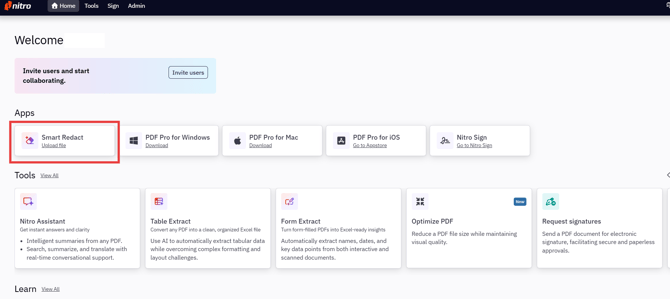
Note: 'Advanced Tools' must be enabled to use the Smart Redact feature.
Upload Your Document
Once you open Nitro Smart Redact:
-
Upload Options:
-
Drag and drop PDF, Office, and Image files into the upload area, or
-
Click "Upload a file" to browse and select from your computer
-
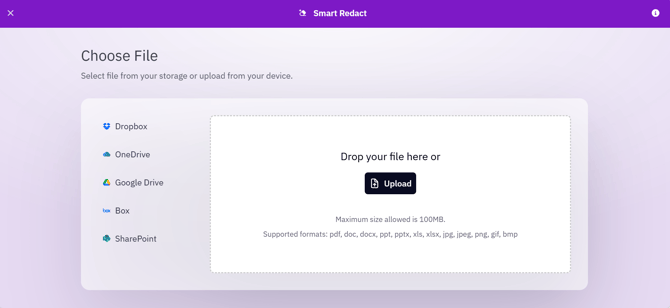
File supported:
-
-
Maximum file size: 1 GB or 2,500 pages
-
Supported format: PDF, Word, Excel, PowerPoint, JPG
-
Note: The dedicated OneDrive integration and Documents page are deprecated. You can still connect to OneDrive in the upload screen.
Review AI-Detected PII
After your document loads, Nitro Smart Redact automatically scans for PII, including text inside images and scanned content:
-
View detected items in the left sidebar
-
Review categories—items are organized by PII type (Names, Addresses, etc.)
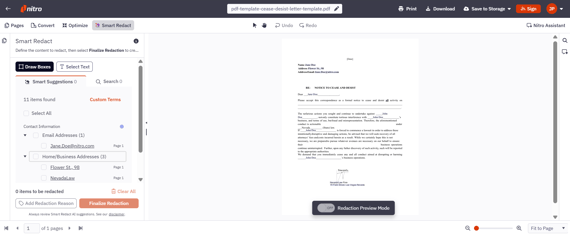
Note: Items are NOT selected by default.
-
Select items to redact by checking the boxes next to each item
-
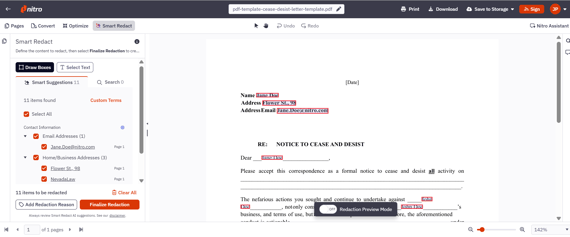
Click "Select all" to mark all detected items for redaction
Note: Click on the arrow next to each category to review individual redactions
-
Click on each PII item to scroll the document to where the PII suggestion was detected
-
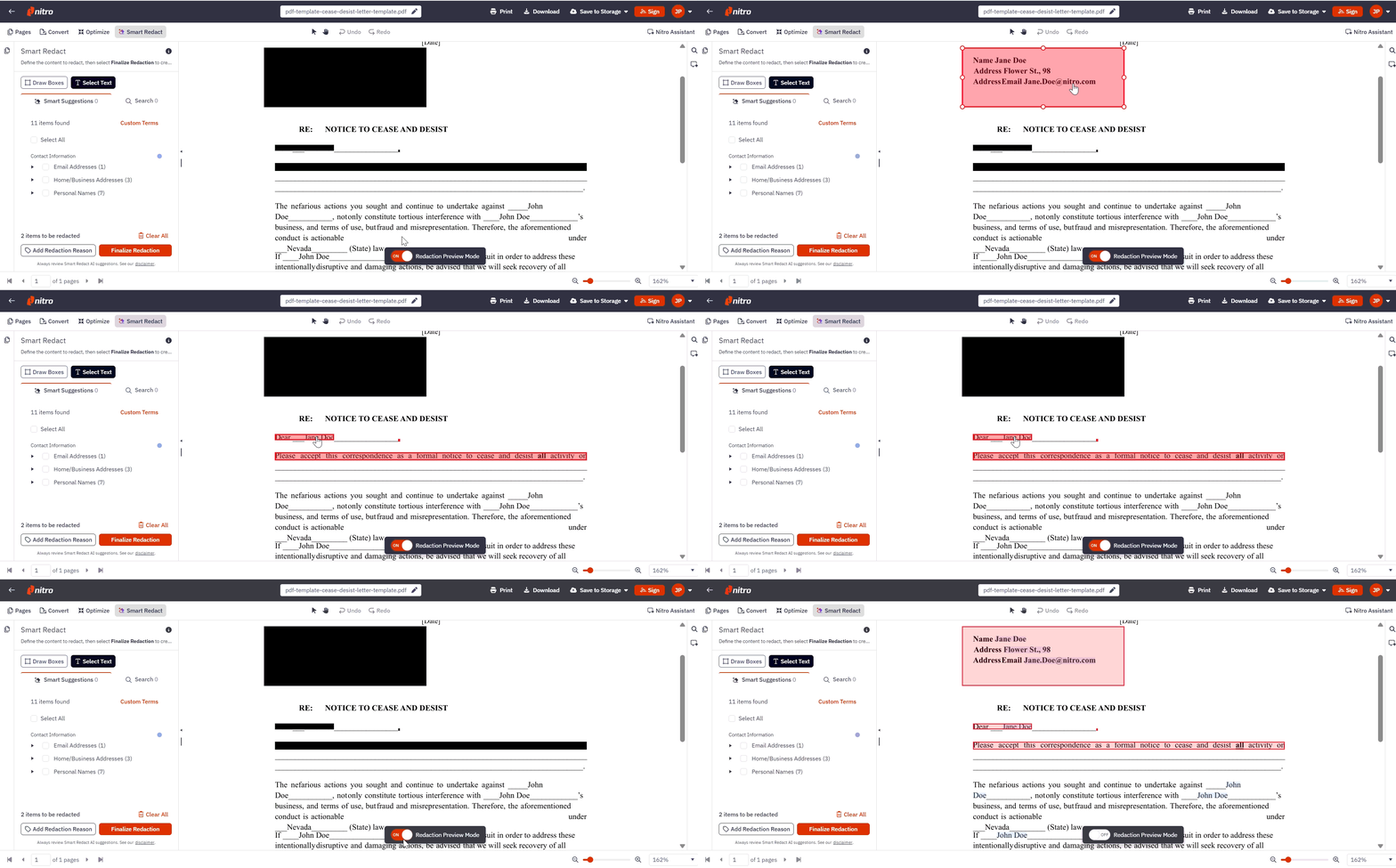
Redaction marks appear as red boxes around selected content in your document
Search & Redact
For specific terms that may not be automatically detected as PII:
-
Click the Search tab in the sidebar
-
Enter a search term (minimum 2 characters) and press Enter
-
All matching results appear in the sidebar and are highlighted in the document
-
Select results individually or click "Select all" to mark them for redaction
Tip: Clicking a result in the sidebar highlights the corresponding term in the document, making it easy to locate each match.
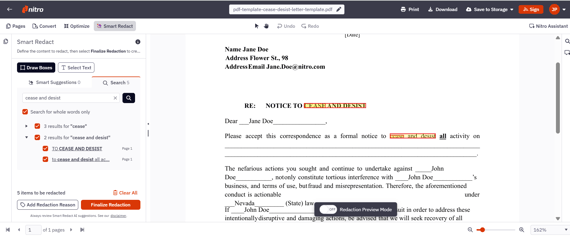
Note: Search & Redact searches both native text and text within images or scanned content (via OCR).
Add Manual Redactions
For other sensitive information or visual elements:
-
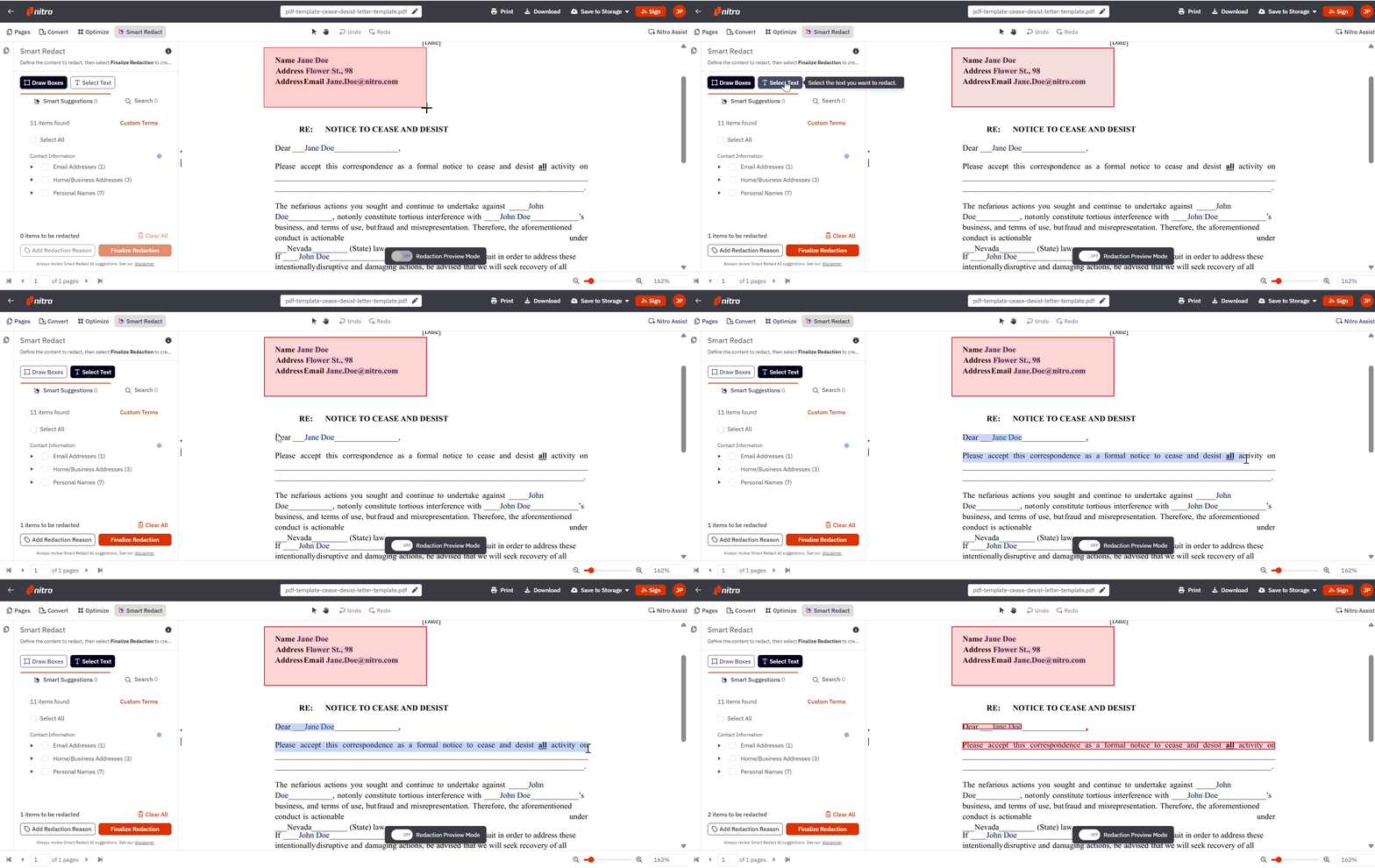
Select Draw boxes to draw redaction boxes, or select Select text to choose the text you want to redact:
· Draw boxes – Click and drag on the document to create a redaction box. Release to set the area. The manual redaction appears as a red box on the document.
· Select text – Click Select text, then highlight the text you want to redact. The selected text will be automatically marked for redaction.
Label Redactions with a Reason
Free text reasons are temporarily saved while the document is open and is not redacted. Once a file is close or redacted, the free text reasons are deleted from the list.
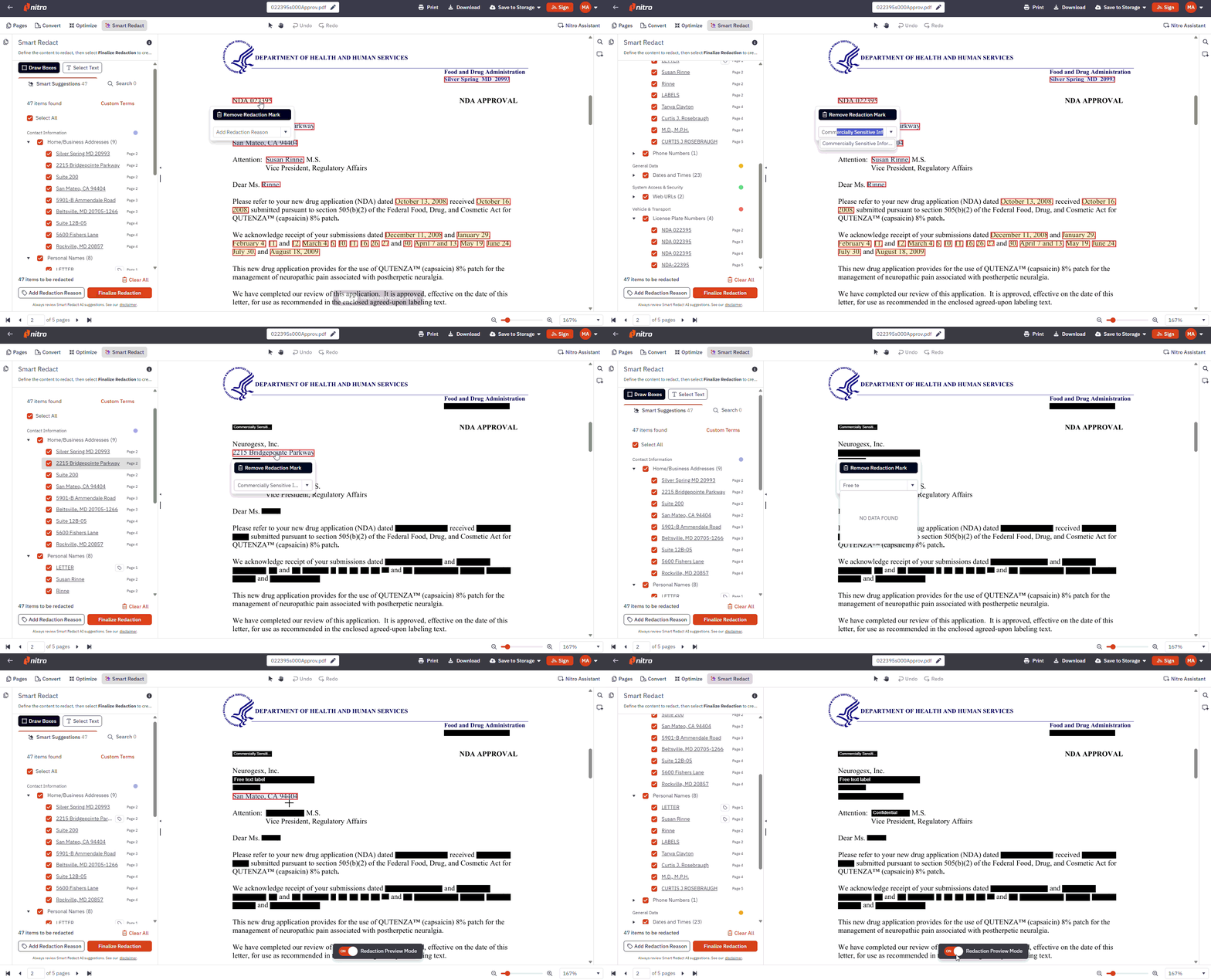
You can add a redaction reason in two ways: single labeling or bulk labeling.
To Single Label:
- Select one redaction mark
- Pick a reason from the predefined list, or type your free-text reason
- The redaction mark now displays the label
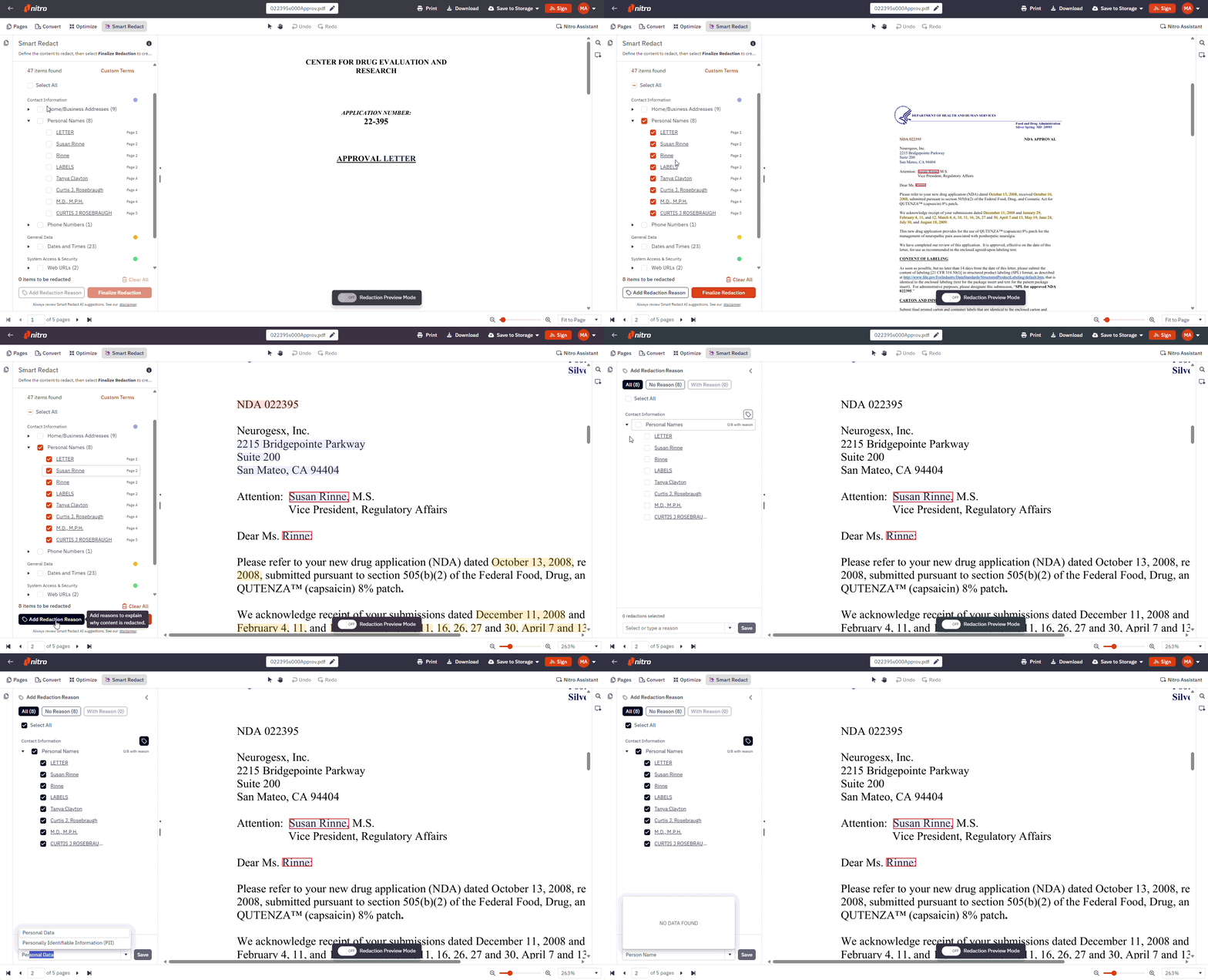
To Bulk label:
- Select the Add Redaction Reason button
- Select the items you want to label
- Pick a reason from the predefined list, or type your own free-text reason
- The redaction marks now display the label
Editing reasons: Reasons can be added, changed, or removed at any time before redactions are applied.
Predefined reason list
Free text reasons are temporarily saved while the document is open and is not redacted. Once a file is close or redacted, the free text reasons are ‘deleted’ from the list.
Note: Free text reason content is never sent to analytics. Only the event itself and the reason type (predefined or custom) are logged.
Redaction Preview
-
Turn on the 'Redaction preview'—All redaction marks change into black boxes. The user can hover the boxes to see what is underneath the content and delete redaction marks as needed.
Apply Redactions
When ready to redact:-
Click "Redact X items" button
-
Confirm the action by clicking in “Apply Redaction & Download“
-
Wait for processing to complete
Your redacted PDF will:
-
Automatically download to your device
-
Display in the reader for immediate review
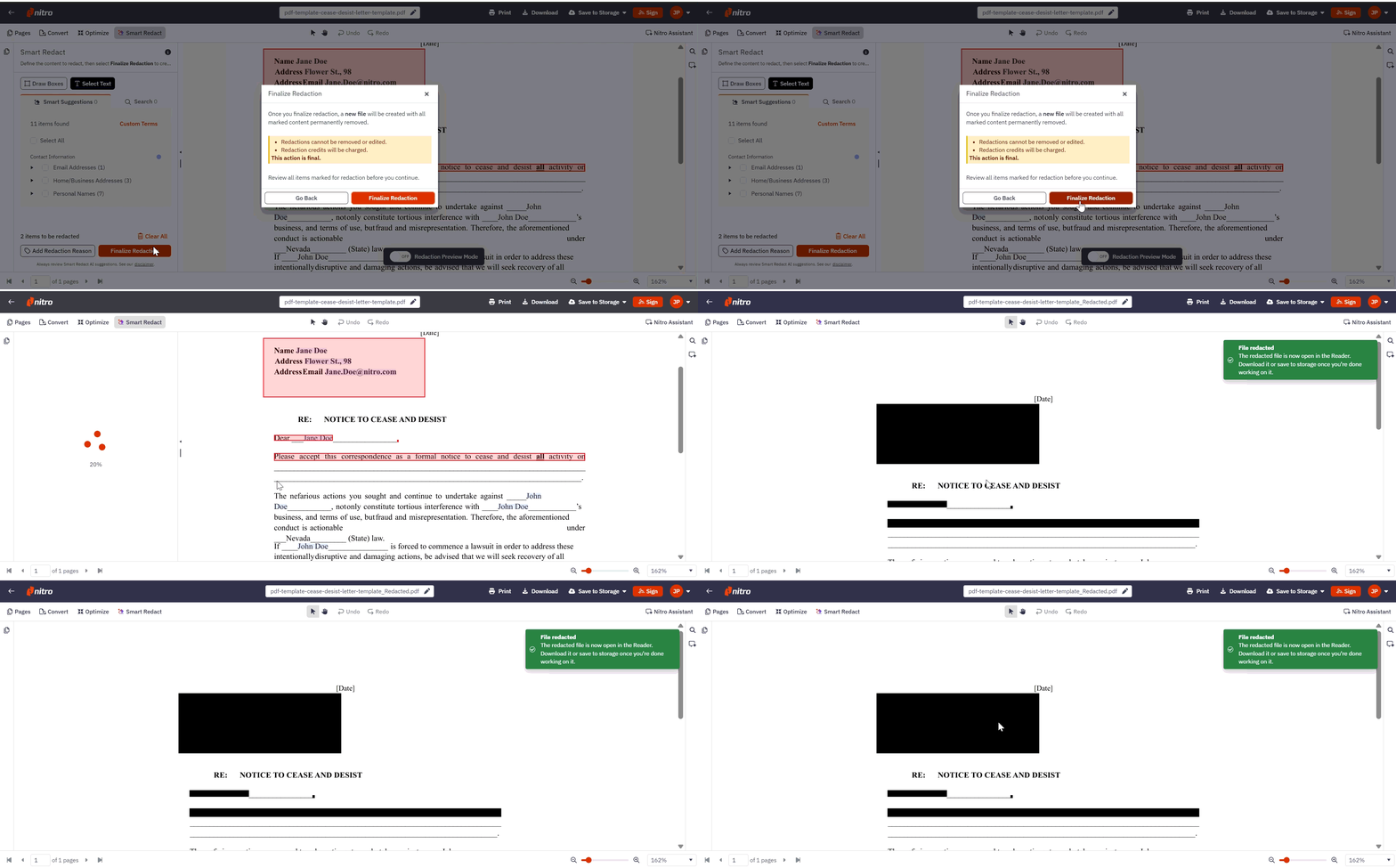
Note: Redaction is permanent. The original file remains unchanged, but the downloaded copy has all redacted content permanently removed.
What Gets Detected
Nitro Smart Redact identifies 30+ types of PII, including:-
OCR Support: Smart Redact automatically detects PII inside images within PDFs, including scanned documents, embedded screenshots, and handwritten content. No additional steps required.
-
Financial: Bank account numbers, routing numbers, IBAN, SWIFT codes, credit/debit card details, PINs
-
Government IDs: SSN, tax identification numbers, passport numbers, driver's licenses. Australian Identifiers* - Tax File Numbers (TFN), Australian Business Numbers (ABN), Australian Company Numbers (ACN)
-
Healthcare: NHS numbers, Canadian Health Numbers, Indian NREGA numbers
-
Contact Information: Names, addresses, phone numbers, emails, and age information
-
Digital Security: Usernames, passwords, IP addresses, MAC addresses, URLs, AWS keys
-
Other: Dates, times, vehicle information, license plates, VINs
Legal Disclaimers & Compliance
Important: This AI-assisted tool requires human verification and does not guarantee unsupervised anonymization.User Responsibilities
You remain solely responsible for:
-
Verifying all AI-detected items before applying redactions
-
Adding manual redactions for missed sensitive information
-
Ensuring compliance with applicable laws (GDPR, HIPAA, etc.)
-
Implementing appropriate review processes before document distribution
Best Practice
Always combine AI detection with thorough manual review, especially for regulated industries or sensitive documents.
By using Nitro Smart Redact, you acknowledge that this is an AI-assisted tool requiring human verification. Users accept full responsibility for ensuring proper redaction and regulatory compliance.