Best PDF Editors in 2025: Expert Reviews and Comparisons
What is a PDF editor?
A PDF editor is software that allows users to work with PDF, or Portable Document Format files.
This includes modifying text, images, layout, and structure without converting the document to another file format. Originally used for viewing and sharing documents, the PDF format has become the standard for contracts, reports, invoices, applications, and any document that needs to retain its structure across devices.
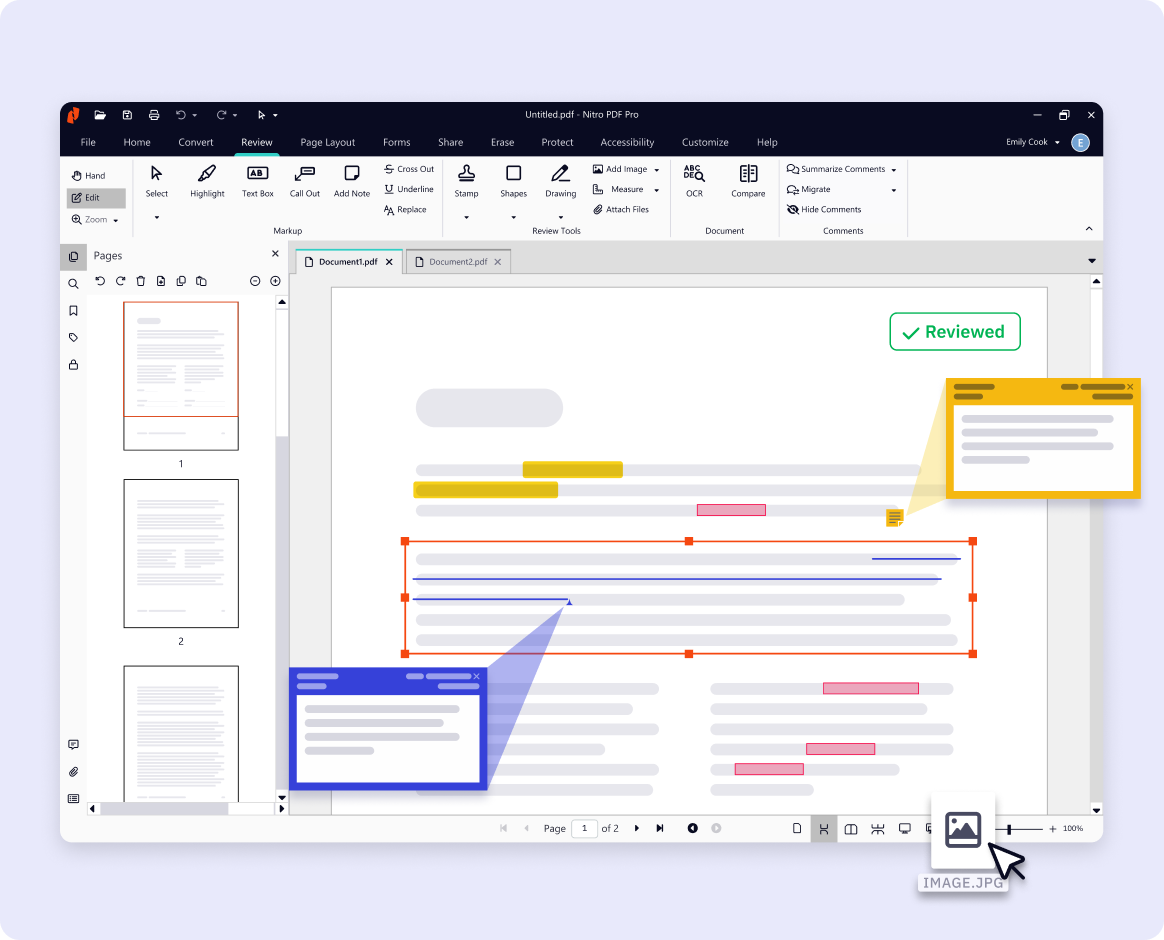
Modern PDF editors go far beyond basic viewing or editing. They include form creation tools, electronic signatures, AI capabilities like smart redaction, document encryption, collaborative commenting, and analytics features. Some offer integrations with everyday business tools and allow for seamless cross-platform access from desktop, web browser, or mobile devices.
The best PDF editors do more than just work: they accelerate workflows, enable compliance, reduce risk, and empower teams to move faster without sacrificing control.
A good PDF editor is not just a convenience, it’s a competitive advantage for any user or team. It reduces the time it takes to get documents signed, improves data security, and gives teams confidence that their processes are consistent and compliant.
This guide has been designed to help end users and IT teams have a comprehensive comparison of the top PDF editors available in 2025. It is based on hands-on experience, customer feedback, and evaluation across hundreds of use cases.
Table of contents
Why modern businesses rely on PDF editors
PDFs are the language of business: whether you are closing a deal, onboarding an employee, responding to an audit, or finalizing a vendor agreement, there is a high chance a PDF is involved. And once it enters your workflow, it needs to be editable, shareable, secure, and legally compliant.
Here are some reasons teams depend on PDF editors every day:
- Sales teams use them to generate proposals, collect signatures, and manage revisions.
- Legal teams rely on secure tools for redaction, version control, and audit trails.
- HR teams onboard employees with fillable forms and digital handbooks.
- Finance teams review statements, invoices, and contracts.
- IT teams need centralized tools for licensing, compliance, and data security.
- Design and marketing teams use them for collaborative feedback on visual assets.
Without the right PDF editor, users revert to inefficient workflows. They convert files back and forth, email versions around, print and scan documents, and expose sensitive data in the process.
The right PDF editor eliminates those steps. It gives users the power to make changes instantly, send documents securely, collect legally binding signatures, and automate repetitive tasks. It also gives IT administrators visibility into usage and control over access and compliance settings.
According to Nitro’s internal benchmarking, businesses can save over six hours per user each week with a consolidated PDF & eSign solution. Those savings add up fast when scaled across departments or global teams.
How we evaluated the top PDF editors
To create a fair and comprehensive comparison, we evaluated each PDF editor based on ten core criteria. These are the capabilities most requested by our customers, and they reflect the needs of small businesses, large enterprises, and everything in between.
- Editing and annotation tools
- Form creation and eSigning capabilities
- Security and compliance standards
- Admin and deployment controls
- Cross-platform availability
- User experience and accessibility
- Integrations with business software
- Licensing flexibility and scalability
- Customer support and onboarding
- Product roadmap and responsiveness
Each product was tested in real workflows including contract redlining, internal reviews, form creation, and multi-party signature collection.
We also evaluated platform performance, documentation quality, ease of deployment, and how well the solution fits into broader document and content ecosystems.
Feature comparison: what to look for in a PDF editor
Not all PDF editors serve the same purpose. Some focus on basic viewing and markup. Others are full platforms built for security-heavy, compliance-driven document management.
Here is a high-level breakdown of the capabilities you should expect from a modern PDF editor.
- Edit text and images within the PDF file
- Add or remove pages, merge files, rearrange content
- Annotate, highlight, and comment for collaboration
- AI-assisted features like smart redaction
- Create fillable forms and automate data capture
- Track changes or document history
- Secure documents with encryption, passwords, and redaction
- Integrate with Microsoft 365, Google Workspace, Salesforce, or other tools
- Centralize license and user management for IT teams
- Deploy across desktop, browser, and mobile devices
Any tool that cannot meet these standards will limit your efficiency, compromise your compliance posture, or increase your total cost of ownership.
Compare the best PDF editors at a glance
Tool |
Best For |
Key Strengths |
Key Limitations or Contextual Gaps |
|
Nitro PDF |
Enterprise-grade PDF editing with control |
Complete PDF + eSign suite, powerful admin portal, built-in AI (Smart Redact for automated PII removal) |
Supports mobile editing on iOS only |
|
Adobe Acrobat Pro |
Creative workflows and full-feature sets |
Deep features, Adobe ecosystem |
Complexity, cost, and channel challenges |
|
Foxit PDF Editor |
Cost-conscious individual and small teams |
Lightweight, fast, flexible licensing |
Not optimized for complex enterprise scenarios |
|
PDFelement |
Budget small and mid-sized businesses |
Affordable, OCR support |
Missing admin and enterprise workflow features |
|
Smallpdf |
Simple browser-based edits |
Easy, lightweight |
Not scalable for business or team use |
|
Kofax Power PDF |
Highly secure offline environments |
Redaction tools, no internet needed |
Outdated usability and collaboration limitations |
|
PDF‑XChange Editor |
Technical, power-user workflows |
Precise controls and markup |
Steep learning curve and limited cloud functionality |
|
PDF Expert |
Solo macOS users |
Native macOS interface, very elegant |
No cross-platform support or team management features |
|
Soda PDF |
Basic editing needs across devices |
Desktop + web access |
Lacks integration depth and UI consistency |
|
Sejda PDF |
Freelance or low-volume users |
Clean interface, free tier |
Doesn’t support enterprise or compliance features |
What are the top PDF editors in 2025?
Below is an in-depth look at the leading PDF editors this year. Each review covers strengths, weaknesses, and use case fit.
Nitro PDF
Nitro PDF is a secure, scalable PDF and eSigning platform designed for modern teams. It combines editing, collaboration, and analytics into one intuitive interface, with AI capabilities for improved productivity and streamlined workflows.
It is particularly well-suited for teams that need visibility and control without sacrificing usability.
Nitro PDF: Strengths
- Advanced editing, annotation, and redaction tools
- Native eSigning built in, not added on
- Admin portal for license control, provisioning, and analytics
- Works across desktop and browser
- Compliant with ISO 27001, SOC 2 Type II, and GDPR
- Strong integrations with Microsoft 365, Google Workspace, Salesforce
- Transparent pricing and flexible licensing options
- Highly rated customer support and ease of use, especially valued by SMBs and channel partners
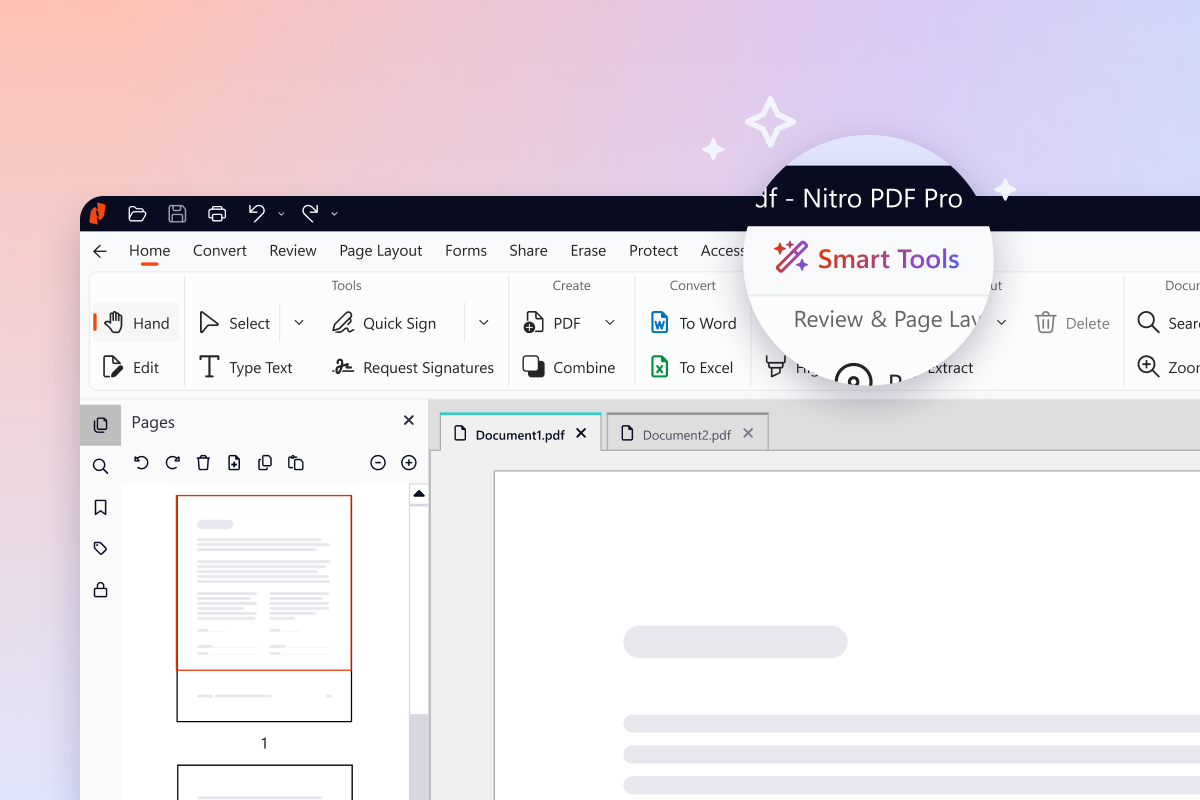
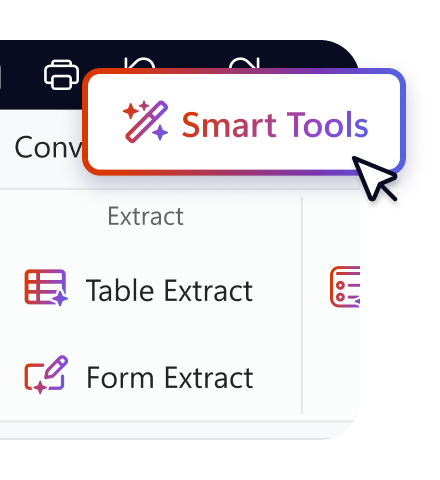
- Built-in AI tools for summarization, form creation, and data extraction
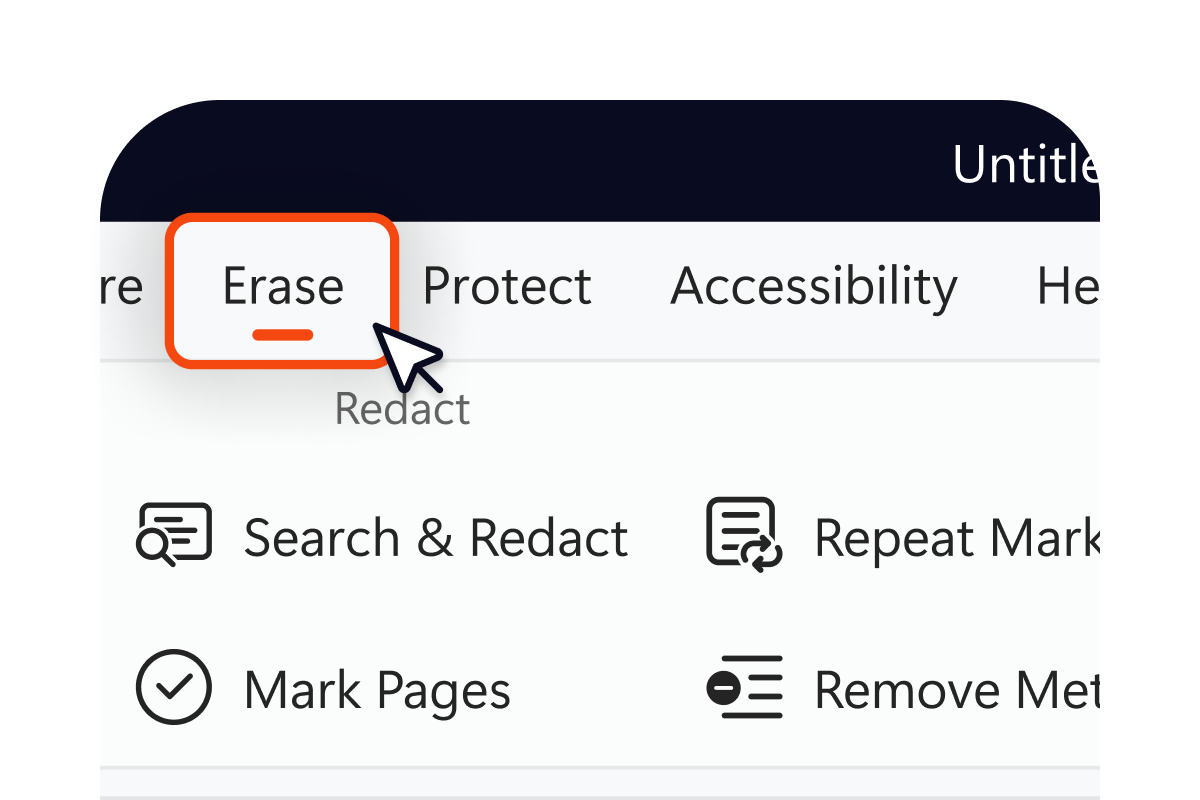
- Smart Redact, an AI-assisted redaction that automatically detects 30+ types of PII and permanently removes visible and hidden data
Nitro PDF: Weaknesses
- No native Android editing app
- Fewer pre-built integrations compared to Adobe
Verdict: Nitro is ideal for teams that want simplicity without compromise. It is used by thousands of organizations worldwide, including governments, universities, and banks. It is built to serve users, admins, and executives alike. Its usability, responsive support, and transparent pricing make it a strong alternative to complex or high-cost legacy tools. However, organizations with strict regional data residency requirements or those needing highly specialized integrations may need to validate fit.
Start Your Free 14-Day Trial of Nitro PDF Today
Adobe Acrobat Pro
Adobe invented the PDF format, but the tool hasn’t kept up with the way modern teams work. It’s heavy, hard to navigate, and often includes features most users don’t need. For creative professionals, it still offers real value. But for legal, HR, sales, or operations teams, the ROI isn’t always there.
Adobe Acrobat Pro: Strengths
- Deep feature set for editing and markup
- Seamless integration with Adobe Creative Cloud
- Familiar interface for design teams
Adobe Acrobat Pro: Weaknesses
- High pricing tiers for advanced features
- Complexity that overwhelms non-technical users
- License management challenges in large deployments
Verdict: Acrobat is a fit for creative professionals and teams already invested in the Adobe ecosystem. For operations, legal, or finance teams, the value proposition is harder to justify.
Foxit PDF Editor
Foxit positions itself as the lightweight alternative to Adobe, and in some ways, it delivers. It’s fast and affordable. But it struggles when scaled across large organizations. Admin features are limited, and its UX feels behind competitors. For users who just need basic editing, it works, but for workflows involving signing, analytics, or collaboration, Foxit falls short.
Foxit: Strengths
- Fast desktop performance
- Affordable pricing options
- Available as perpetual or subscription license
Foxit: Weaknesses
- Interface feels dated
- Limited browser support
- Weak admin and analytics capabilities
Verdict: Foxit is best for individuals or small teams that need fast performance without cloud collaboration features. It is not ideal for enterprises.
PDFelement
Wondershare’s PDFelement provides advanced editing at a budget-friendly price. It targets SMBs and individual users.
PDFelement: Strengths
- Powerful editing and OCR
- One-time license options
- Clean desktop experience
PDFelement: Weaknesses
- Overcrowded interface
- Few integrations
- Not optimized for teams or workflows
Verdict: PDFelement works well for users who need occasional heavy editing, but lacks the collaboration and admin depth needed by larger organizations.
Smallpdf
Smallpdf is a browser-based tool for quick edits, conversions, or signatures. It is simple and fast but not built for scale.
Smallpdf: Strengths
- Easy to use
- Good for occasional tasks
- Web-based and lightweight
Smallpdf: Weaknesses
- Very limited editing and form capabilities
- No admin portal or user management
- Not suitable for teams
Verdict: Perfect for students or casual users. Not viable for most businesses.
Kofax Power PDF
Power PDF, formerly from Nuance, is now owned by Kofax. It focuses on security and compliance for regulated industries.
Power PDF: Strengths
- Strong redaction and document security tools
- Perpetual licensing available
- No internet connection required for full functionality
Power PDF: Weaknesses
- Interface feels outdated
- Deployment and support are complex
- Not built for collaboration
Verdict: Best for security-focused environments like law firms or government agencies. Not recommended for general business use.
PDF-XChange Editor
PDF-XChange is popular in engineering and design circles. It is packed with technical features but comes with a learning curve.
PDF-Xchange: Strengths
- Precise markup and measurement tools
- Lightweight and customizable
PDF-Xchange: Weaknesses
- Steep learning curve
- Lacks modern UI and UX
- No native cloud support
Verdict: Great for technical use cases. Less useful for daily document workflows or large teams.
PDF Expert
PDF Expert is a beautifully designed editor built specifically for macOS. It is a favorite among Apple users.
PDF Expert: Strengths
- Native macOS interface
- Excellent for reading and annotating
PDF Expert: Weaknesses
- No Windows or browser support
- No admin or team functionality
Verdict: Ideal for solo Mac users. Not an option for cross-platform or enterprise needs.
Soda PDF
Soda PDF has gained traction as a mid-tier editor with both browser and desktop modes.
Soda PDF: Strengths
- Accessible from any device
- Decent feature set for basic users
Soda PDF: Weaknesses
- Lacks depth for power users
- Few integrations
- UI inconsistency
Verdict: Soda PDF is suitable for budget-conscious users with basic editing needs.
Sejda PDF
Sejda is a web-based PDF tool that appeals to individual users and freelancers.
Sejda PDF: Strengths
- Clean interface
- Free tier available for low-volume users
Sejda PDF: Weaknesses
- Cannot scale to teams
- No compliance or admin tools
Verdict: Sejda is a helpful side tool but not a full document solution.
Honorable mentions
A few PDF editors did not make the top ten but are worth mentioning for specific use cases:
- PDFfiller: Strong in form workflows, particularly in education and small legal teams.
- DocHub: A simple Google-integrated tool for schools and nonprofits.
- iLovePDF: Great for quick conversions and mobile-first users.
These tools are helpful in limited or specialized use cases but are not comprehensive enough to be used as a business-wide PDF solution.
Key features to prioritize when choosing the best PDF editor
-
Ease of use
A PDF editor should be fast to learn and easy to navigate. If users cannot onboard themselves quickly, adoption will suffer. -
Security and compliance
Look for support for digital certificates, audit trails, redaction, and compliance with regulations like GDPR, HIPAA, or CCPA. -
Integrated eSigning
Avoid piecing together multiple tools. Native eSigning accelerates approvals, reduces risk, and ensures data consistency. -
Admin controls and visibility
IT teams need tools to provision licenses, monitor usage, and enforce security settings. A centralized admin portal is essential. -
AI capabilities
Look for tools that offer intelligent features such as document summarization, form and data extraction, and automated redaction of sensitive information. -
Real-time collaboration
If your team works remotely or across time zones, you need version control, shared commenting, and cloud syncing. -
Transparent pricing
Avoid tools that lock key features behind hidden pricing tiers or require complicated negotiations just to get started. -
Cross-platform access
Choose a solution that works across Windows, macOS, and browsers. Bonus points for mobile compatibility.
7 steps to choosing the best PDF solution editor for your business
A step-by-step approach to selecting the right PDF software:
- Identify key workflows: Document your core use cases. Are you editing contracts, collecting signatures, reviewing design assets, or creating templates?
- Engage stakeholders: Talk to end users, IT, legal, and procurement to align on requirements.
- Shortlist tools based on criteria: Use the ten-point framework shared earlier to compare options side by side.
- Request demos and trials: Hands-on testing is essential. Simulate real workflows with real users.
- Evaluate total cost of ownership: Include pricing, training, deployment, and long-term scalability.
- Consider the vendor relationship: Will they listen to feedback? Do they provide onboarding help? Is there a clear product roadmap?
- Roll out in phases: Start with a pilot group before scaling to full deployment.
By approaching your selection methodically, you can avoid overbuying, under-utilizing, or choosing a tool PDF editor that creates more problems than it solves.
What are industry use cases for the best PDF editors?
PDF Editor Use Cases: Legal
- Redaction
- Case file management
- Electronic signatures with audit trails
- Long-term digital storage
- Financial services
- Statement review
- Tax form processing
- Regulatory compliance
- Secure sharing with external clients

PDF Editor Use Cases: Government
- Public form management
- Digital records compliance
- Inter-agency collaboration
- High-security document handling

PDF Editor Use Cases: Healthcare
- Patient intake forms
- HIPAA-compliant storage
- Secure signature collection
- Integration with EMR systems

PDF Editor Use Cases: Education
- Student onboarding
- Grade reports and transcripts
- Annotated feedback
- Accessible formats for different learners

PDF Editor Use Cases: Real Estate
- Proposal and bid reviews
- Floorplan markups
- Contract signing
- Change order tracking

Why Nitro PDF is the best choice for a fully-featured PDF editor
With Nitro PDF, we focus on simplicity, security, and scalability.
The platform includes editing, signing, form creation, and analytics, all under one roof. It works in the browser or on the desktop, integrates with the tools your team already uses, and provides the admin controls your IT team expects.
This is why teams around the world choose Nitro:
- More features per dollar than legacy tools
- Fast onboarding and intuitive workflows
- Full visibility for IT and procurement
- Compliance with global standards
- Built-in eSigning without third-party contracts
- A roadmap that reflects customer feedback
- Transparent pricing at every level
- Friendly, fast support
Nitro is trusted by 67 percent of the Fortune 500, but we’ve also built it for small businesses, growing teams, and anyone who is tired of doing document work the hard way.
Nitro PDF gives your team the tools to work faster, more securely, and with total control.
FAQs about choosing the best PDF editor
What is a PDF editor?
A PDF editor is a software application or online tool that allows you to make changes to Portable Document Format (PDF) files.
Instead of just viewing PDFs, an editor lets you modify text, images, pages, and other elements directly within the document.
Why do I need a PDF editor for my business?
Businesses use PDF editors to efficiently manage and update documents, streamline workflows, and reduce reliance on printing or external design services.
They are essential for tasks like updating contracts, creating fillable forms, redacting sensitive information, and collaborating on reports.
What are the main benefits of using a PDF editor?
What types of changes can I make with a PDF editor?
With a PDF editor, you can edit text, add or remove images, rearrange pages, merge multiple PDF files, split documents, annotate, highlight, add comments, fill out forms, and even convert PDFs to other formats like Word, Excel, or PowerPoint.
Are PDF editors secure?
Can I use a PDF editor on any device?
What should I look for when choosing the best PDF editor?
Is a free PDF editor good enough for business use?
How does a PDF editor improve document collaboration?
Can PDF editors help my business go paperless?
Try Nitro's powerful PDF editor today
Start your 14-day free trial. No credit card required, no features locked.