/Card-Page%20Previews-AI.png?width=1200&height=800&name=Card-Page%20Previews-AI.png)

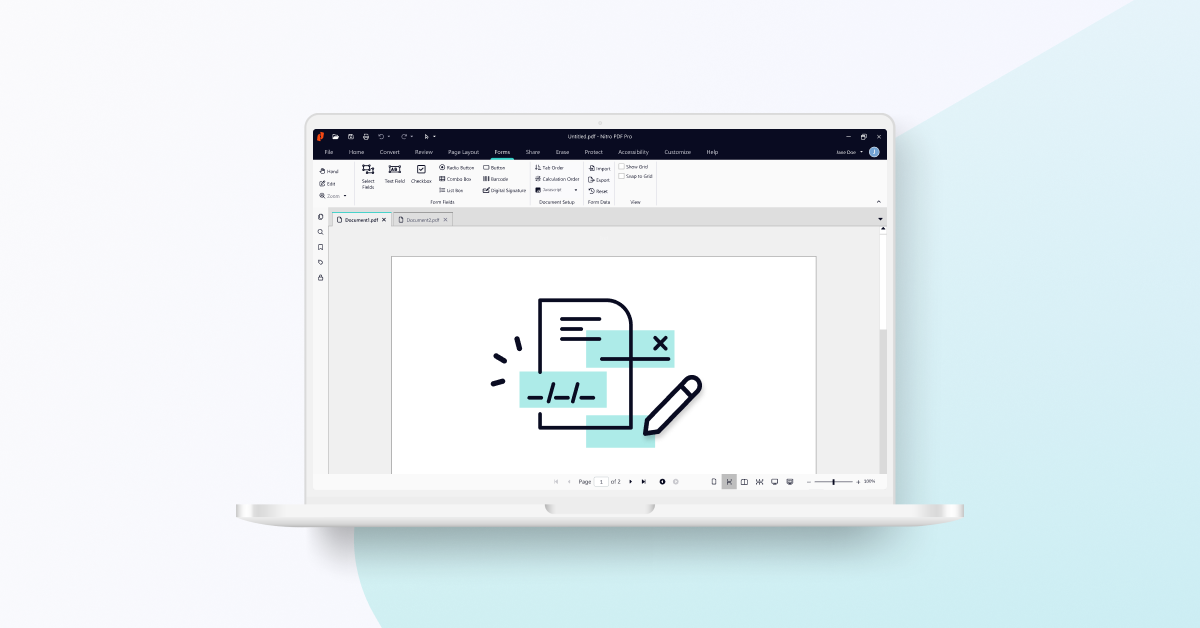
An interactive PDF form is a fillable document with active fields that let users enter data, select options, and sign electronically. To build one in Nitro PDF, open the Forms tab and add fields such as Text Field, Combo Box, Button, or Digital Signature, then customize each field's appearance, formatting, and validation rules through its Properties panel.
Interactive forms improve the user experience, reduce data entry errors with real-time validation, and automate data collection for businesses.
1. What is an interactive PDF form and how does it work?
2. Are interactive forms better than standard, static forms?
3. How do I create an interactive form from scratch?
4. Can I customize my interactive PDF form for branding and specific wokflows?
5. How can I validate my form to ensure accurate data collection?
1. What is an interactive PDF form?
An interactive PDF form is an electronically fillable document that contains active form fields, allowing users to:
- Input data directly into the document
- Select predefined choices with checkboxes, radio buttons, or dropdown menus
- Execute actions such as submitting or signing the form electronically
By automating data capture, interactive PDFs eliminate the need for printing, scanning, and manual data entry, saving time and reducing errors.
Interactive forms are widely used across multiple industries for a variety of documents, including:
- Healthcare: Patient intake forms, medical history updates
- Finance & HR: Purchase orders, expense reports, employee surveys, tax forms
- E-commerce: Invoices, receipts, order forms
- Real Estate: Rental applications, lease agreements
2. Are interactive forms better than static forms?
Yes, interactive PDF forms offer numerous advantages over static (or paper) forms by enhancing the user experience, improving data quality, and streamlining business processes. Key benefits include:
| Benefit | Impact on User/Business |
| Improved Navigation | Users can quickly navigate fields and complete forms faster, reducing abandonment rates. |
| Error Reduction | Real-time validation provides instant feedback, preventing missing data or incorrect formats. |
| Customization | Fields and dynamic elements (like digital signature boxes) can be precisely personalized to organizational needs. |
| Process Automation | Forms can automatically perform calculations and basic data analysis, saving time. |
| Accessibility | Interactive fields can be built with accessibility features, making them inclusive for all users. |
3. How do I create an interactive PDF form from scratch?
You can transform a standard PDF into an interactive form by adding custom form fields directly onto the document canvas using software like Nitro PDF Pro.
To add a form field in Nitro PDF Pro, follow these steps:
- Open your document in Nitro PDF Pro.
- Click the Forms tab.
- Select the Form Field you wish to apply to the document. Some commonly used fields available in Nitro PDF include:
Text Field: type text directly within the field
Combo Box: choose a single response from a drop-down menu
Button: perform actions such as clicking a hyperlink or navigating to a page
Digital Signature: apply an electronic signature to the form - Click and drag the cursor over the PDF to apply the field to the document.
Watch the video on how to create form fields with Nitro.
4. Can I customize my interactive PDF form for branding and specific workflows?
Yes, interactive forms are highly customizable, allowing you to control the appearance, formatting, validation rules, and automated actions of every form field. You can access all customization settings by right-clicking the field and selecting Properties.
- Right-click your field.
- Select Properties. Here you can adjust different parts of the field such as the appearance and format of the text under the following tabs:
- General: Adjust common properties such as name, visibility and orientation.
- Appearance: Edit the font, size and color of the text, field and border.
- Options: Change the alignment and wrap options of the text.
- Format: Manage the value of the text such as percentage, time and date.
- Validate: Specify the range the value must be in or other text qualifications.
- Calculate: Set the resulting value of the field from a calculation of others.
- Actions: Add an action as a result of a trigger on the field.
.png?width=1000&height=606&name=Blog%20-%20Inline%20-%20full%20width%20-%20Screenshot%20-%20Field%20Properties%20(Appearance).png)
5. How can I validate my PDF form to ensure accurate data collection?
In addition to validation rules (see Step 4), you can validate a PDF form using a secure eSignature tool like Nitro's QuickSign to authenticate the document signer. Adding a digital signature acts as a final validation step, confirming the user's identity and commitment to the form's contents.
- On the Tools panel, click the arrow under the QuickSign button.
- Select Create New Signature.
- From the dialog, click Handwritten and type your name into the Name field.
- Click Ok to create your QuickSign signature stamp.
- Click to place your signature onto the page.
For further information on adding an electronic signature to your PDF, visit our user guide.