/Card-Page%20Previews-AI.png?width=1200&height=800&name=Card-Page%20Previews-AI.png)

Electronic signatures (eSignatures) are legally binding digital methods for signing documents that eliminate the need for printing, manual signing, and scanning. With eSignatures, you can sign contracts, forms, or agreements digitally in minutes by typing, drawing, or uploading your signature and securely placing it anywhere in your document.
Learning how to add eSignatures using Nitro Pro’s powerful QuickSign tool helps you keep workflows efficient, save time, and maintain document security. Follow this step-by-step guide to get started.How To Sign Documents in Nitro PDF Pro
1. Open your document in Nitro PDF Pro.
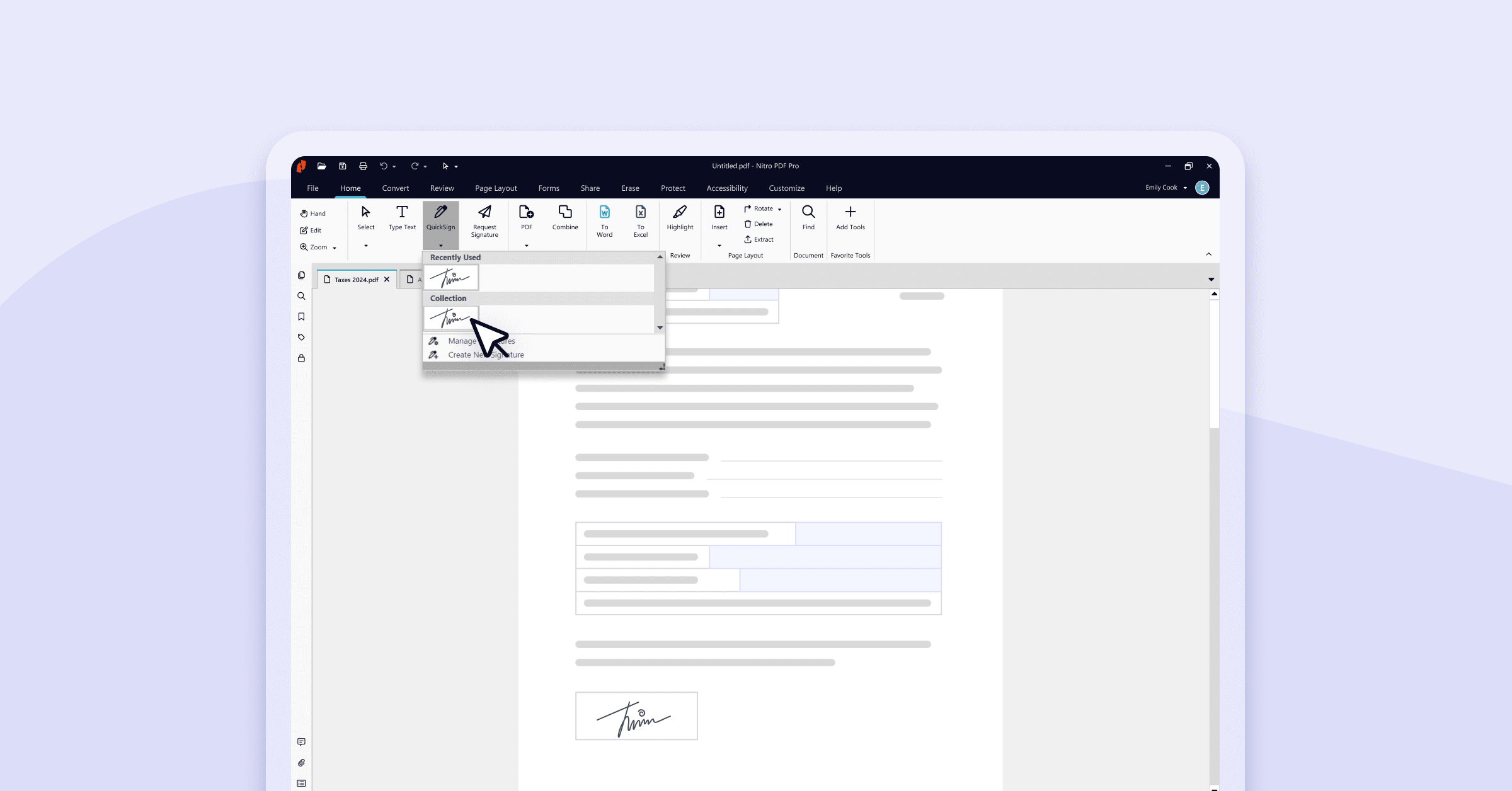
2. On the main Home tab choose the QuickSign option and select Create New Signature.
3. Choose from one of the four secure signing methods:
| Method | Description | Primary Input |
| Handwritten | Type your name; Nitro converts it into a cursive font signature. | Keyboard |
| From File | Upload an image file (e.g., PNG, JPG) of your wet signature. | Image Upload |
| Draw | Use a mouse or touchpad to directly draw your signature. | Mouse/Touchpad |
| Webcam | Capture an image of a signature written on a blank white piece of paper. | Camera |
4. Click Ok, navigate to the section where you want to place your signature and left click. You can resize the signature by dragging and dropping the squares on the box.
5. Your signature can be easily accessed again via the QuickSign menu.
Watch this quick tutorial video to see it in action:
How to add multiple signers with Nitro Sign
Need to send your document to other recipients for signing? Just follow these steps:
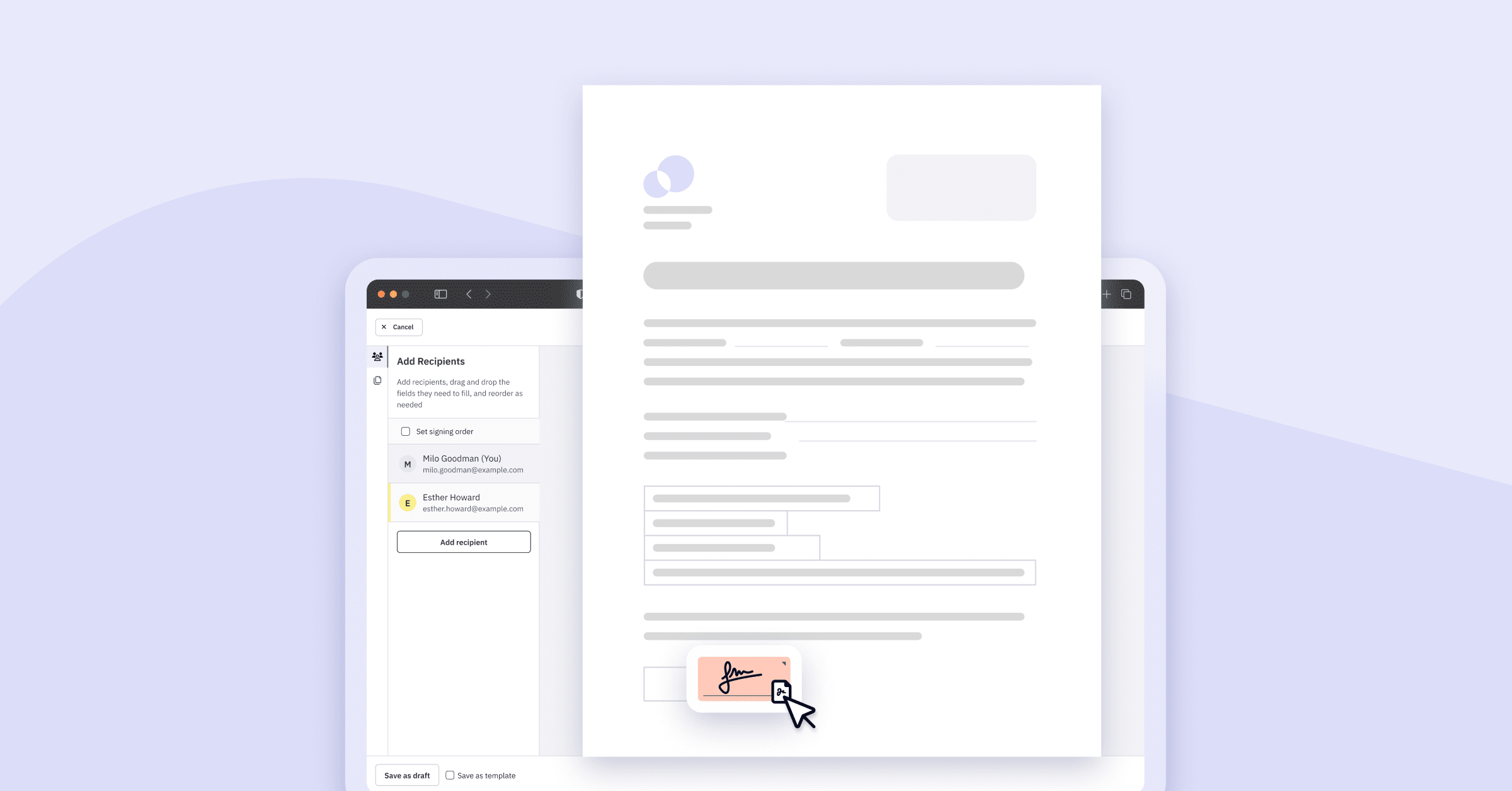
- On the Home menu choose the Request Signature option.
- You’ll be prompted to open Nitro Sign.
- Once signed in, a pop-up asking to Add a Recipient will appear.
- Enter the recipient's Name (optional) and Email (required) and select Add.
- If you would like to add more than one signer to the signature request, click Add Recipient in the Signers panel and enter the details.
- You can also edit or remove a recipient by clicking the Quick Actions menu button next to the recipient in the Signers panel and selecting the appropriate action from the dropdown.
- To add signature fields to the document, click on a recipient in the Signers panel, then drag and drop the required field(s) to the appropriate position(s) on the document.
- Once placed, click Continue in the bottom right corner.
- You’ll now have the option to review the document and recipients and customize the signature request email. Here you can also cc additional recipients who will get view-only access to the document and a notification when signing is complete.
- Click Request Signature to send the document out for signature.
Note: You can create a New Message Template that will appear in the email for the signature request. This can be set as the new default or added to your list of message layouts to select from in the future:
- Click on Layouts
- Click New Message Layout
- Adjust the message template and click Save
If you’d like to add an extra layer of security to your signing, Nitro Sign for Enterprises allows you to password protect your signature.
eSign digital documents anytime, anywhere with Nitro PDF
New to eSigning? Download our free 14-day trial today with no credit card required or subscribe to Nitro to unlock the full power of anytime, anywhere eSigning.
Need support? Check out our Support Center for more help and tutorials.