


/Card-Page%20Previews-AI.png?width=1200&height=800&name=Card-Page%20Previews-AI.png)

Welcome to Nitro!
We're thrilled to have you onboard and excited to help you unlock the value of Nitro.
We know a smooth setup is key, so we've compiled all the essential onboarding materials you'll need for a successful implementation right here on this page. Our 24/7/365 support team is also just a click away to answer any questions you might have along the way. We're here to help you succeed.
Let's get started!


PDF Pro for Windows
PDF Pro for Mac
PDF Pro for iOS

Nitro Sign
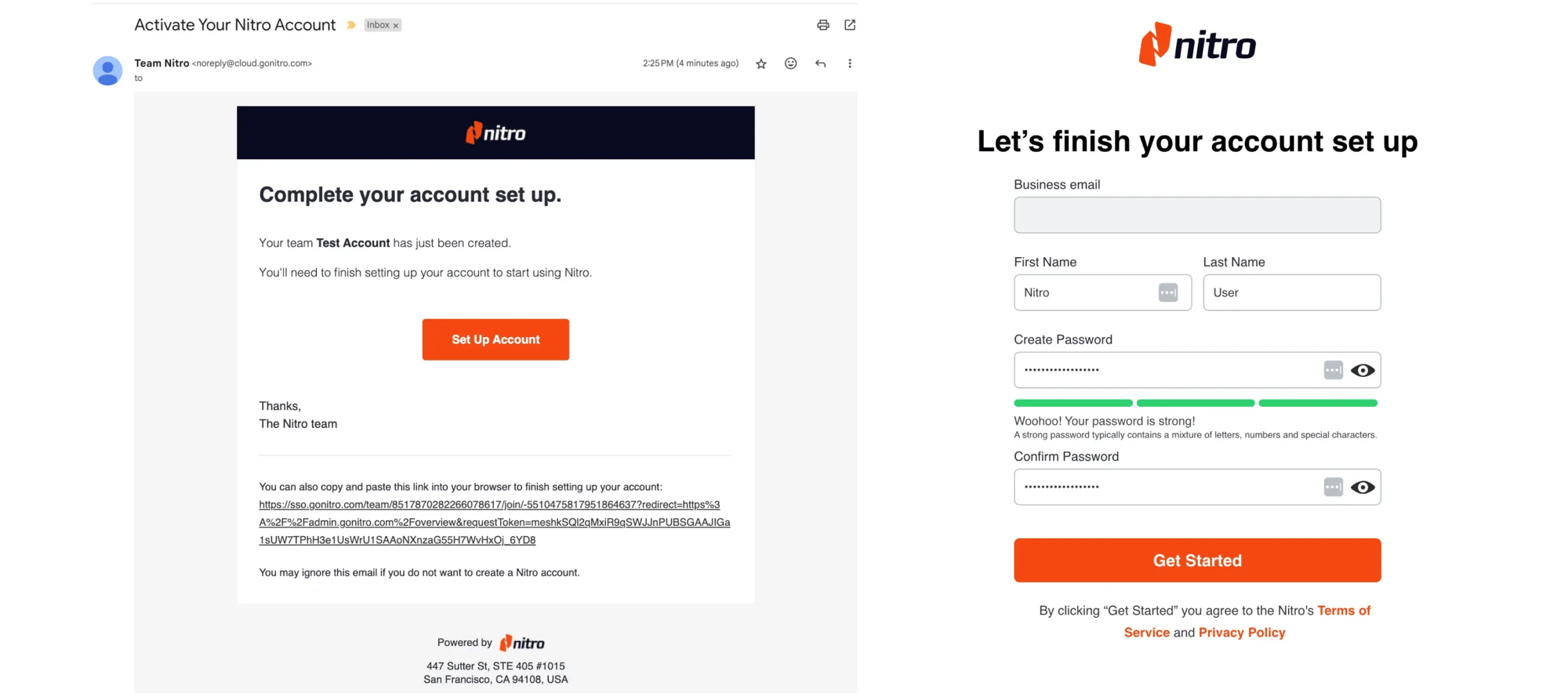
Managing your Nitro Team Account
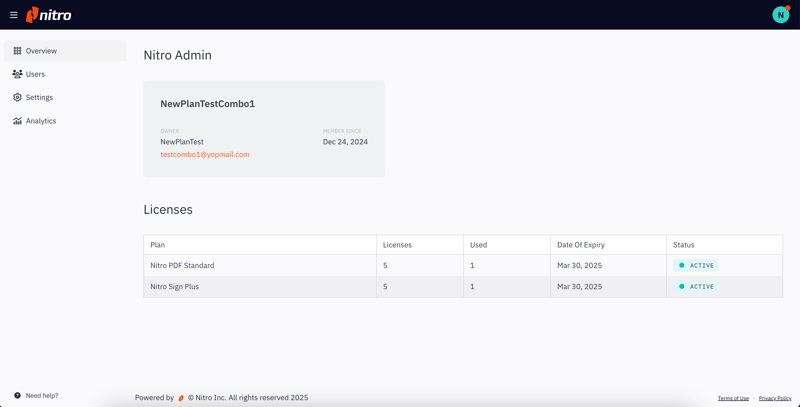
After creating the Team Account, your Nitro Admin can invite additional users to join and activate their license. There are two options for inviting users to the Team Account: manually or via single sign-on (SSO).
Inviting users and assigning licenses
Inviting individual users:
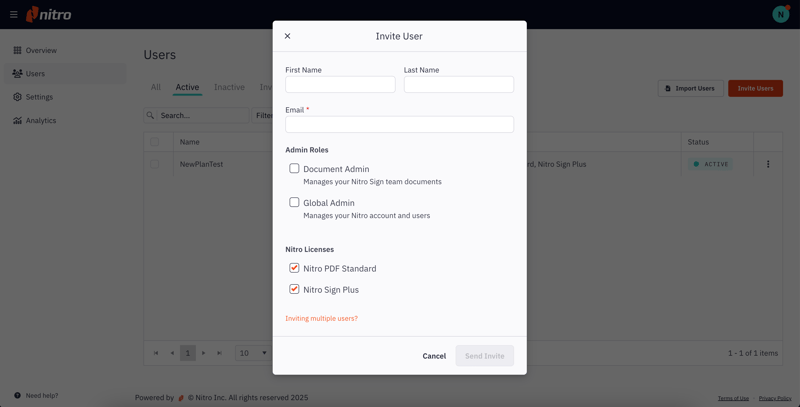
1. Invite individual users (one at a time), or invite multiple users simultaneously by uploading a .CSV file.2. Your Nitro Admin should log in to the Nitro Admin Portal and select Users from the left-hand menu, then select Invite Users.
4. Optional: If you would like to assign Administrator privileges, select the appropriate Admin Roles.
- Global Admin: Ability to invite, suspend, and delete users from the Team Account.
- Document Admin: Ability to add Team documents and templates that can be accessed by all members of the Team Account.
5. All active Nitro licenses will be selected by default for the user. However, you can unselect any licenses that should not be assigned to the invited user. The available license options depend on your Nitro subscription type.
6. Click Send Invite, which triggers an invite to users to create their Nitro Account and activate their license by verifying their email address and creating a password.
7. Once the user activates their Nitro Account, they can access Nitro PDF Pro for Windows/Mac/iOS or Nitro Sign depending on which plans have been assigned to them.
Adding Users via SSO:
Single sign-on (SSO) is included with a Nitro PDF Plus subscription or is available as an add-on. SSO allows users to access Nitro products by authenticating through your Identity Provider (IdP). Nitro supports SSO with any SAML 2.0-compliant IDP.
Set up SAML SSO:
-
Login to the Nitro Admin Portal.
-
Select Settings in the left navigation pane, and navigate to the Single Sign-On tab.
-
Click the Setup SAML SSO button.
- For detailed instructions for setting up, enabling, and testing SSO, view the user guide.
For a video overview, please view our Quick Start Guide:
About AI at Nitro
Nitro provides several AI tools to help users complete common document tasks faster. These tasks include extracting data from tables and asking questions about document content.
As an admin, you control access to these tools. You can enable or disable them at any time in the Nitro Admin Portal. Your changes apply immediately to all users in your Nitro Team account.
There are three categories of Nitro AI tools:
- Smart Tools: Tools that apply AI models to intelligently process and automate document workflows, including table extraction and data extraction – no content is generated.
- Generative AI Tools: Tools that enable you to ask questions, summarize, and interact with document content. These tools are powered by Azure Open AI and hosted in a secure environment controlled by Nitro.
- Knowledge Assistant: Nitro's AI chat tool that provides answers to questions about how to use Nitro products.
Nitro designs AI tools to be efficient, secure, and ethical. Nitro does not use customer data to train AI models or share customer data with third parties. AI models process data only for the tasks you request. For full details, please see Nitro’s AI policy.
How to Enable/Disable Nitro AI Tools
- Log in to the Nitro Admin Portal.
- Select Settings in the left-hand navigation menu.
- Click on the Preferences tab.
- Under AI & Cloud Services Preferences, check the boxes for the tools you would like to enable, or uncheck to disable.
- Smart Tools: Check Enable Smart Tools to enable the following tools:
- Table Extract: Extract table data from PDF documents into a spreadsheet.
- Form Extract: Extract form data from PDF documents into a spreadsheet.
- Auto Form Creation: Automatically turn static documents into fillable forms.
- Smart Redact: Identify and remove sensitive information from PDFs with automated PII detection.
- Generative AI Tools: Check Enable Generative AI Tools to enable the following tools:
- Document Assistant: Generate quick summaries of your document’s content and obtain detailed answers to specific questions about the content.
- Auto Field Detection (Nitro Sign): Scan documents to automatically detect recipients and fields for signing or filling. [Both Smart Tools and Generative AI Tools must be checked to enable Auto Field Detection.]
- Knowledge Assistant: Check Enable Knowledge Assistant to enable Nitro’s AI chat tool that provides users with quick answers about Nitro products.
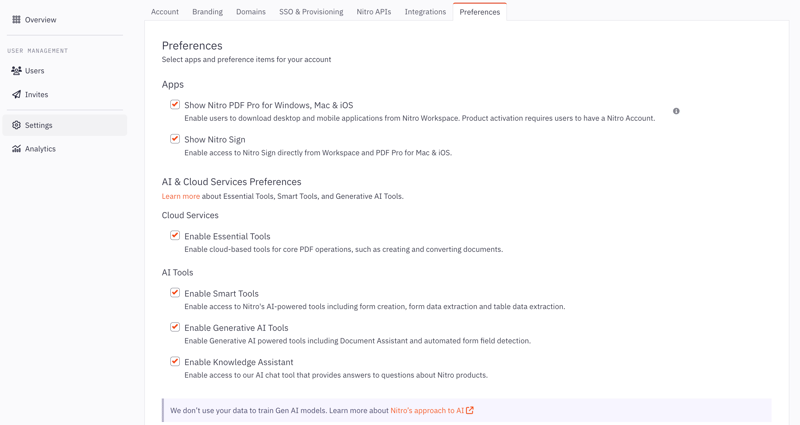
Changes are saved automatically and will be applied to all users within your Nitro Team Account.
Important notes:
- Enabling AI tools in the Nitro Admin Portal determines whether these tools are available within your organization.
- Individual users can only access AI tools if they are signed in to a named Nitro Account and have an active Nitro license assigned.
- Users who do not have a named user account will not see or be able to use AI features, even when AI tools are enabled in the Admin Portal.

Online learning center

Submit a support ticket

Data protection
.png?width=128&height=128&name=EN%20-%20Email%20-%20Icon%20(Security%20Improvements).png)