
Use Nitro PDF Pro to add headers and footers to one or more pages in a PDF. You can insert text, images, or PDF content and control their position, size, and opacity. You can also save, import, and export header and footer profiles for reuse.
Common uses include:
- Headers: document title, chapter names, date
- Footers: page numbers, date, time
- Dynamic content: page numbers, author, document title
To manage header and footer profiles:
- On the Page Layout tab, in the Page Marks group, click the arrow under Header & Footer, and select Manage Headers & Footers
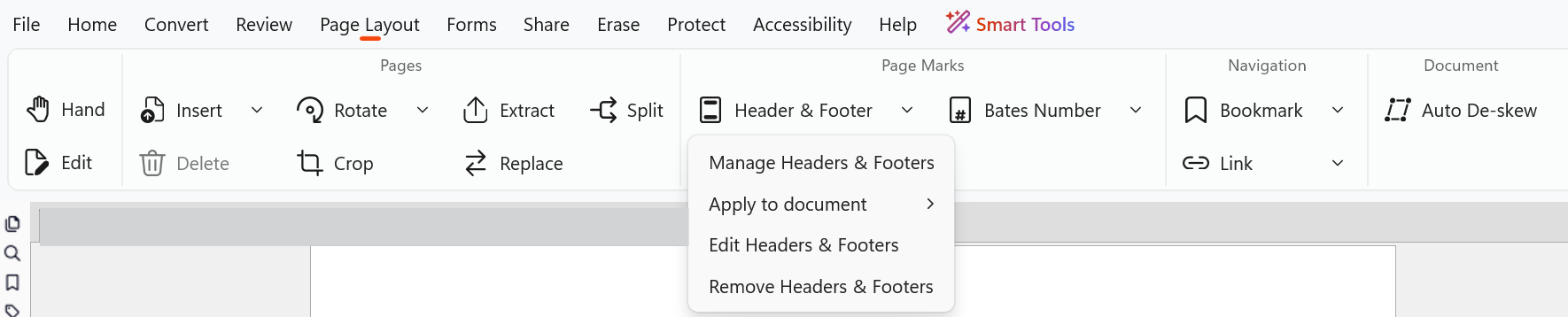
- The Manage Headers & Footers dialog opens
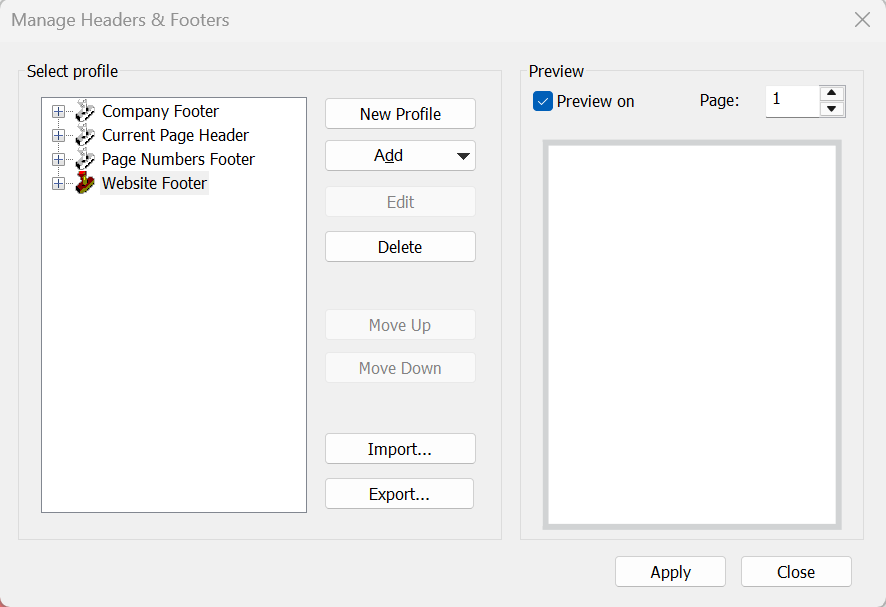
- In Select profile, view available profiles
- Expand a profile to view all headers and footers
To manage profiles:
- Rename: Double-click a profile name and enter a new name
- Create: Click New Profile, then enter a name
- Delete: Select a profile and click Delete
To apply a header or footer profile:
- In the Manage Headers & Footers dialog, select a profile
- Click Apply
To add a header or footer to a profile:
- On the Page Layout tab, in the Page Marks group, click the arrow under Header & Footer, and select Manage Headers & Footers
- Select a profile, then click Add
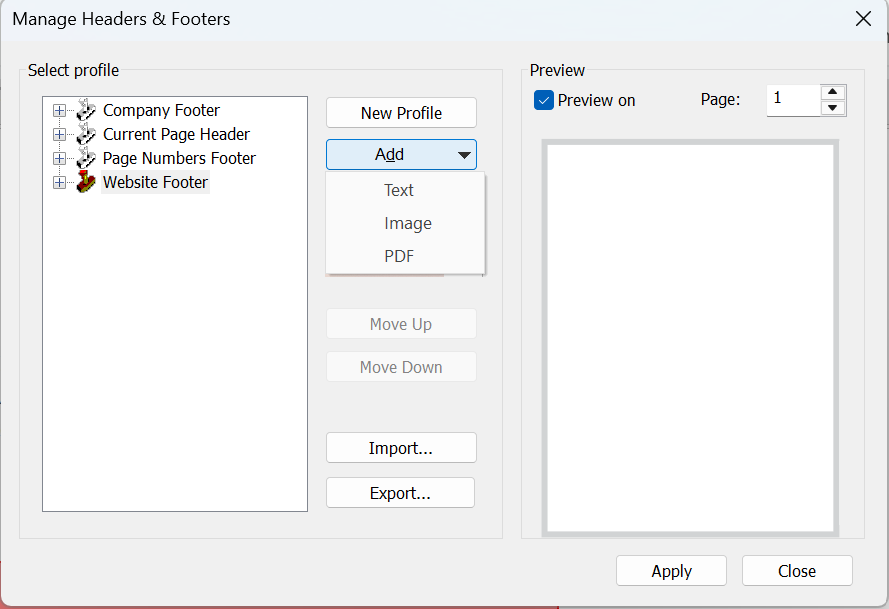
- Select a content type:
- Text
- Image
- Configure properties:
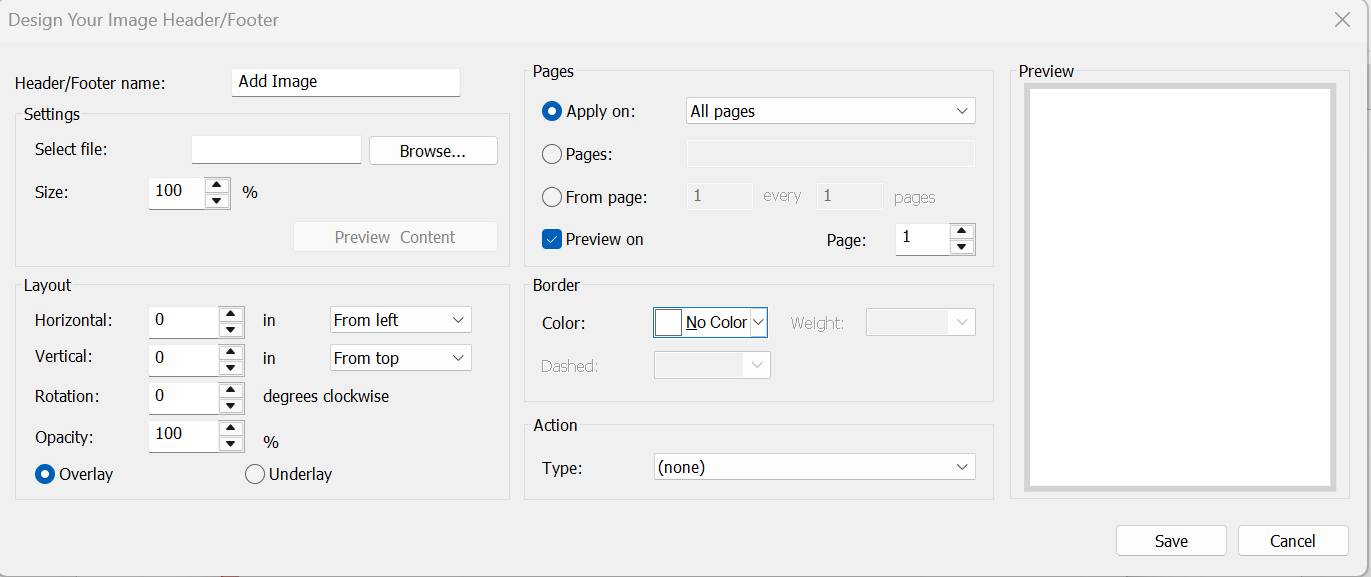
- Enter a name
- Select overlay or underlay
- Set position, color, and other options
- Click Save
Note: A profile can contain multiple headers and footers
To import or export a profile:
- Open the Manage Headers & Footers dialog
- Do one of the following:
- Click Export, then save the profile as a .nxp file
- Click Import, then select a .nxp file
To apply a header or footer from the ribbon:
- On the Page Layout tab, in the Page Marks group, click the arrow under Header & Footer, and select Apply to Document
- Select a profile
To remove headers and footers:
- On the Page Layout tab, in the Page Marks group, click the arrow under Header & Footer, and select Remove Headers & Footers
- Click OK to confirm
To create automatic page links:
Use Nitro PDF Pro to convert numbers on a page into clickable links that navigate to corresponding pages.
- On the Page Layout tab, in the Navigation group, click the arrow under Link, and click Auto Page Links
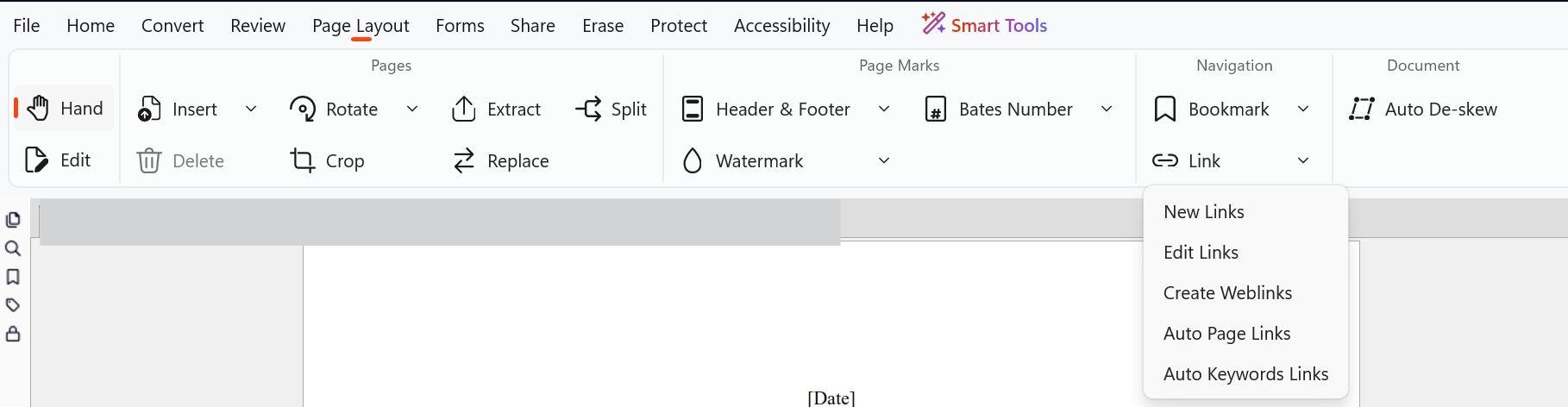
- Select the scan area:
- Drag to select a page area, or
- Select Range and enter page numbers
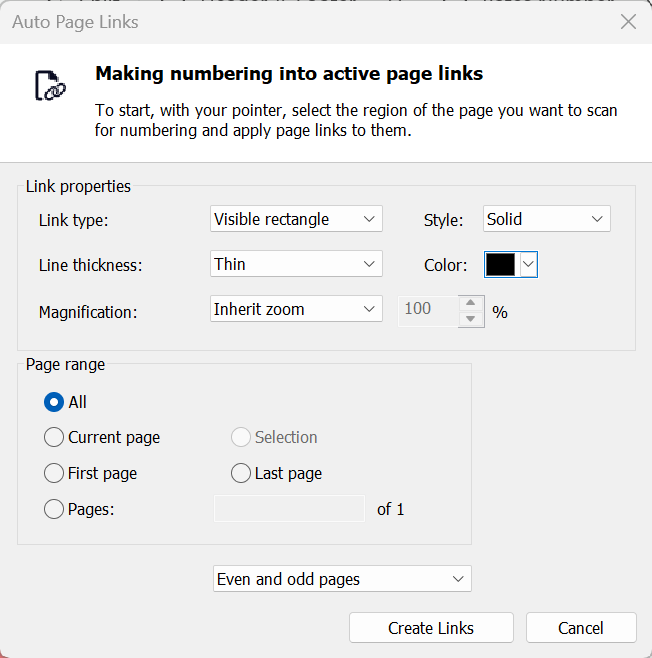
- Set link appearance options
- Click Create Links