
Font properties depend on how a PDF was created, and they can affect how you can edit text. PDFs that use subset fonts can cause problems when editing. Font embedding helps ensure the PDF displays correctly on screen and in print. To edit text in a specific font, that font must be installed on your system.
View Font Information
List All Fonts in a PDF
- Press Ctrl + D
- Or right-click the document and click Document Properties
- Click the Fonts tab
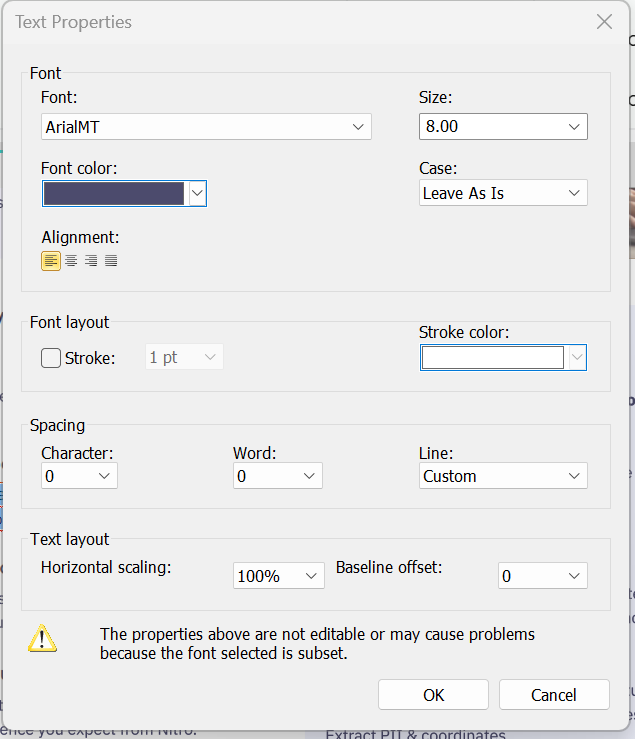
View Font Properties for Selected Text
- Click Edit
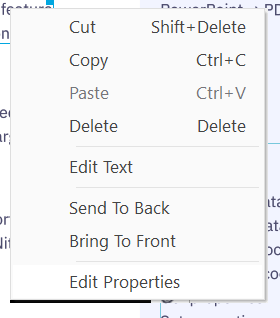
- Right-click the text
- Click Edit Properties
- View the font information in the Text Properties window
Font Embedding Types
PDF files use three types of font embedding:
No Embedding
- Fonts are not stored in the PDF
- File size is smaller
- The PDF can display differently if fonts are not available on the system
- Common fonts (for example, Times New Roman, Arial, Courier) usually display correctly
Subset Embedding
- Only the used characters are stored in the PDF
- File size is smaller than full embedding
- You cannot add characters that are not included in the subset
- This option preserves the original appearance
Full Embedding
- The entire font is stored in the PDF
- File size is larger
- All characters are available for editing
- This option is best for editing text
For more information, visit our Embedding Fonts user guide.