/Card-Page%20Previews-AI.png?width=1200&height=800&name=Card-Page%20Previews-AI.png)


PDFs are central to how businesses share, sign, and store information, but managing them efficiently on a Mac can be more complex than it should be. Whether you're reviewing contracts, filling out forms, collaborating on reports, or securing sensitive data, knowing how to get more from your Mac's built-in capabilities and supporting tools can save time and reduce friction across your workflow.
This guide covers nine essential PDF features that every Mac user should know. Each one is designed to help you work more confidently with documents and streamline your day-to-day tasks.
1. How to Create a PDF on Mac
Most Mac apps let you generate a PDF directly from the Print menu by selecting "Save as PDF." For more control over layout and structure, you can create a new file from scratch, import pages from other documents, or add interactive elements like hyperlinks and form fields. These options give you flexibility whether you're preparing a client packet, internal report, or project proposal.
Learn how to create a polished, professional PDF on your Mac.
2. How to Edit a PDF on Mac
You can do more than just view PDFs on a Mac. Tools like Preview allow you to add or delete text, update images, rearrange pages, and make other basic edits. If you're working with contracts, reports, or marketing materials, the ability to update a PDF without converting it first is a major time-saver.
Explore how to edit your PDFs directly on a Mac.
3. How to Annotate a PDF on Mac
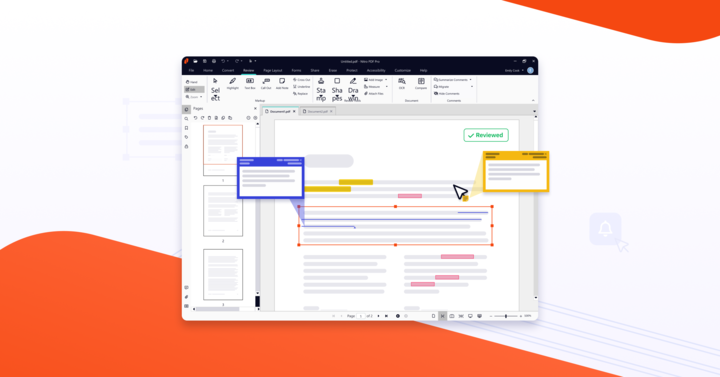
Annotations are essential for reviewing and collaborating on documents. On a Mac, you can highlight text, leave comments, draw shapes, or insert notes to clarify edits and give feedback. These tools are especially useful when you're working with legal teams, editors, or clients who need to stay aligned.
Learn how to annotate PDFs and collaborate more effectively.
4. How to Combine Multiple PDF Files on Mac
Merging PDFs keeps related materials in one place and helps maintain consistency. With Preview, you can drag pages from one file into another, reorder them, and save everything as a single PDF. This is perfect for assembling contracts, project docs, or multi-part reports.
Find out how to combine PDFs quickly and easily on your Mac.
5. How to Delete Pages from a PDF on Mac
Cleaning up a document is easy with the right tools. Use thumbnail view in Preview to identify and delete extra pages, whether you're removing outdated sections or simplifying a file before sharing. You can also rearrange pages or extract them into a new document.
Learn how to delete unwanted pages from your PDF.
6. How to Compress a PDF on Mac
Large PDFs can be difficult to email or upload. On a Mac, you can reduce file size by lowering image resolution, flattening content layers, and optimizing embedded assets. This makes it easier to store and share files without losing visual quality.
Discover how to reduce PDF file size without losing clarity.
7. How to Password Protect PDFs on Mac
When you're working with confidential information, password protection adds an essential layer of security. Mac users can set view or edit restrictions when exporting a file, helping control who can open or modify the document. You can also enable encryption for added protection.
Learn how to lock your PDF and control access.
8. How to Add an Electronic Signature on Mac Devices
Signing a PDF on a Mac is fast and secure. You can draw your signature using a trackpad, insert a stored signature image, or request a signature from someone else. This eliminates the need to print, sign, and scan.
Get step-by-step instructions to add or request a signature.
9. How to Print a PDF on Mac
Printing a PDF correctly is about more than hitting Command+P. You can customize scale, layout, margins, and duplex settings to get the format just right. Preview lets you check each page before printing to ensure everything looks professional.
Check out the best ways to print clean, professional PDFs.
Want to try for yourself? Start a free trial of Nitro PDF Pro for Mac and experience just how easy and powerful working with PDFs can be.