


/Card-Page%20Previews-AI.png?width=1200&height=800&name=Card-Page%20Previews-AI.png)


I recently broke my collarbone on a solo bike ride. Lying on the hillside wondering how to get out of the mess was a painful reminder that I needed to stop riding alone and join a local cycling club.
But when I went to sign up, I hit an all too familiar snag. The club provided a flat, non-interactive PDF form online, and I don't own a printer. Down one functional arm and completely printer-less, printing, filling out, and scanning was out of the question.
But I knew that Nitro has tools that turn flat forms into fillable ones and can pull information out of forms you've already completed. So instead of finding a pen, I took a photo of the form I was handed, dug out a gym membership application with very similar information on it, and set Nitro's MCP server at the problem.
This walkthrough shows how to use Nitro's MCP server with an AI assistant to turn a scanned paper form into a fillable PDF and auto-populate it from an existing document, no typing required.
What you'll need:
- Nitro's Free MCP server connected to Claude.
- A photo of the form you want to complete.
- A source document with overlapping information (such as an old application or a completed form with details you would otherwise retype).
- Both files in a folder your AI assistant can access.
Prompt:
Using Nitro, create a fillable PDF form from the MAD membership form in this folder:
/path/to/your/folder
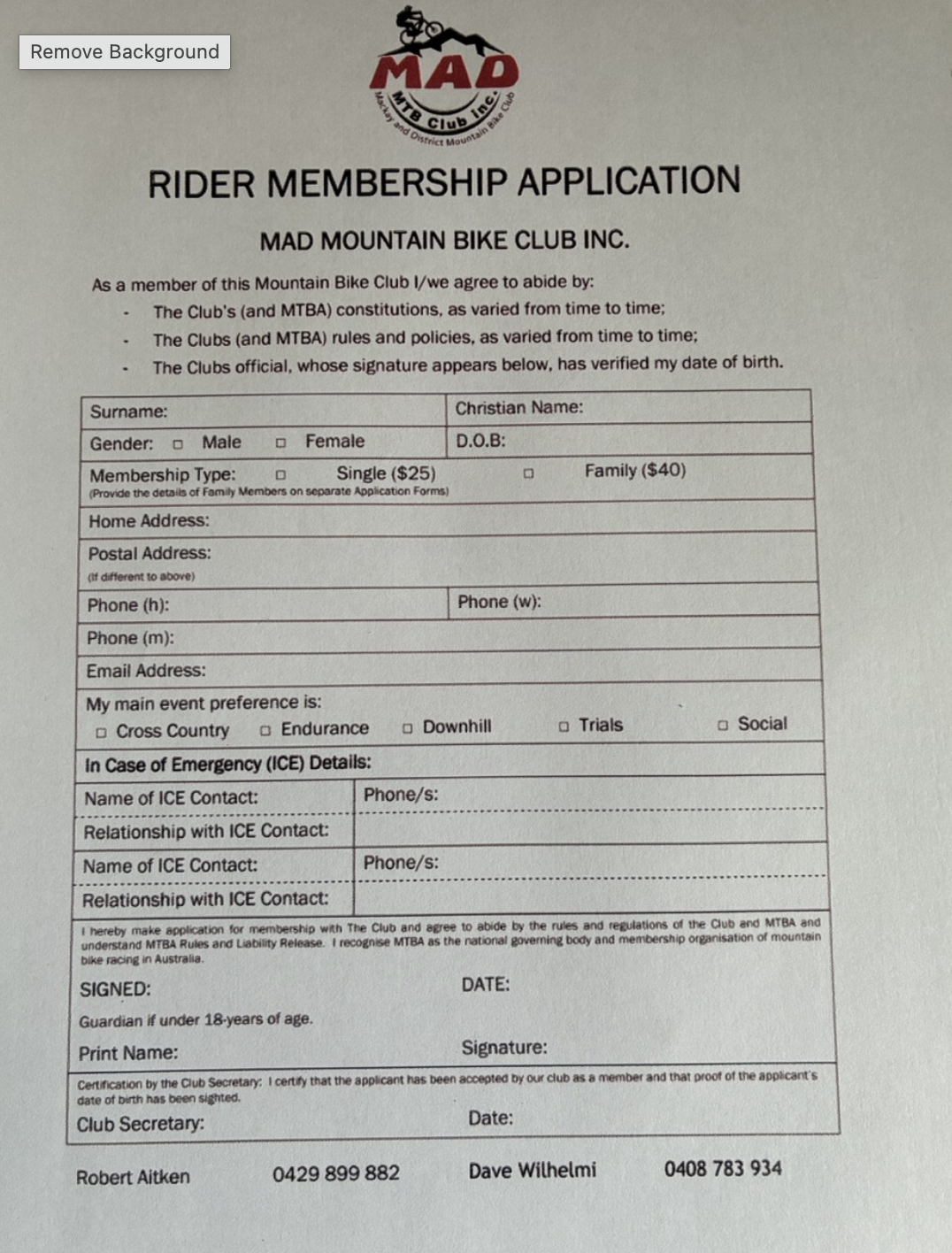
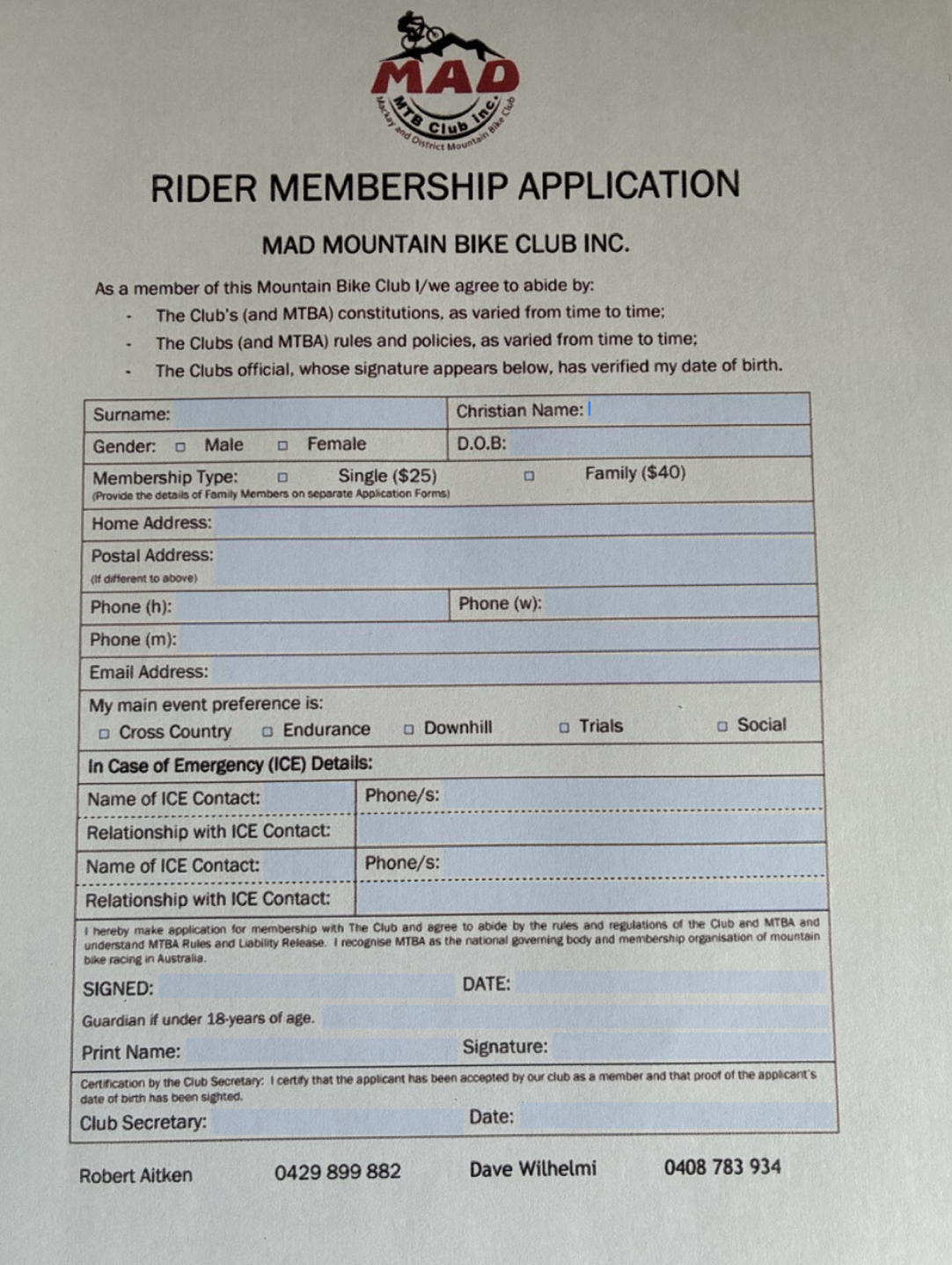
What Nitro did: Nitro listed the contents of the folder, found the form, then ran its form-field detection across the page. It came back with 32 distinct fields, every text line and every checkbox, with coordinates and labels for each one, which it then used to build a fillable form (AcroForm) in a new PDF.
Despite bad lighting and a slightly skewed source photo, Nitro handled the document smoothly. It also identified and resolved a few specific issues, such as duplicate field labels for ICE (In Case of Emergency) contacts and insufficient spacing for the postal address.
|
|
Step 2: Extract data from an existing filled PDF I had using Nitro MC
Prompt:
Use Nitro to extract my details from the filled gym membership PDF and use them to fill the MAD membership form
What Nitro did: It pulled every field and value out of the four-page completed gym application, returning the extracted information as structured data accompanied by confidence scores for each entry.
The useful thing here is that Nitro doesn't simply dump unformatted text. It gives you named fields paired values, which means that the AI assistant can reason about which fields to map directly to the new form and which do not.
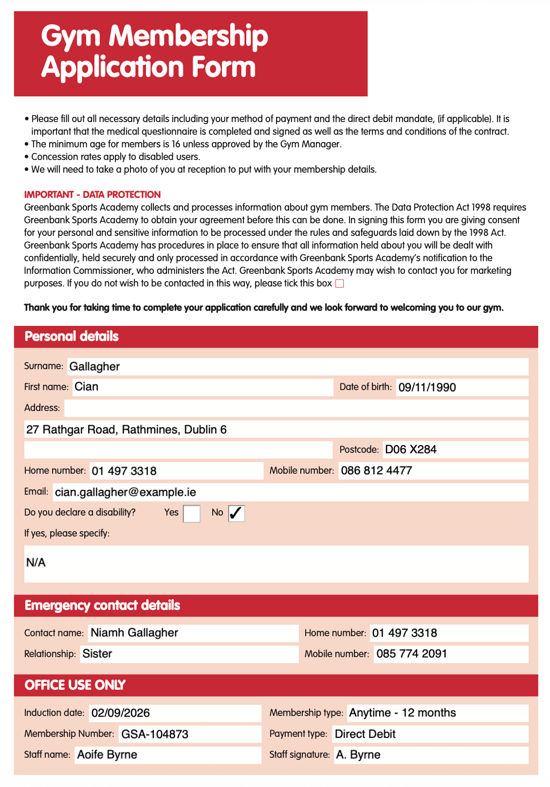
This highlights where Nitro's extraction capabilities and the AI's fuzzy matching really work together. For example it could match things like First name to Christian Name or DOB to date of birth. It also prompted me for some fields it didn’t have an answer for from the source material.
- Gender
- Membership type
- Event preference
I want to flag this because it's the difference between a useful tool and a dangerous one. A system that fills every box is a system that invents things. When it told me what it couldn't fill and why, that told me exactly where to spend my thirty seconds of attention.
Step 3: Fill remaining form fields and the signature bloc
Prompt:
I am male and want a single membership, for enduro events. Also fill in the signature block as best you can.
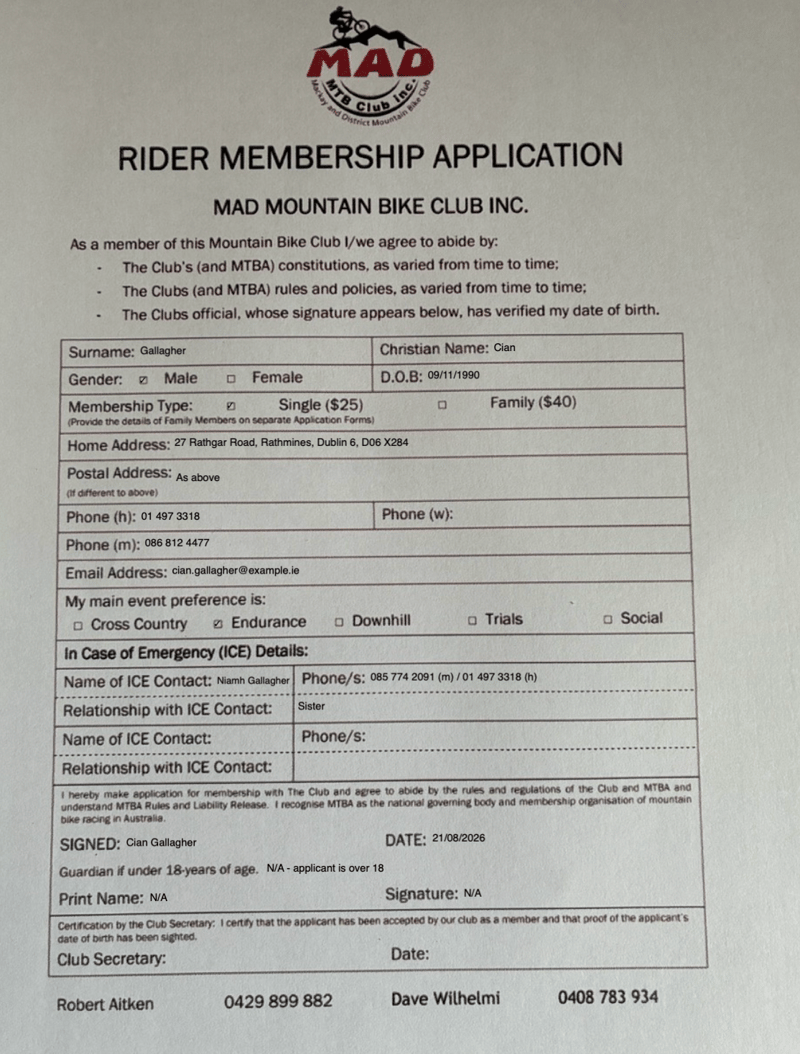
What Nitro did: Three checkboxes and a signature, in one sentence. It matched "enduro" to the form's "Endurance" option, ticked Male and Single ($25), typed the name and today's date into the signature block, and marked the guardian section N/A since the applicant is over 18.
Then (and this is worth copying into your own workflow) it re-read the finished PDF to confirm the checkboxes had actually registered as ticked rather than just carrying a text value. Checkbox states are a classic silent failure in PDF form generation. Verify them.
The full prompt sequence
Copy these, swap in your own paths:
Using Nitro, create a fillable PDF form from [FORM NAME] in this folder: [PATH]

Use Nitro to extract my details from [SOURCE DOCUMENT] and use them to
fill the [FORM NAME]

[Any details the source document didn't have]. Also fill in the
signature block as best you can.
That's it. Three messages, start to finish.
Was it worth it?
The entire process took about three minutes end to end. You can decide whether you could have filled out the paper form faster by hand, but this workflow opens up massive time savings when applied at scale. I’m looking forward to setting it to work in bulk on my new insurance claims or indeed everything the bank ever sends me!
Now to actually turn up to a club spin.
A note on the data in this post — I did start by creating a new Gym membership with fake data so I could use it in the post, but all the steps were run using the tools available