


/Card-Page%20Previews-AI.png?width=1200&height=800&name=Card-Page%20Previews-AI.png)


This guide shows how to automate PDF file-size reduction using the Nitro PDF Services API, from authenticating and making your first call, to choosing the right Optimize profile, to building the workflow both in Python and no-code in Power Automate.
We've all had to deal with bloated files in one way or another, whether it's for emailing or storage. This becomes an even bigger problem when it's multiplied by the thousands or millions of documents used in an organization. It may be a scanned contract, a design-heavy proposal, a 60-page board pack full of charts, and they end up choking up your system. Currently, we depend on users using products like Nitro PDF Pro to manually reduce the file size, but what if you want to do this in bulk or as part of an automated process?
I want to show you how Nitro Automate's PDF Services API can be used for this, and set you up for working with the many other functions it provides.
We will start by showing how to:
- Get API credentials and make your first call
- Choose the right Optimize profile for your destination
- Build a folder-watching auto-optimizer in Python
- Build the same workflow with no code in Power Automate, triggered by SharePoint
By the end, any PDF dropped into a folder comes out the other side web-ready and a fraction of its original size.
Getting set up with the Nitro PDF Services API
The Nitro PDF Services API is a REST API that lets you automate PDF operations, including optimization, OCR, merging, and data extraction, via a HTTPS endpoint. It's a straightforward REST API: you send a file with multipart/form-data, and you get back a download link (or the file itself). There's no SDK to install and no infrastructure to run, every operation is a single HTTPS call.
1. Get your Nitro API credentials
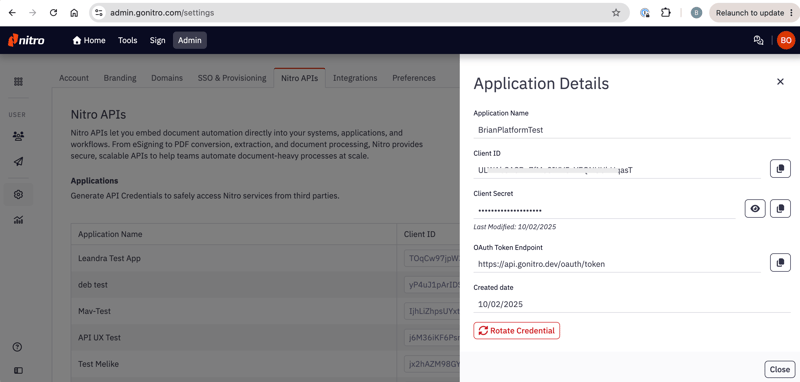
Sign in to the Nitro developer portal and create an application. You'll receive two values:
clientID // — identifies your app
clientSecret // — proves it's really you
Treat the secret like a password: keep it in an environment variable or a secrets manager, never in source control.
2. Authenticate: exchange credentials for an access token
The API uses the OAuth 2.0 client credentials flow. POST your credentials to the auth endpoint and you'll get a short-lived bearer token back:curl -X POST https://api.gonitro.dev/oauth/token \
-H "Content-Type: application/json" \
-d '{
"clientID": "<your_client_id>",
"clientSecret": "<your_client_secret>"
}'
The response includes your token and its lifetime:
{
  "accessToken": "eyJhbGciOiJIUzM4...",
  "tokenType": "Bearer",
  "expiresIn": 86400
}
Two practical notes before we move on:
- Cache the token. Don't request a fresh one per file. Reuse it until it expires (using the expiresIn value), and renew when you hit a 401. Our Python script below handles this for you.
- Tokens expire by design. If a request that worked yesterday suddenly returns 401 Unauthorized, your token has simply lapsed. Renew it and retry.
3. Make your first API call: compressing a PDF
Time for the "hello world" of PDF processing. The Optimize method restructures a PDF and downsamples its images according to a profile suited to where the file is headed:
curl --request POST \
  --url https://api.gonitro.dev/platform/transformations \
  --header 'Authorization: Bearer <access_token>' \
  --form 'method=optimize' \
  --form 'params={"profile":"web"}' \
  --form 'file=@/path/to/your-file.pdf'
A successful response hands you a time-limited, pre-signed URL for the result.{
"result": {
"file": {
"URL": "https://your-optimized-file.pdf",
"contentType": "application/pdf",
"metadata": {
"fileSizeBytes": 8543,
"pageCount": 1
}
}
}
}
That's the whole request pattern. Every transformation in the API (merge, OCR, watermark, redact) follows this same shape: a method, a params JSON object, and a file. Learn it once and you've learned the entire API.
One thing to know: download links are temporary. Processed files are cleaned up shortly after the operation completes, so your automation should download the result immediately (or use the delivery parameter to have Nitro push the output straight to your own endpoint or S3 bucket — more on that at the end).
Choosing the right Optimize profile (web, print, archive)
The clever thing about Optimize is the question it asks. It's not "how hard should I squeeze?", it's "where is this file going?" You name the destination, and the API makes all the compression and restructuring trade-offs for you:
|
Profile |
Best for |
|---|---|
|
web |
Online viewing and email. Linearized for fast delivery with images downsampled to screen resolution. |
|
|
High-quality printing. Preserves print-resolution images, prioritizing fidelity over size. |
|
archive |
Long-term storage. Converts to PDF/A with embedded fonts and color profiles. |
|
minimal-file-size |
When small is the only goal. Aggressive downsampling and redundancy removal. |
|
mixed-raster-content |
Scanned documents. MRC compression separates text and background layers. |
For our email-attachment use case, the web profile is the natural fit. Switching to any other profile later is a one-line change, and at the end we'll look at routing files to different profiles automatically.
Building it in Python: A folder that automates PDF compression on all files dropped in to it
We'll build a script that watches a designated folder. Drop any PDF in, and a few seconds later, an optimized copy appears in an output folder, complete with a log line telling you exactly how much space you saved.
We'll use two libraries:pip install requests watchdog
The API client
First, you build a lightweight client to handle authentication (including token caching and automatic renewal) alongside the Optimize API call:"""nitro_client.py — a minimal Nitro PDF Services API client."""
import os
import time
import requests
API_BASE = "https://api.gonitro.dev"
class NitroClient:
def __init__(self, client_id: str, client_secret: str):
self.client_id = client_id
self.client_secret = client_secret
self._token = None
self._token_expires_at = 0.0
def _get_token(self) -> str:
"""Return a cached token, renewing it if expired."""
if self._token and time.time() < self._token_expires_at:
return self._token
resp = requests.post(
f"{API_BASE}/oauth/token",
json={
"clientID": self.client_id,
"clientSecret": self.client_secret,
},
timeout=30,
)
resp.raise_for_status()
data = resp.json()
self._token = data["accessToken"]
# Renew 60s early so we never send a token that's about to lapse
self._token_expires_at = time.time() + data["expiresIn"] - 60
return self._token
def optimize(self, input_path: str, output_path: str,
profile: str = "web") -> dict:
"""Optimize a PDF and save the result to output_path.
Returns the result metadata (file size, page count).
"""
with open(input_path, "rb") as f:
resp = requests.post(
f"{API_BASE}/platform/transformations",
headers={"Authorization": f"Bearer {self._get_token()}"},
data={
"method": "optimize",
"params": f'',
},
files={"file": (os.path.basename(input_path), f,
"application/pdf")},
timeout=300,
)
if resp.status_code == 401:
# Token rejected — force a renewal and retry once
self._token = None
return self.optimize(input_path, output_path, profile)
resp.raise_for_status()
file_info = resp.json()["result"]["file"]
# The download URL is time-limited — grab the file right away
download = requests.get(file_info["URL"], timeout=300)
download.raise_for_status()
with open(output_path, "wb") as out:
out.write(download.content)
return file_info["metadata"]
A few deliberate choices worth calling out:
- The token is cached and renewed 60 seconds early. This is the pattern we recommend in our Developer Documentation: store the token, reuse it while valid, and renew on a 401.
- The download happens immediately after the transformation, because the pre-signed URL won't live forever.
- The 401 retry is self-healing. If the token lapses mid-run (say, your watcher has been up for a day), the script recovers without you noticing.
The folder watcher
Now we wire the client to the filesystem with watchdog:"""watch_and_shrink.py — auto-optimize every PDF dropped into a folder."""
import os
import time
from pathlib import Path
from watchdog.observers import Observer
from watchdog.events import FileSystemEventHandler
from nitro_client import NitroClient
WATCH_DIR = Path("inbox")
OUTPUT_DIR = Path("optimized")
client = NitroClient(
client_id=os.environ["NITRO_CLIENT_ID"],
client_secret=os.environ["NITRO_CLIENT_SECRET"],
)
def wait_until_stable(path: Path, checks: int = 3, interval: float = 1.0):
"""Wait until the file size stops changing (copy has finished)."""
last = -1
stable = 0
while stable < checks:
size = path.stat().st_size
stable = stable + 1 if size == last else 0
last = size
time.sleep(interval)
class PdfHandler(FileSystemEventHandler):
def on_created(self, event):
if event.is_directory or not event.src_path.lower().endswith(".pdf"):
return
src = Path(event.src_path)
wait_until_stable(src) # don't process half-copied files
dest = OUTPUT_DIR / src.name
before = src.stat().st_size
try:
meta = client.optimize(str(src), str(dest), profile="web")
except Exception as exc:
print(f"[FAIL] {src.name}: {exc}")
return
after = meta["fileSizeBytes"]
saved = 100 * (1 - after / before)
print(f"[OK] {src.name}: {before:,} B -> {after:,} B "
f"({saved:.0f}% smaller, {meta['pageCount']} pages)")
if __name__ == "__main__":
WATCH_DIR.mkdir(exist_ok=True)
OUTPUT_DIR.mkdir(exist_ok=True)
observer = Observer()
observer.schedule(PdfHandler(), str(WATCH_DIR), recursive=False)
observer.start()
print(f"Watching {WATCH_DIR.resolve()} — drop PDFs in to optimize them.")
try:
while True:
time.sleep(1)
except KeyboardInterrupt:
observer.stop()
observer.join()
Set your credentials and run it:export NITRO_CLIENT_ID="your-client-id"
export NITRO_CLIENT_SECRET="your-client-secret"
python watch_and_shrink.py
Drop a chunky PDF into inbox/ and watch the log:[OK] q2-board-pack.pdf: 38,214,902 B -> 4,102,377 B (89% smaller, 64 pages)
The wait_until_stable helper is an unglamorous detail that makes this production-worthy: filesystem "created" events fire when a copy starts, not when it finishes, so we wait for the file size to settle before uploading. It's the kind of edge case that turns a demo into a tool you can actually leave running.
Handling common Nitro API errors
Two failure modes are worth planning for:
- 413 Content Too Large i.e the file exceeds the API's size or page limits. Don't just log and move on: this is exactly the file your users most want shrunk. A good follow-up is to call the Split transformation to break it into parts, optimize each, and Merge the results — a tidy preview of how Nitro operations chain together.
- 401 Unauthorized i.e an expired token. Our client already handles this with a renew-and-retry, but if it persists, check that your clientSecret is still valid.
Building it in Power Automate: the no-code version
Not every team wants to work in Python or has infrastructure running that can execute a function and if your documents already live in SharePoint or OneDrive, Power Automate is a good solution to allow you build document workflows.
Here's the flow we're building:
When a file is arrives in SharePoint folder → Use Nitro connectors to compress the document → Save the optimized copy back
Step 1: The trigger
Create an Automated cloud flow and choose the SharePoint trigger "When a file is created in a folder" (or the OneDrive equivalent). Point it at the library/folder where the oversized PDFs land — say, Documents/To Optimize.
Add a Condition right after it so the flow only fires for PDFs:endsWith(toLower(triggerOutputs()?['headers/x-ms-file-name']), '.pdf')
Step 2: Get the file content
Add the "Get file content" action, passing the file identifier from the trigger. This gives us the binary we'll send to the API.
Step 3: Use the Nitro Optimize Connector
This is the interesting one. The Nitro API expects multipart/form-data, and Power Automate's HTTP action supports that via a special body format. Add another HTTP action:
Notice the Accept: application/octet-stream header — this is a neat feature of the API. Instead of returning JSON with a download URL (which would mean a second HTTP action to fetch the file), the API returns the optimized PDF itself as the response body. One round trip, and the flow stays beautifully simple.
Step 4: Save the result
Add the SharePoint "Create file" action:
- Folder Path: Documents/Optimized
- File Name: the trigger's file name (dynamic content)
- File Content: the body of the HTTP action from Step 4
Save the flow, drop a heavyweight PDF into To Optimize, and within seconds a slimmed-down copy appears in Optimized. No code, no servers, and it runs whether or not your laptop is open.
Step 5 (optional): Close the loop
Because this is Power Automate you can take any action at the end, such as:
- Add an Outlook "Send an email" action that attaches the optimized file, "your share-ready copy is attached."
- Post a message to a Teams channel with the before/after sizes.
- Branch on file size: only call the API when the file exceeds, say, 10 MB, and just copy smaller files straight through.
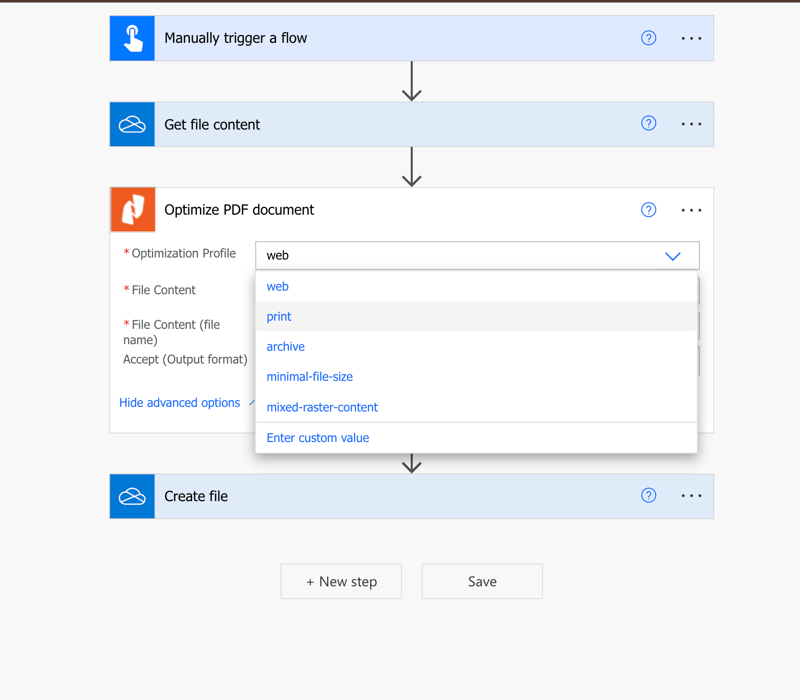
Power Automate PDF Compress flow with Nitro
Where to take it next
You now have the core request pattern down for the Nitro PDF Services API, alongside a working auto-optimizer in both Python and Power Automate. Here are a few ways to build on this foundation:
- Switch profiles per destination. Route files to print or archive profiles based on the folder they arrive in, or expose the choice as a column in SharePoint.
- Use custom delivery. Both sync and async calls accept a delivery parameter that pushes the output directly to your own endpoint or a pre-signed S3 URL — ideal when the result should land in cloud storage rather than come back through your flow.
- Go async for big files. Add the Prefer: respond-async header and the API returns a job ID you can poll (or register a callback URL and let Nitro notify you when it's done). Perfect for processing a backlog of thousands of files without holding connections open.
- Chain operations. The same endpoint shape powers convert, OCR, merge, watermark, redaction, and more — the building blocks for every guide in this series.
Ready to build? Grab your credentials from the Nitro developer portal and check the full API reference for every transformation, extraction, and conversion available.