
- Navigate to the Convert tab

- Click the To Extract Images button
- The Convert PDF to Extract all Images window opens
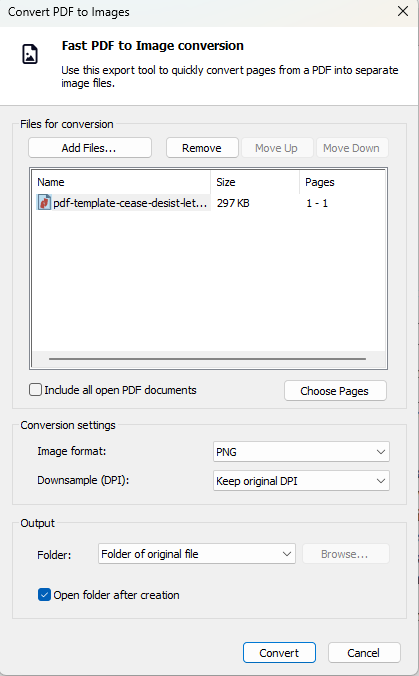
- Click the Add Files button to add your files
- Click Remove to remove files
- Click the Move Up and Move Down to rearrange the file order
- To choose page you want to convert, click the Choose Pages button
- To include all open PDF documents, select the checkbox
- On the Output part, you can select which folder you want to save your files:
- Folder of original file
- Specific folder
- Ask during the process
- Click Convert to start the process or Cancel to end
Note : It is impossible to convert PDF to file with Images that preserves the exact layout and formatting. Nitro Pro does its best to provide you with a reusable Word file that retains the look and feel of the original PDF document.