
A combo box provides a drop-down list. Users can select one item from the list.
Add a combo box field
- Open the PDF in Nitro PDF Pro
- On the Forms tab, in the Form Fields group, click Combo Box

- Drag the pointer on the page to create the field
- Open the field properties:
- Double-click the field
- Or right-click the field and select Properties
- Set the field name and appearance. Use one of these options:
- The Properties context tab

- The Properties dialog
- The Properties context tab
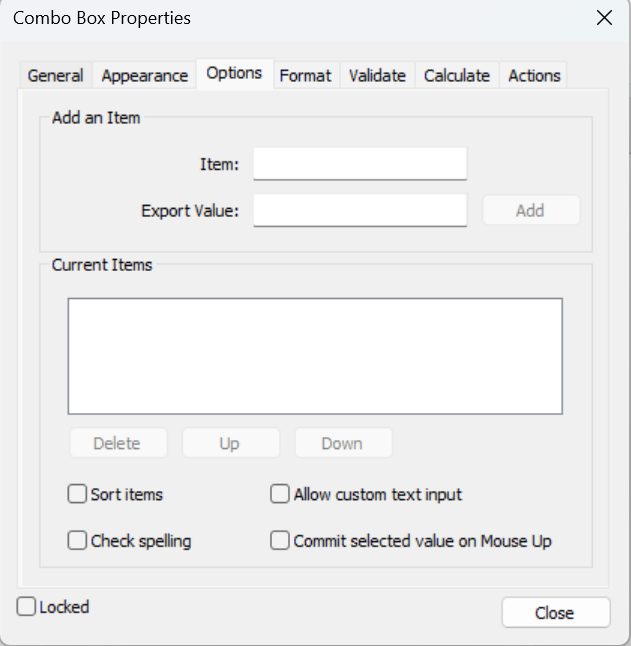
- Open the Options tab:
- From the context tab, click Properties > Options
- From the dialog, click Options
Add and manage list items
- In the Item field, enter a name
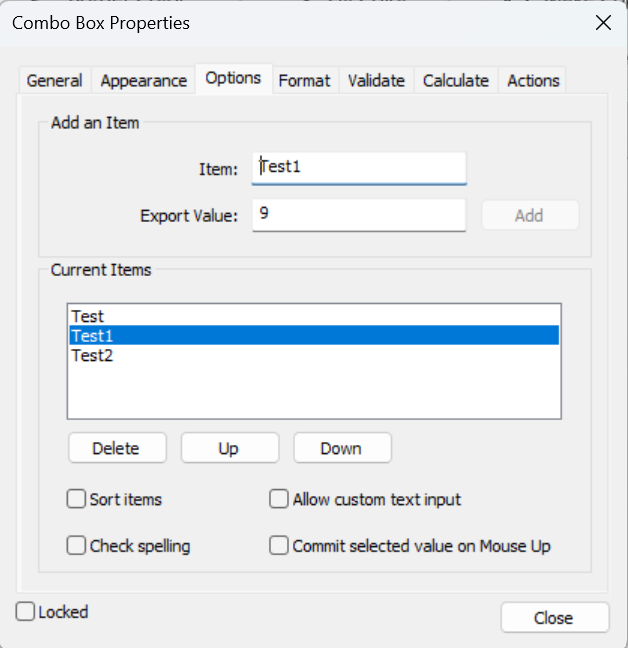
- Click Add to add the item to the list
- In the Export Value field, enter a value
- Repeat these steps to add more items
- To manage items:
- Select Sort Items to sort the list alphabetically
- Use Up or Down to reorder items manually
- Select an item and click Delete to remove it
- To allow user input, select Allow custom text input
Configure additional settings
- Format:
Select a format (for example, date or custom format)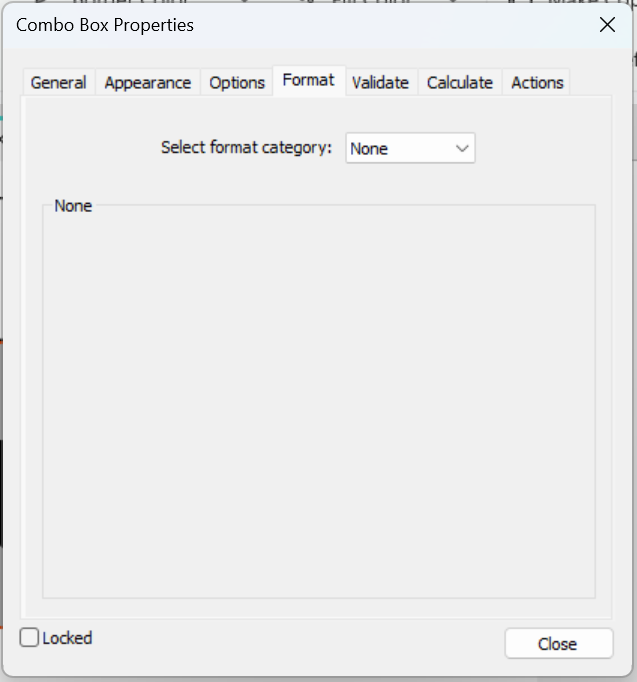
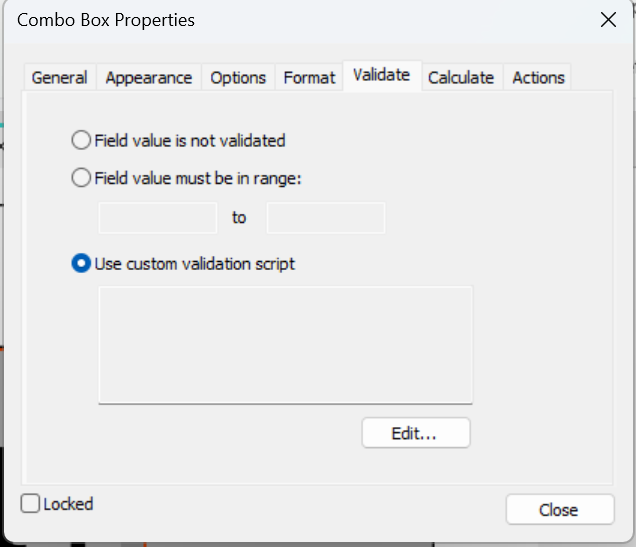
- Validate:
- Select Run custom validation script
- Enter JavaScript to validate the data
- Calculate:
Select a calculation option if required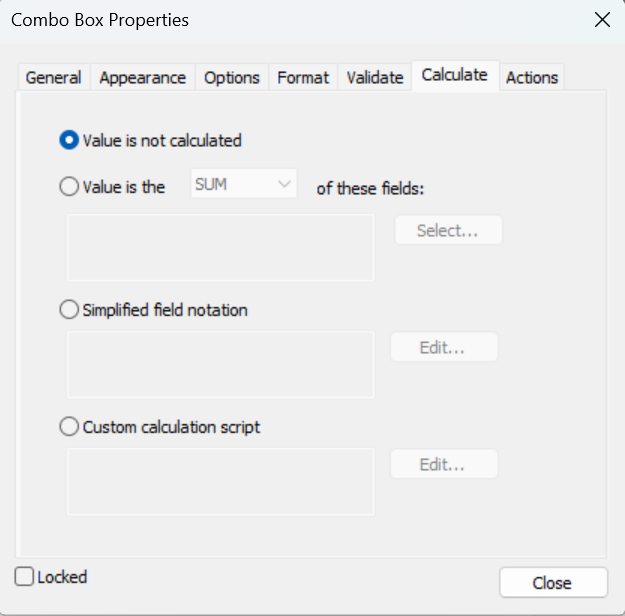
Edit a combo box field
- Open the PDF in Nitro PDF Pro
- On the Forms tab, in the Form Fields group, do one of the following:
- Click the field type
- Click Select Fields
- Double-click the field to edit its properties