
Use the Attachment tool to add files to a PDF. Attachments appear as a paperclip icon on the page.
Add a file attachment
- On the Review tab, click Attach Files

- Click anywhere on the page
- In the file browser, select the file you want to attach
Note: A paperclip icon appears on the page. Double-click the paperclip icon to open the attachment.
Tip: Add a text box or comment next to the attachment to label it.
Add an attachment without a page annotation
-
- Open the Attachments panel in the sidebar
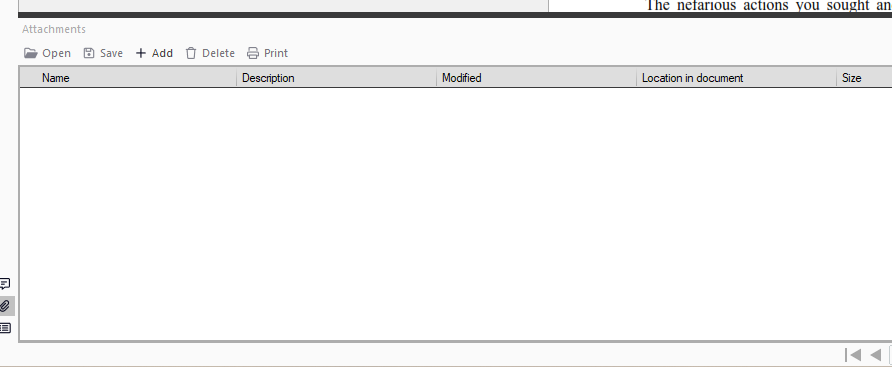
- Select Add
- Select the file to attach
- Open the Attachments panel in the sidebar
View attachments
- Open the Attachments panel in the sidebar
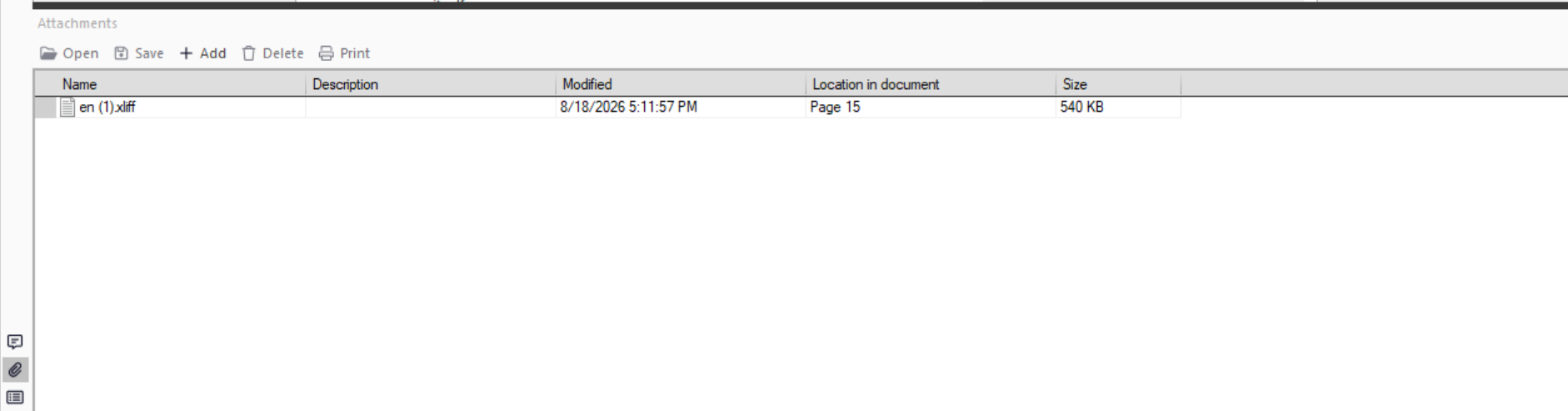
- Select the paperclip icon to view attached files
Edit attachment properties
- Right-click the paperclip icon on the page
- Select Properties
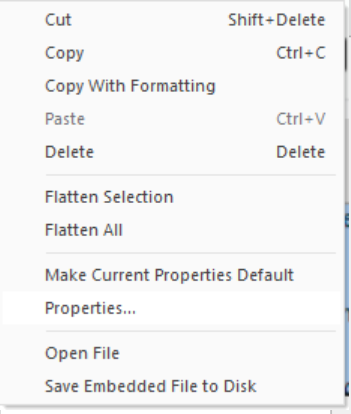
- Adjust appearance settings as required
Delete an attachment
Do one of the following:
- In the Attachments panel, right-click the file, then select Delete Attachment
- Right-click the paperclip icon on the page, then select Delete