/Card-Page%20Previews-AI.png?width=1200&height=800&name=Card-Page%20Previews-AI.png)

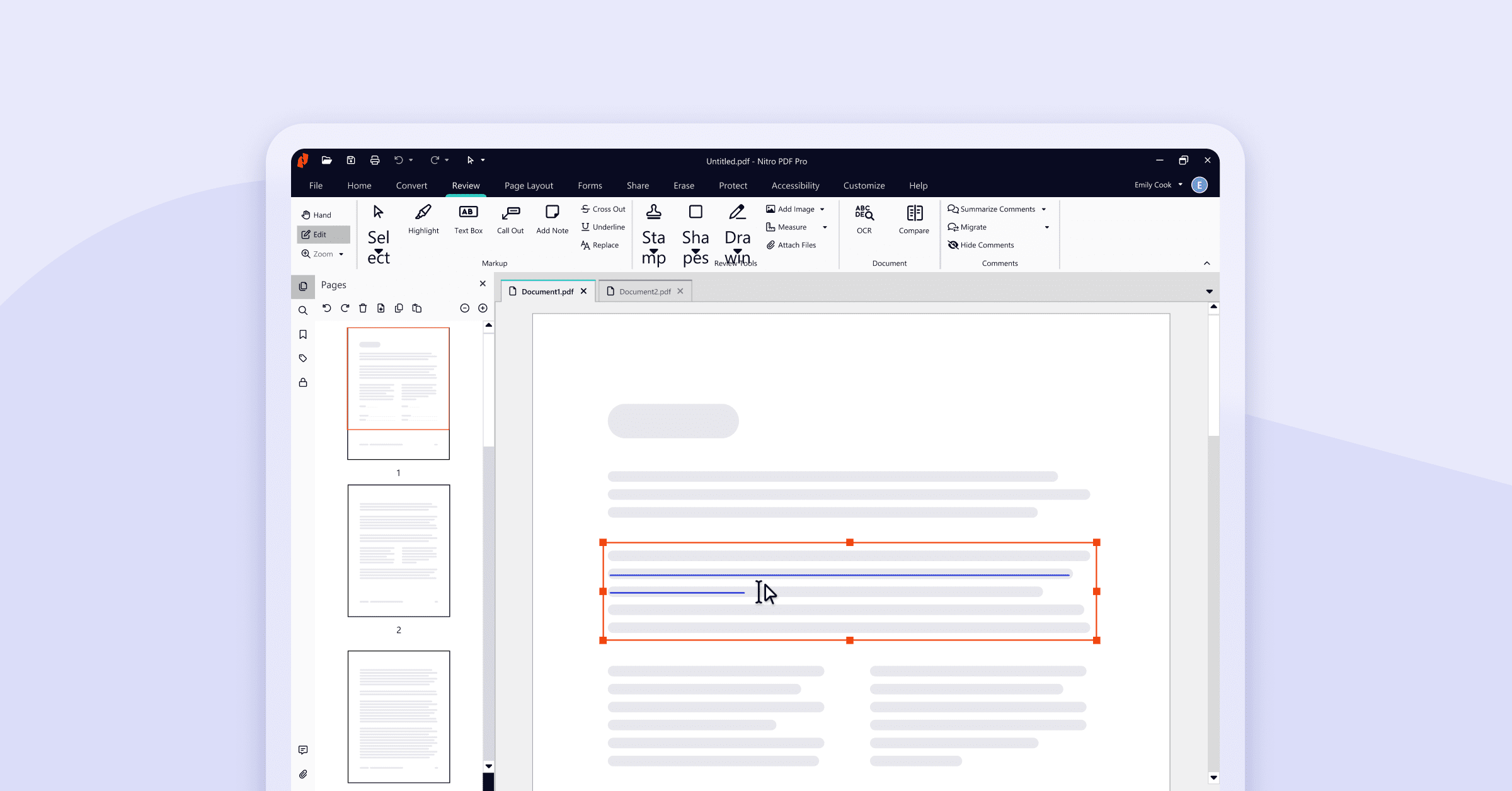
Writing on a PDF document allows you to add text, edit existing content, fill out forms, and make annotations directly within PDF files without printing or converting formats.
Whether you need to fill out a contract, add notes to a report, or correct typos in a finalized document, modern PDF editors like Nitro PDF Pro enable you to write on PDFs across Windows, Mac, and mobile devices using simple point-and-click tools that preserve formatting and document integrity.
This comprehensive guide covers three primary methods for working with PDF text: adding new text to blank areas, editing existing text within the document, and typing into form fields—plus the key limitations of free PDF tools compared to professional solutions.
What are the steps to write on a PDF document?
Adding new text to a PDF document requires a PDF editor with text insertion capabilities. Here's the complete process using Nitro PDF Pro:
- Download Nitro PDF Pro.
- Upload your document or use a template from Nitro’s PDF Template Hub.
- Click Type Text on the Home tab in the Tools group.
- Click the page where you want to insert text.
- Set the text font and size on the Format tab.
- Enter text.
- Click Finish when complete!
How do you edit existing text that's already in a PDF?
Editing text that's already embedded in a PDF—such as correcting typos, updating dates, or revising content—requires different tools than adding new text. Follow these steps to modify existing PDF text:
- Open your PDF file in Nitro PDF Pro
- Navigate to the document that contains the text you want to change
- Click "Edit" on the left-hand side of the ribbon menu
- Double-click directly on the text you want to modify
- Highlight the selected text to access formatting options (font, size, color, case)
- Make your text changes directly in the document
- Click "Finish" to save your edits
This editing functionality also supports text redaction, whiteout, stamping, and complete text replacement for sensitive or outdated information.
What's the difference between writing on a PDF and typing on a PDF?
While "writing on a PDF" can refer broadly to various document modifications—including highlighting, reordering content, adding images, or drawing annotations—"typing on a PDF" specifically means adding text characters using your keyboard.
Typing on a PDF is particularly useful for:
- Filling out PDF forms without printing
- Adding information to scanned documents or photocopies
- Completing electronic contracts and applications
- Inserting quick notes or comments
The Type Text tool in Nitro PDF allows you to add typed content without accessing the original source files, making it ideal for documents you've received from others or legacy files where the original editable version no longer exists.
No matter what you need to do, working on a PDF is easy, fast and intuitive with Nitro.
What are the limitations of free PDF editors for writing and typing?
Free online PDF tools may seem attractive due to their zero-cost access, but they impose significant restrictions that impact productivity and security:
Common limitations of free PDF tools include:
- Automatic file deletion: Many free services delete your processed files after 1-2 hours, risking data loss
- Watermarks: Free tools often add visible branding or watermarks to your documents
- Restricted features: No support for hyperlinks, embedded images, or eSignatures
- No usage analytics: Limited or no data on document activity and engagement
- Version control issues: Inability to restore previous versions or track changes
- Integration gaps: No connectivity with enterprise systems, cloud storage, or workflow automation
- Compliance concerns: Free tools typically lack SOC2 compliance, GDPR adherence, or security certifications required for professional and legal documents
Professional PDF editors like Nitro PDF Pro provide comprehensive functionality, security compliance, and reliable document processing without these restrictions.
Why should I use a paid PDF editor instead of a free tool?
Professional PDF editors streamline document workflows, ensure compliance, and eliminate productivity bottlenecks caused by limited functionality. Paid solutions offer:
Key advantages of professional PDF software:
- Complete editing capabilities: Write, type, edit, redact, and annotate without restrictions
- Security and compliance: SOC2 compliance and enterprise-grade security measures
- Customization options: Add custom logos, page numbers, dynamic bookmarks, embedded hyperlinks, attachments, and timestamps
- System integration: Connect with existing digital processes, cloud storage, and business applications
- Reliable storage: Permanent file access without automatic deletion or file size limits
- Professional output: Clean, watermark-free documents suitable for client delivery and legal use
- Version control: Track changes, restore previous versions, and maintain document history
For professionals who work with PDFs regularly—whether in legal, healthcare, real estate, finance, or administrative roles—investing in a complete PDF editor directly impacts competitive advantage and operational efficiency.
Get started with Nitro PDF Pro's free trial to experience full-featured PDF editing without the limitations of free online tools.