/Card-Page%20Previews-AI.png?width=1200&height=800&name=Card-Page%20Previews-AI.png)

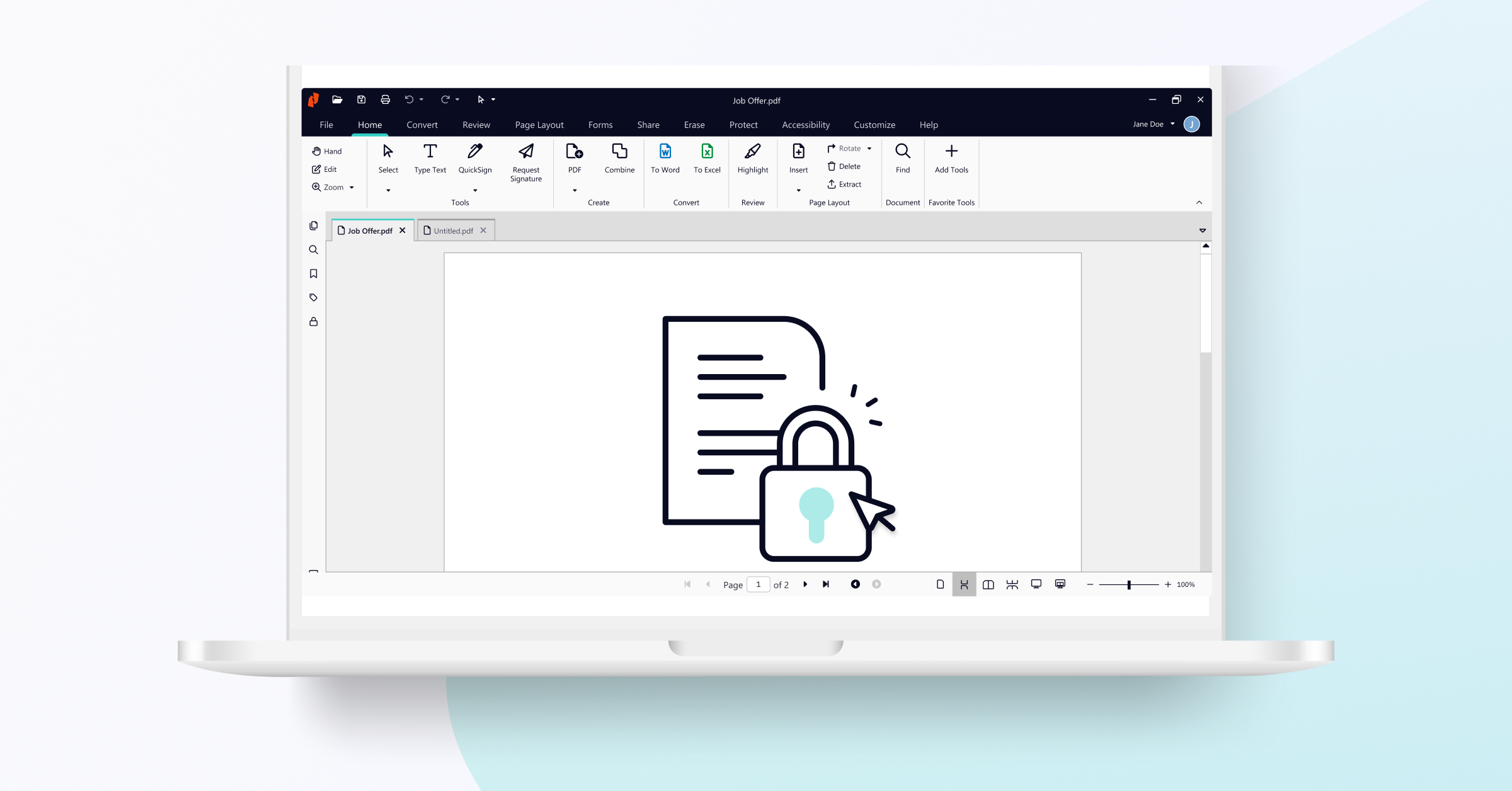
Securing PDF documents is essential for protecting sensitive information, preventing unauthorized access, and maintaining data integrity. The most effective methods for securing PDFs include:
- Password protection: restrict who can open, edit, or print your PDF
- Redaction: permanently remove sensitive text or images
- Watermarking: deter unauthorized distribution and indicate document status
Taking these steps means you reduce the risk of data breaches, control document access, and safeguard confidential information.
PDF security doesn’t need to be complicated. This guide addresses the most effective methods for protecting your PDFs
1. How do I password-protect my PDF?
How to password-protect a PDFPassword protection is the most straightforward way to restrict access to a PDF, ensuring only authorized users can view, print, or edit the document.
By applying a strong password, you control who can open or modify your file, adding an extra layer of security for sensitive business or personal documents.
Nitro PDF Pro allows you to set two distinct types of passwords: a mandatory Open Password and a secondary Permissions Password.
To password-protect your PDF:
- Open your PDF with Nitro PDF Pro.
- Click the Protect tab.
- Click Password Security.
- From the options, choose which actions you want to password protect:
- Open password: set a password that must be entered each time you open the PDF.
- Permissions password: set a password that must be entered to gain access to features such as editing and/or printing.
- Click Finish.
- Close and re-open your document to activate your new password.
For more advanced options, visit our password protection user guide.
2. How to redact sensitive content in a PDF
Redaction is a security measure that permanently removes confidential text, images, or other sensitive data from your PDF.
Unlike simple deletion or whiteout, redaction ensures that the underlying information cannot be recovered or searched, making it ideal for legal, financial, or regulatory documents.
To permanently redact content in your PDF tool:
- Open your PDF with Nitro PDF Pro.
- Click the Erase tab.
- Click Mark for Redaction.
- Before selecting an area to redact, click Redaction Properties to manage how the redacted text/area will appear. In the Properties window, there are 3 tabs:
- Overlay Appearance: Change the colour of the redaction from the default black. You can also use the Overlay Text feature to put text over the redaction area.
- Appearance Tab: Change the outline color, fill color and opacity of the redaction field.
- General Tab: Name the redaction field and shows when it was last modified.
- Navigate back to the Mark for Redaction option in the dropdown.
- Drag and drop the content you want to mark.
- Right-click the mark and select Apply Redactionor click Apply All Redactions from the Erase tab.
Nitro's Smart Redact AI tool is also a fast and easy way to redact text from a PDF.
3. How to add a watermark to protect a PDF
Watermarks are semi-transparent overlays, including text, images, or another PDF, added to every page of a document to brand content, denote status, or deter unauthorized distribution.
For example, watermarks can mark documents as “DRAFT” or “CONFIDENTIAL.” Nitro PDF Pro allows you to save watermark profiles for repeated use, saving time when securing multiple documents.
To apply a new watermark profile to your PDF:
- Open your PDF with Nitro PDF Pro.
- Click the Page Layout tab.
- Click Watermark.
- Click Manage Watermarks & Backgrounds.
- Select a profile from the list.
- Click Add.
- Select a type of watermark:
- Enter text
- Select an image
- Import a PDF
- Configure the properties of your watermark or background.
- Click Save to add the new watermark or background to the selected profile.
- To apply the watermark profile to your PDF document, click the Watermarks tab.
- Select Apply to Document from the dropdown.
- Select a profile from the list.
- Click Apply.
To see more options for PDF Watermarks, check out our user guide.
4. How to whiteout information in a PDF?
The whiteout tool lets you visually obscure text, images, annotations, and form fields for temporary corrections or minor visual deletions.
Note: Whiteout does not remove underlying data. For highly sensitive content, redaction is the most secure choice. Whiteout is best for temporary or cosmetic changes.
To whiteout information in your PDF:
- Open your PDF with Nitro PDF Pro.
- Click the Erase tab.
- Click Whiteout.
- Drag and drop the content you wish to remove.
Start protecting your PDFs today!
Sign up for a free trial of Nitro PDF Pro and discover how simple it is to protect sensitive information, control access, and maintain compliance.