/Card-Page%20Previews-AI.png?width=1200&height=800&name=Card-Page%20Previews-AI.png)

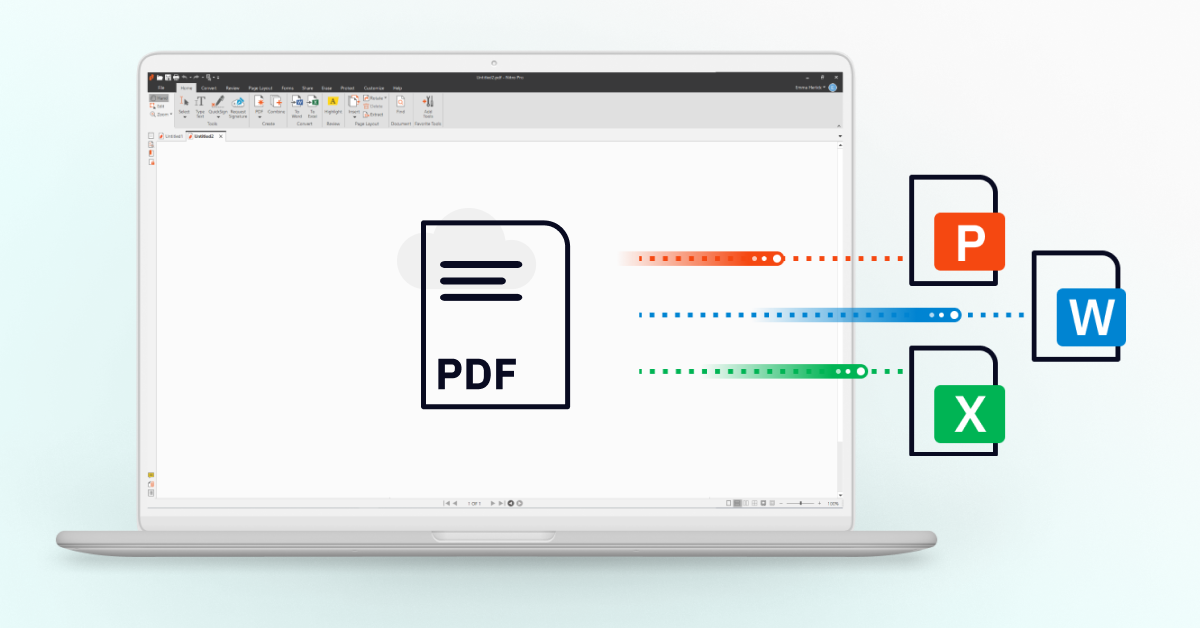
Converting a PDF shouldn’t require hours of copying, pasting, reformatting, and rebuilding layouts. Whether you’re updating your resume, preparing a client report, or extracting data for analysis, Nitro PDF Pro makes it easy to convert PDFs into editable Word, Excel, PowerPoint, and other Office formats in just a few clicks.
Below, you’ll learn exactly how to convert your PDF using Nitro, plus helpful tips to save time and maintain formatting accuracy.
Why Convert a PDF to Word, Excel, or PowerPoint?
PDFs are excellent for secure, consistent sharing—but they’re not ideal when you need to edit content.
Converting your PDF helps you:
-
Edit resume text directly in Word
-
Rebuild tables or datasets in Excel
-
Update decks in PowerPoint
-
Reuse content without manual reformatting
-
Extract key data from reports or contracts
Nitro PDF Pro ensures your fonts, spacing, and layouts stay intact, so you don’t waste time fixing formatting issues.
How to Convert PDF Files in Just a Few Clicks
-
Open Nitro PDF Pro and select the PDF you want to convert.
-
Go to the Convert tab and choose your target format (Word, Excel, PowerPoint, or others).

-
In the Files for Conversion pop-up, click Add Files to include one or more PDFs.
-
Reorder documents using Move Up or Move Down, or select Remove to take a file out of the list.
-
Check Include All Open PDF Documents if you want to batch-convert all open files.
-
To convert only specific pages, highlight the document, select Choose Pages, and enter your page range (e.g.,
3–5). -
Under Output, choose where you want to save the exported file.
-
Click Convert and watch Nitro PDF Pro instantly create your new, editable document.
Watch: How to Convert a PDF to Word
Prefer a visual walkthrough?
See how to convert your PDF to a Word Document with our helpful overview video.
Tips for Faster, More Accurate PDF Conversions
Use page selection for large PDFs
Avoid converting full 100-page documents when you only need one table or section.
Batch-convert multiple PDFs at once
Save time by exporting multiple open PDFs in a single action.
Review formatting after export
Nitro preserves layout fidelity, but a quick review helps ensure everything looks exactly right—especially with complex tables or graphics.
See the Time Savings for Yourself
Whether you’re converting resumes, reports, spreadsheets, or presentations, Nitro PDF Pro gives you accurate outputs with minimal effort.
Explore more helpful tips and tutorials in our Resource Library.
Ready to try it yourself? Start your free 14-day Nitro PDF Pro trial—no credit card required.
.png?)