/Card-Page%20Previews-AI.png?width=1200&height=800&name=Card-Page%20Previews-AI.png)

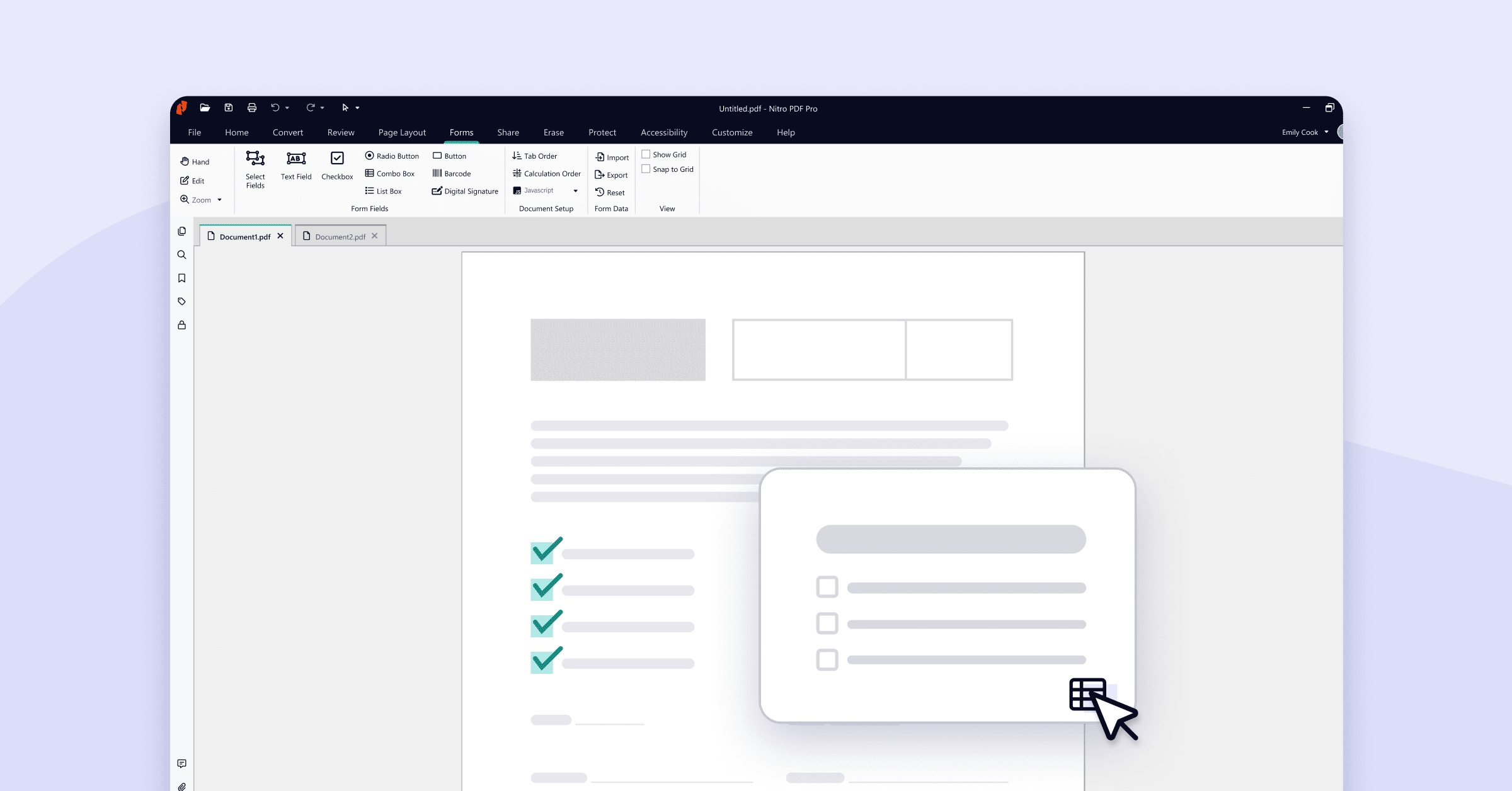
Nitro PDF Pro provides a robust alternative to Adobe Acrobat for creating fillable PDFs, allowing users to easily add interactive text fields, checkboxes, and dropdown menus (Combo Boxes) to any document for efficient data collection.
You don’t need Adobe Acrobat to add interactive elements to your PDFs like text fields, checkboxes, radio buttons, and dropdown menus. Nitro PDF Pro offers all of the features you need to turn existing documents into interactive forms.
Step-by-step: How to create a fillable PDF form without Adobe Acrobat
Creating a fillable PDF form without Adobe Acrobat is simple using Nitro PDF Pro, which allows users to overlay text fields, checkboxes, and interactive elements onto any existing document in minutes.
First, access the "Forms" ribbon in your PDF editor, then follow these steps to add your first text input field using Nitro PDF Pro:
- Open the Document: Launch Nitro PDF Pro and open the file you wish to convert.
- Access Forms Tools: Click the Forms tab located in the top toolbar.
- Select Text Field: Click on the Text Field option.
- Place the Field: Drag and drop your cursor to draw the text box where you want users to input data.
- Customize Properties: Right-click the new field and select Properties to name the field or set formatting rules.
Pro Tip: Use the "Make Copies" option in the Properties tab to quickly duplicate fields for repetitive forms.
How to add dropdown menus to fillable PDF forms
Dropdown menus, also called "Combo Boxes," make PDF forms more interactive, user-friendly, and consistent by allowing users to select from a list of predefined options.
Here are the steps to add a Combo Box to a PDF form using Nitro PDF Pro:
- aria-level="1">Select Combo Box: Under the Forms tab, click Combo Box.
- aria-level="1">Place the Box: Drag and drop the cursor to size and place the element on your page.
- aria-level="1">Open Properties: Click on the new Combo Box, then click Properties in the ribbon.
- aria-level="1">Define Options: Navigate to the Options tab.
What are the benefits of fillable PDF forms?
Fillable PDF forms are more efficient than static PDFs because they allow organizations and individuals to collect data accurately, reduce paper use, and automate workflows.
The table highlights the key benefits and common use cases for fillable PDFs.
|
Benefit |
Business Impact |
Example Use Case |
|
Time & Cost Savings |
Eliminates printing, scanning, and physical storage costs |
New hires can complete HR paperwork online without printing or mailing documents |
|
Seamless UX |
Ensures consistency across devices |
Customer service teams can provide fillable forms on desktops, tablets, and mobile devices, ensuring clients always use the same interface |
|
Data Efficiency |
Reduces human error and accelerates data processing |
Finance teams can collect invoices via fillable PDF forms that automatically validate entries and integrate with accounting systems, reducing manual data entry errors |
|
Enhanced Security |
Supports encryption and eSignatures, offering better protection than physical filing |
Legal teams can obtain eSignatures using encrypted, fillable PDFs, ensuring sensitive documents are securely signed, stored, and auditable |
How fillable PDF forms simplify data collection, improve data accuracy, and make sharing information easier
Interactive PDF forms are ideal for a wide range of documents that require structured input. Common documents that benefit from fillable PDF conversion include:
- HR and administration: Employee surveys, contractor timesheets, and expense reports streamline data collection and approvals.
- Sales and operations: Purchase orders, invoices, and receipts reduce manual data entry errors and speed up processing.
- Healthcare: New patient intake forms and medical history updates improve accuracy and keep patient data secure.
- Real estate: Rental applications and lease agreements enable faster submissions and easier record keeping.
Why Nitro PDF Pro is the best alternative to Adobe Acrobat for fillable PDFs
Nitro PDF Pro provides all the essential features needed to create, edit, and manage fillable PDFs at a lower cost than Adobe Acrobat. Its user-friendly interface, secure document handling, and fast performance make it an ideal solution for individuals and organizations looking for an efficient way to digitize forms.
Nitro supports interactive PDFs across industries, helping teams replace paper forms with digital alternatives.
Nitro is a very dynamic team with a high customer orientation, making it easy for us to work with them before, during, and after the implementation process.
Franz Glashüttner
Contract and Licence Manager
What are the use cases for fillable PDF forms?
Here are just a few ways users can benefit from simple fillable form creation with Nitro.
- Patient forms
- Purchase orders
- Expense reports
- Rental application forms
- Employee surveys
- Invoices
- Receipts
- Contractor timesheets
Try Nitro’s fillable PDF form creation free for 14 days
Create interactive, professional fillable PDFs quickly and efficiently, no Adobe subscription needed. Start your risk-free 14-day trial and experience how easy it is to design, edit, and share digital forms in minutes.