/Card-Page%20Previews-AI.png?width=1200&height=800&name=Card-Page%20Previews-AI.png)

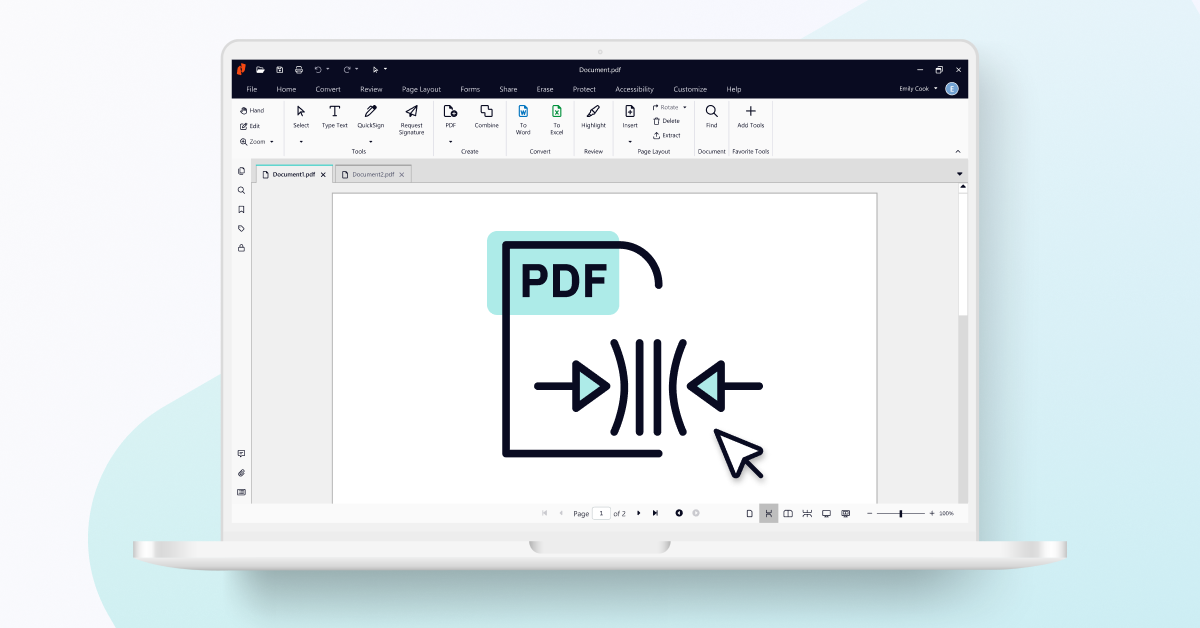
Reducing PDF file size improves upload speeds, saves storage space, and ensures documents are email-friendly. The most effective ways to compress a PDF include using a PDF creation tool to "re-print" the document, using the "Save As" function to clear internal clutter, removing embedded fonts and annotations, and downsampling images.
When you send or receive a PDF, you expect the experience to be fast and friction-free. But when a PDF file is too large, both system performance and user experience suffer.
Large PDF files upload slowly, are hard to share electronically, take up expensive storage space, and render slowly, especially on mobile devices.
Reducing PDF file size is the most direct way to eliminate these challenges. In this guide you’ll learn four proven methods to shrink a PDF without compromising quality, including:
- Removing unnecessary metadata
- Cleaning up hidden objects and embedded fonts
- Optimizing internal file structures
- Compressing images
What are the benefits of compressing PDF Files?
Optimizing PDF file size has immediate benefits, including:
- Faster processing: Large PDF files cause latency in uploads and downloads. Reducing file size ensures documents load instantly.
- Storage optimization: Compressed files consume significantly less space on local servers and cloud storage platforms, reducing infrastructure costs.
- Seamless collaboration: Smaller files bypass email attachment size limits, allowing teams to share documents without using third-party transfer services.
- Mobile accessibility: Optimized PDFs render faster on mobile devices, ensuring accessibility for users on data-constrained networks.
4 proven methods to reduce PDF file size
The right tools can mean the difference between painfully slow, inefficient file sharing and easy access to the documents you need when you need them.
Nitro PDF Pro offers four methods for reducing the size of PDF files:
Method 1: Re-render the document with "Print to PDF" to remove unnecessary metadata and simplify the file
This method creates a clean version of your PDF by stripping out layers, tags, and excess metadata.
- Open your document in Nitro PDF Pro.
- Navigate to File > Print.
- Select Nitro PDF Creator from the printer list.
- Click Properties and select Web-ready Conversion Quality.
- Click OK to generate the compressed file.

Method 2: Use “Save As” to optimize the internal file structure and eliminate redundant data
Saving a fresh copy rebuilds the file structure, removes unused objects, and resolves corruption in the file that inflates the file size.
- Open the PDF in Nitro PDF Pro.
- Click the File menu.
- Select Save As.
- Rename the file (optional) and save it to your desired location.

Method 3: Remove hidden objects, embedded fonts, and metadata with the Optimize PDF tool
This method removes layers, fonts, or annotations that are bloating the document, without affecting content.
- Click File > Optimize PDF.
- In the dialog box, select Reduced Size.
- Click Show Details.
- Check the specific objects to remove (e.g., Form Fields, Annotations, Tags).
Click OK > Optimize.

Method 4: Downsample and compress images to reduce PDF size without losing visible quality
This method is best for image-heavy PDFs where high-resolution graphics or scans significantly increase file size.
- Click File > Optimize PDF.
- Select Custom (or Show Details).
- Navigate to the Images panel.
- Select Downsample or Compress for Color, Grayscale, and Monochrome images.
Click Optimize to apply changes.
At-a-glance: How do PDF compression methods compare?
| Method | Best Used For | Impact on Quality |
| Print to Nitro Creator | General compression for web sharing | Minimal visible change |
| Save As | Removing invisible editing history | None (Lossless) |
| Remove Objects | text-heavy documents with many edits | High (removes interactive elements) |
| Shrink Images | Visual-heavy presentations or portfolios | Variable (depends on settings) |
Try Nitro PDF Pro free for 14 days
Start optimizing your PDF files today. Download your free 14-day trial and experience the benefits of Nitro for yourself.