
Nitro Sign offers multiple ways to share, review, and collaborate on documents outside of an eSigning workflow.
5. To view the email recipients and assigned permissions for the shared document, navigate to the People tab in the Share popup. Document access can be revoked at any time by selecting the Revoke Access option next to the corresponding recipient
The list of recipients can also be viewed by clicking the Information icon at the top right corner of the screen and navigating to the Info tab
How to share a document from Nitro Sign
1. Select My documents in the left menu of the eSign dashboard
2. In the Single documents tab, choose the document you want to share, or add a document not currently in Nitro Sign.
3. Click the Quick Actions menu icon next to the name of the selected document and select Share document.
Alternatively, open the document and select Share Document under the Share tab in the top ribbon. 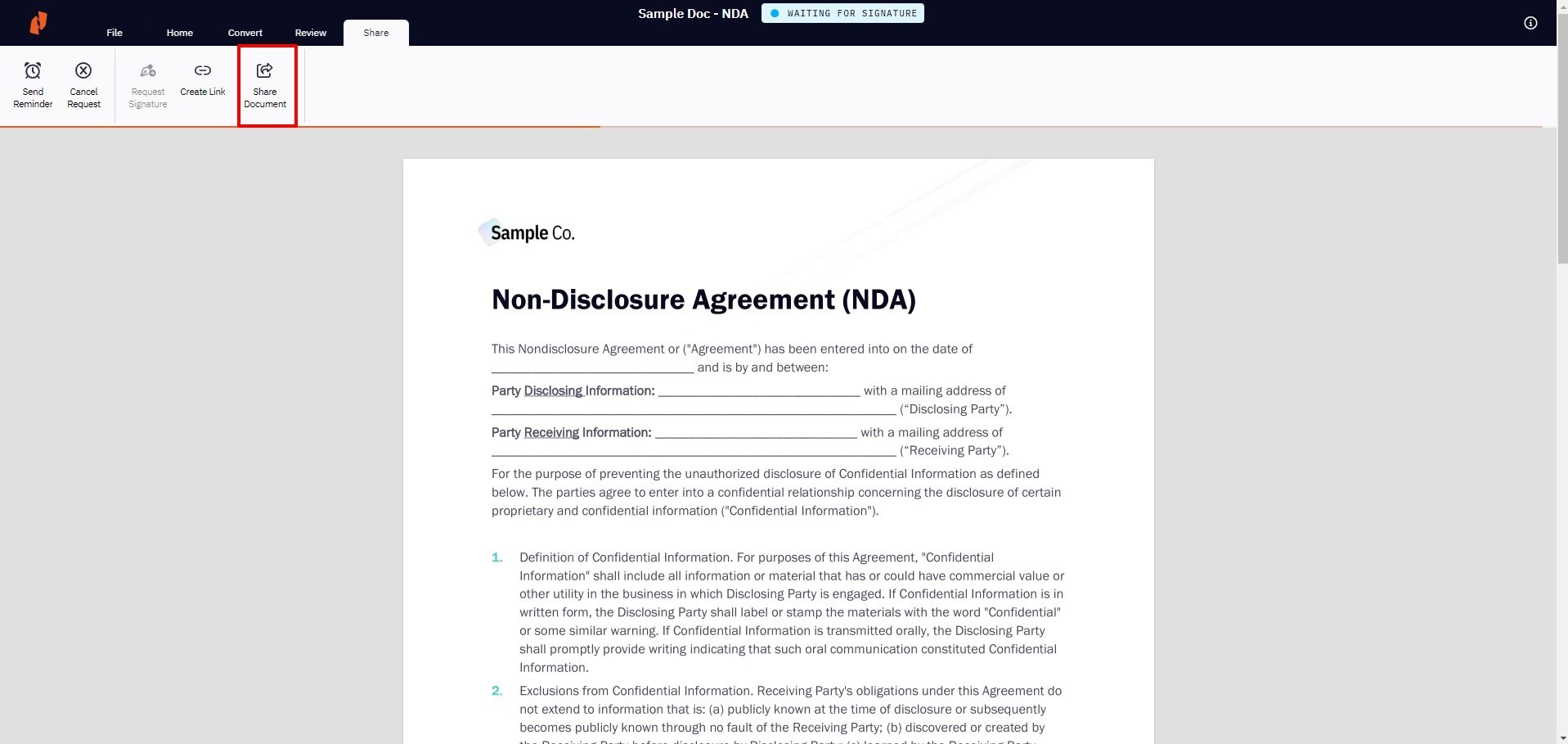
4. Documents can be shared with others either directly via email, or by creating and sharing a link to the document.
Share via email
- On the Share popup that opens, select the Email tab and enter the email address of your recipient
- Privileges can be set to limit the recipient to View only, or View and Comment
- If desired, customize the email subject and message, then click Send when ready

Share via link
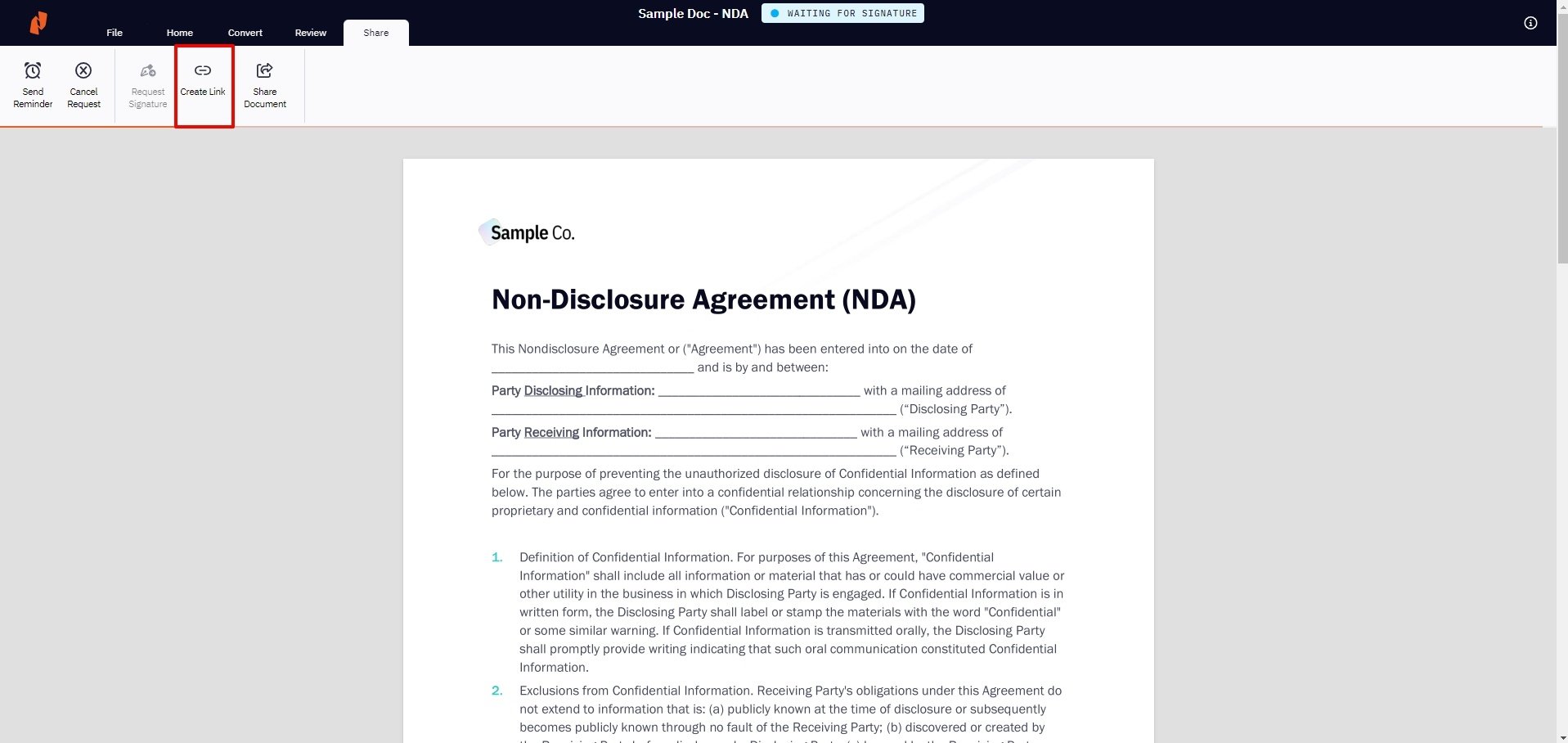
- Click Create Link under the Share tab in the top ribbon
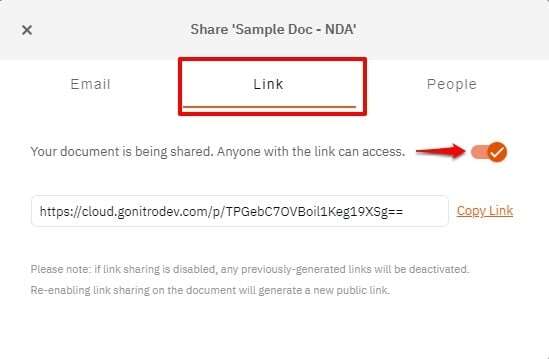
- Alternatively, select the Link tab under the Share popup that opens when Share Document is clicked
- A sharing link will be generated for you to distribute as desired
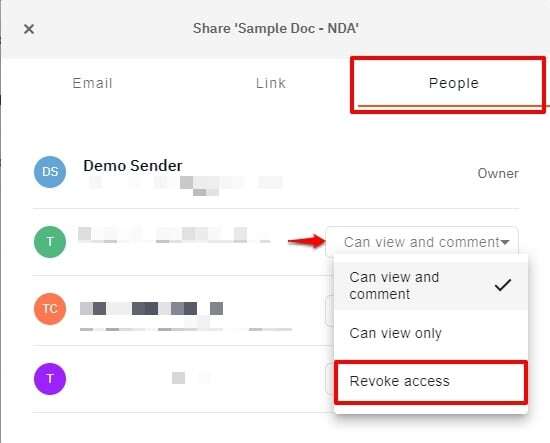
5. To view the email recipients and assigned permissions for the shared document, navigate to the People tab in the Share popup. Document access can be revoked at any time by selecting the Revoke Access option next to the corresponding recipient
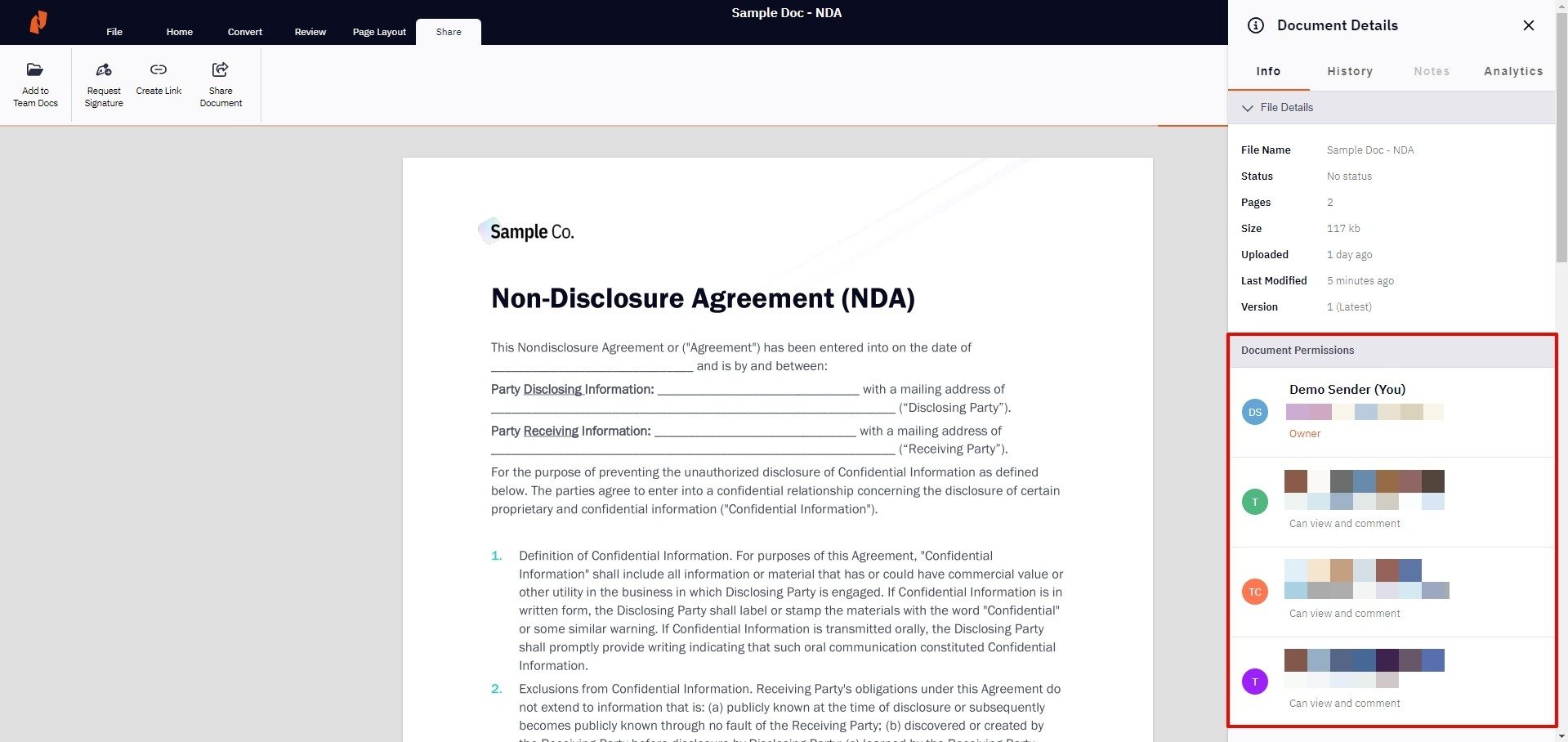
The list of recipients can also be viewed by clicking the Information icon at the top right corner of the screen and navigating to the Info tab