
This feature is not available in the US Data Region.
You can add documents to My Documents from both your local machine as well as the following storage providers:
- Box
- Dropbox
- Google Drive
- OneDrive
- SharePoint 365 (Enterprise plans only)
A multitude of file formats are supported, including PDF, Microsoft Office formats (doc, xls, ppt) and images (jpg/jpeg, png, tiff).
How to add a document to your Nitro Sign account:
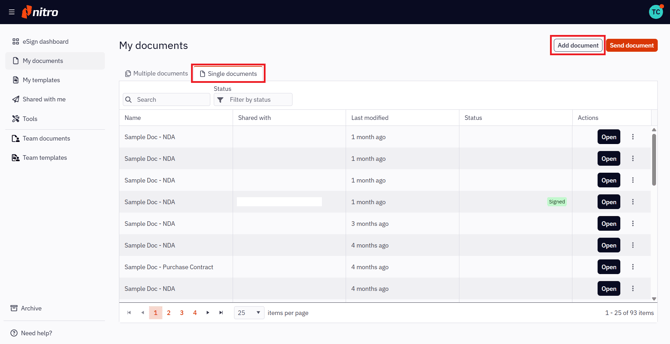
1. Select My documents in the left menu of the eSign dashboard
2. From the Single documents tab, select the Add document button
3. Select the file location in the left menu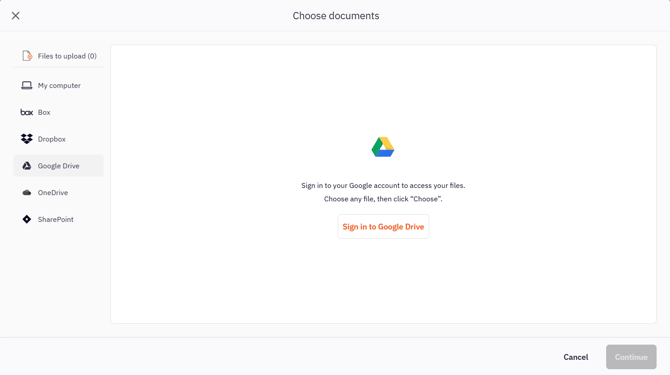
Note: You may need to login if choosing a storage provider
4. Browse to the appropriate folder and choose your file(s)
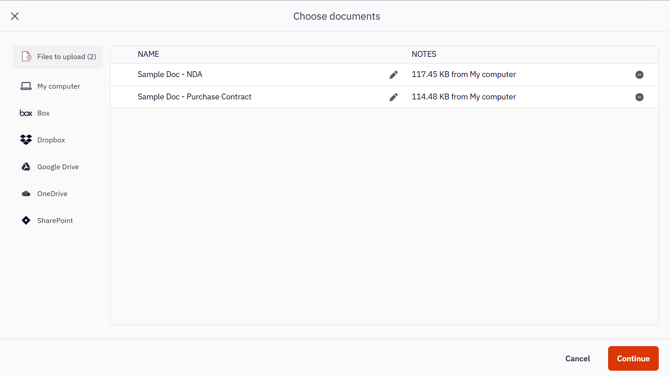
5. Once selected, the files will be listed under Files to upload. You can add more documents from different storage locations in the same way.
6. Select Continue to upload the file
7. Once the upload is complete, you will be notified and the selected documents will appear on the My documents page in the Single documents tab