
Nitro provides several AI tools to help users complete common document tasks faster. These tasks include extracting data from tables and asking questions about document content.
As an admin, you control access to these tools. You can enable or disable them at any time in the Nitro Admin Portal. Your changes apply immediately to all users in your Nitro Team account.
There are three categories of Nitro AI tools:
- Smart Tools: Tools that apply AI models to intelligently process and automate document workflows, including table extraction and data extraction – no content is generated.
- Generative AI Tools: Tools that enable you to ask questions, summarize, and interact with document content. These tools are powered by Azure Open AI and hosted in a secure environment controlled by Nitro.
- Knowledge Assistant: Nitro’s AI chat tool that provides answers to questions about how to use Nitro products.
Nitro designs AI tools to be efficient, secure, and ethical. Nitro does not use customer data to train AI models or share customer data with third parties. AI models process data only for the tasks you request. For full details, please see Nitro’s AI policy.
How to Enable / Disable Nitro AI Tools
- Log in to the Nitro Admin Portal
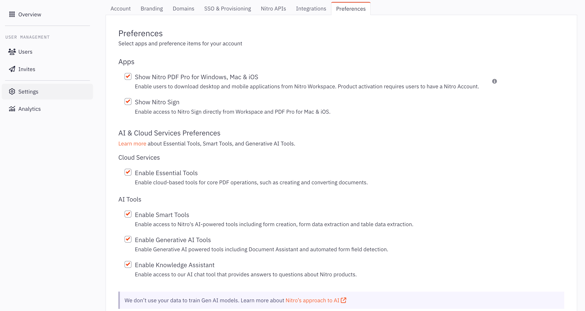
- Select Settings in the left-hand navigation menu
- Click on the Preferences tab
- Under AI & Cloud Services Preferences, check the boxes for the tools you would like to enable, or uncheck to disable
- Smart Tools: Check Enable Smart Tools to enable the following tools:
- Table Extract: Extract table data from PDF documents into a spreadsheet.
- Form Extract: Extract form data from PDF documents into a spreadsheet.
- Auto Form Creation: Automatically turn static documents into fillable forms.
- Generative AI Tools: Check Enable Generative AI Tools to enable the following tools:
- Document Assistant: Generate quick summaries of your document’s content and obtain detailed answers to specific questions about the content.
- Auto Field Detection (Nitro Sign): Scan documents to automatically detect recipients and fields for signing or filling. [Smart Tools and Generative AI Tools must be checked to enable Auto Field Detection.]
- Knowledge Assistant: Check Enable Knowledge Assistant to enable Nitro’s AI chat tool that provides users with quick answers about Nitro products.
Important notes:
- Enabling AI tools in the Nitro Admin Portal determines whether these tools are available within your organization.
- Individual users can only access AI tools if they are signed in to a named Nitro Account and have an active Nitro license assigned.
- Users who do not have a named user account will not see or be able to use AI features, even when AI tools are enabled in the Admin Portal.