
Overview
Workspace Reader provides essential viewing and navigation tools for document reading, and basic tasks.
This guide will walk you through all available features and how to access your Workspace Reader.
Requirements
-
Active Nitro account with Workspace access
Accessing Workspace Reader
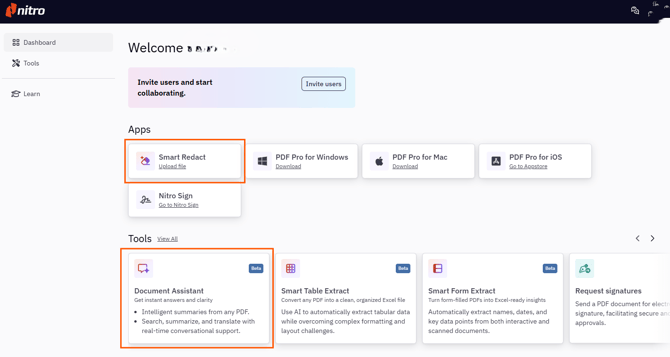
You can access the Workspace Reader in three ways:
-
Direct URL: Visit app.gonitro.com/reader
-
Document Assistant or Smart Redact: Access from your Workspace homepage
Interface Overview
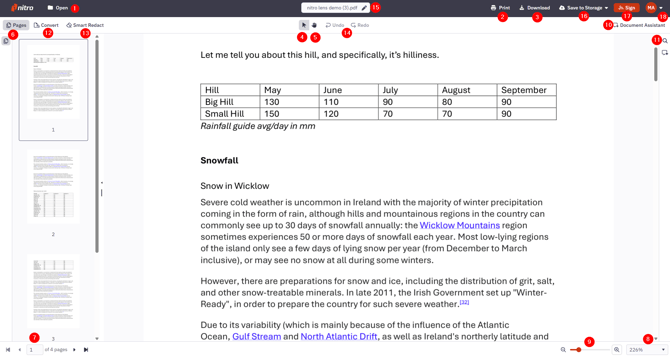
|
# |
Feature |
Description |
|---|---|---|
|
1 |
Open |
Open PDFs from the device |
|
2 |
|
Print the current PDF document |
|
3 |
Download |
Save the PDF to your device |
|
4 |
Select Tool |
Select and copy text |
|
5 |
Hand Tool |
Navigate through the pages |
|
6 |
Page Thumbnails |
Visual page navigation sidebar |
|
7 |
Page Navigation |
Jump between pages |
|
8 |
Page View Options |
Adjust the page view using the options Fit to Width, Fit to Page, and Zoom Presets. |
|
9 |
Zoom Controls |
Adjust document view size |
|
10 |
Document Assistant |
Ask questions about the document content |
|
11 |
Search |
Find text within the PDF |
|
12 |
Convert |
Convert PDF into Office formats or image |
|
13 |
Smart Redact |
Automate document redaction with AI |
|
14 |
Undo - Redo |
Reverse or advance in action done in the document |
|
15 |
Rename File |
Adjust file name while in the Workspace Reader |
|
16 |
Save to Storage |
Integration with OneDrive, Google Drive, Dropbox, Box and SharePoint |
|
17 |
Nitro Sign |
Send document to Nitro Sign |
|
18 |
User Profile |
Access your account details |
Feature Details
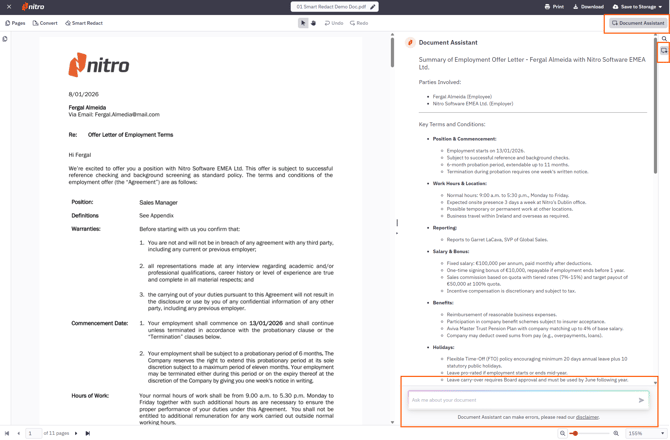
Document Assistant:
-
Ask questions about the document content
-
Get summaries of key information
-
Extract specific data points
-
For more information, visit this page
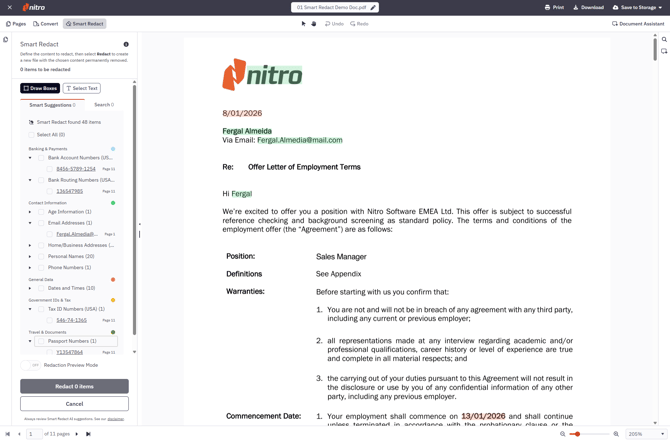
Smart Redact
-
Automatically detect PII across your documents
-
Manually draw or select any content for precise redaction
-
Search and mark specific terms or patterns for bulk redaction
-
Download a clean, fully redacted PDF ready to share
-
For more information, visit this page
Related Articles