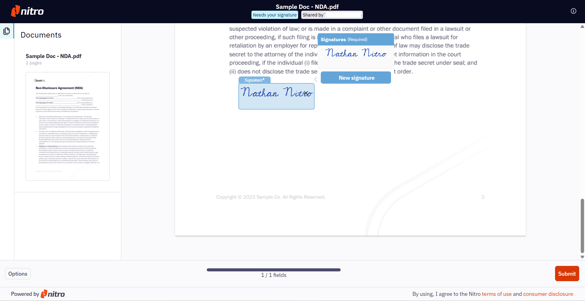
Using Nitro Sign from your Desktop or PC:
1. Within your email application, click the Sign the documents link within the email.
2. Click the right arrow, or Start signing to begin filling out the information fields.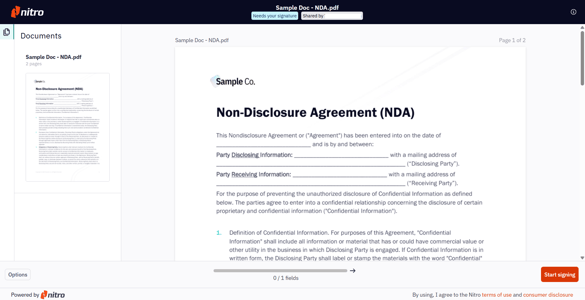
3. Signatures can be created by Drawing, Typing or Uploading an image of your signature.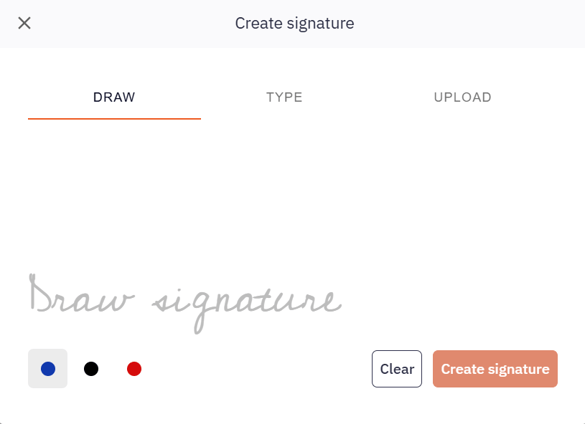
Note: An indicator at the bottom will tell you how many fields need to be completed in order to complete the envelope. Click the Right Arrow to immediately move to the next information field required. You may send the envelope back if it’s incomplete, or requires further review from the sender by clicking Options.
4. Once all information fields are filled, you are able to click Submit. A notification to the author will be sent via email, and, once the envelope is fully signed, you will receive an email with a link to download the signed documents and the audit trail in a zip file.