To Upload a New Version of a Document
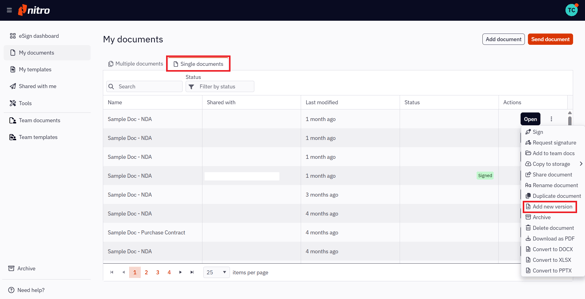
1. Select My documents in the left menu of the eSign dashboard
2. In the Single documents tab, select the document you want to upload a new version
3. Click the Quick Actions menu icon next to the document name
4. Select Add new version in the resulting menu. You can choose a version of the document from your local desktop, cloud storage provider, or from existing Nitro Sign documents.
4. You will be notified that a new version of your document has been uploaded.
How to view or download earlier versions of a document
1. Select My documents in the left menu of the eSign dashboard
2. In the Single documents tab, select a document for which a new version has been added (per the instructions in the above section)
3. Click the Open button
4. Navigate to the Home section of the ribbon and select Version history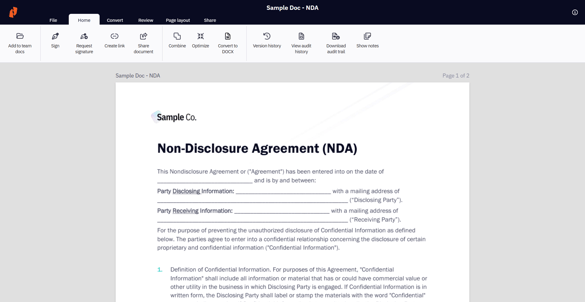
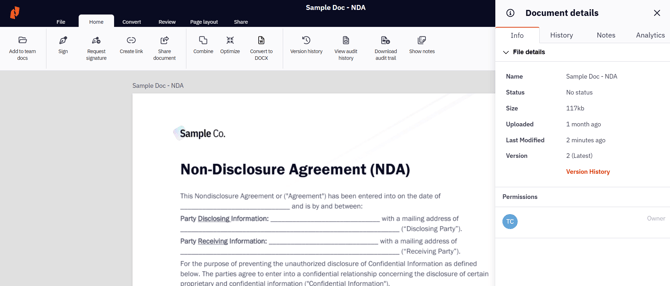
Alternatively, click the Info icon in the top right corner. The Document details panel will slide open, enabling you to click the Version History link at the bottom of the list.
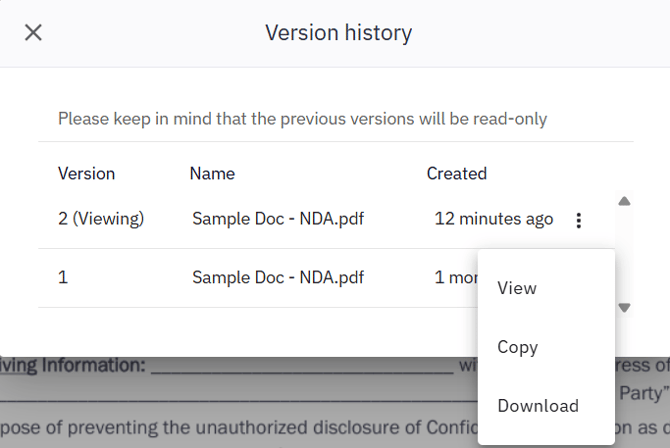
4. The Version history pop-up will open, providing details of the document's various versions. Clicking the Quick Actions menu icon next to each version will expose a menu that allows you to View, Copy, or Download that specific version of the document.