
Templates are used to speed up repeated signature requests by saving an envelope with documents and fields already added. If you have not created any templates yet, check out Create a Template for how to do so.
.jpeg?width=585&height=276&name=download%20(6).jpeg)
8. The sent envelope will now appear under the Waiting for Signature tab on the eSign dashboard.
How to use a saved template
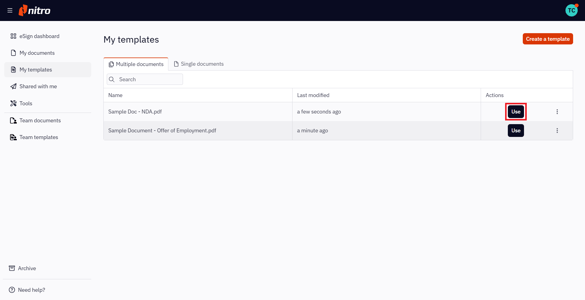
1. Select My templates in the left menu of the eSign dashboard
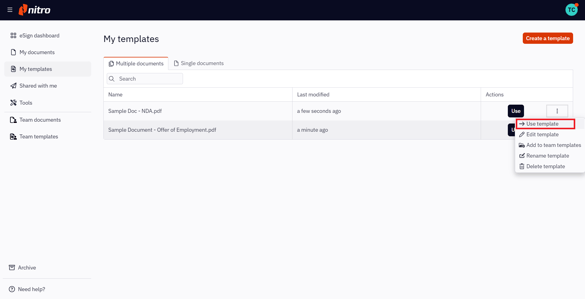
2. You will be brought to the My templates page, where you'll find all of your saved templates. From here, you can either:
-
Click on the Use button next to the desired template.
-
Or, click on the Quick Actions menu icon next to the name of the desired template and select Use template.
3. With the template open, select each recipient in the Recipient panel and add their details.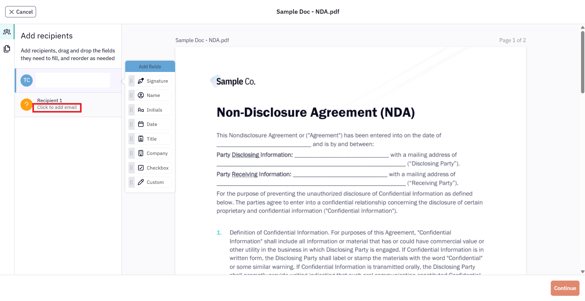
4. Reposition any of the fields on the documents, if necessary.
5. Once you are happy with the documents, click Continue to move on to review.
6. Update the subject or body content of the email message if desired.
7. Click Request Signature to send the signature request.
8. The sent envelope will now appear under the Waiting for Signature tab on the eSign dashboard.