
Saving an eSignature Request Draft
At any stage in the Signature Request process, you can save your envelope and any added signature fields, recipients, and messages as a draft.
1. Initiate a Signature Request.
2. Begin preparing the documents for signature.
3. At any stage, click Save Draft in the bottom left of your screen 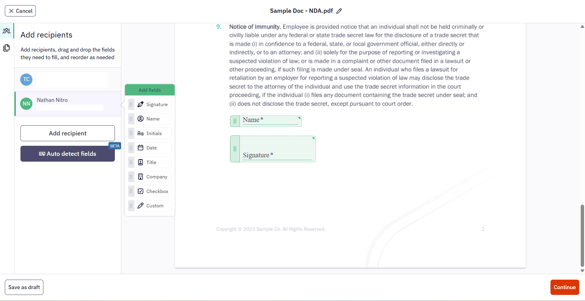
Alternatively, you can click the Cancel button at the top left of the workflow editor, which will prompt a dialog asking if you'd like to Save and close.
Continue working on a saved draft
To access and continue working on a saved Signature Request draft:
1. Open the eSign dashboard and click on the Drafts tab. This tab lists the five most recent envelopes that you have saved as a draft. Click the Open button and skip to Step 5 if you would like to continue working on a recent draft.
2. If the draft isn't displayed, click View more at the bottom of the list.
3. You will be brought to My documents with all of your saved drafts. From here, you can do either of the following:
-
Click on the Open button next to the desired envelope
-
Or, click on the Quick Actions menu next to the name of the draft you would like to open, and select Open.
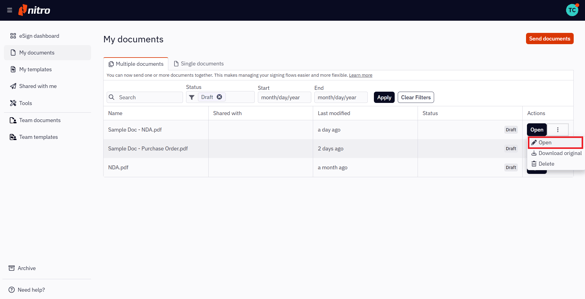
These actions will enable you to continue preparing your signature request from where you left off. You can also make changes to the draft and save it until you're ready to send the signature request.
Discard a saved draft
To discard a saved Signature Request draft:
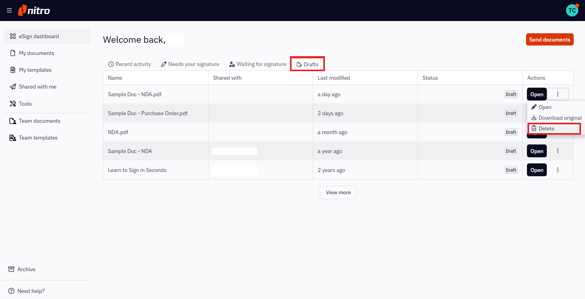
1. Open the eSign dashboard and click on the Drafts tab.
2. This tab lists the five most recent envelopes that you have saved as a draft. If the unwanted draft is available in the list, click on the Quick Actions menu next to the envelope, select Delete, and skip to Step 5.
3. If the unwanted draft isn't displayed, click View more at the bottom of the list.
4. You will be brought to My documents, showing all saved drafts. From here, you can click on the Quick Actions menu next to the name of the draft you would like to discard, and select Delete.
5. In the resulting dialog, click Delete request to confirm you no longer need the draft.
6. You'll be notified that the draft has been deleted, and you will no longer see it in your drafts.