
How to Rename a Document from the eSign Dashboard
1. Select My documents in the left menu of the eSign dashboard
2. In the Single documents tab, select the document you want to rename
3. Click the Quick Actions menu icon next to the document name
4. Select Rename document in the resulting menu
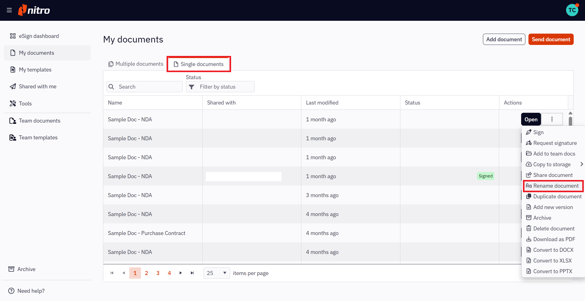
4. In the resulting pop-up, add the new name of the document and click Rename.jpeg?width=447&height=246&name=download%20(2).jpeg)
5. You will be notified once your document is renamed. The renamed document will be available in My documents in the Single documents tab.
How to Rename a Document from the Document
1. Open the document
2. Select File in the top ribbon
3. Select Rename Document.jpeg?width=447&height=211&name=download%20(3).jpeg)
4. In the resulting pop-up, add the new name of the document and click Rename
5. You will be notified once your document is renamed. The renamed document will be available in My documents in the Single documents tab.
How to Duplicate a Document from the eSign Dashboard
1. Select My documents in the left menu of the eSign dashboard
2. In the Single documents tab, select the document you want to duplicate
3. Click the Quick Actions menu icon next to the document name
4. Select Duplicate document in the resulting menu
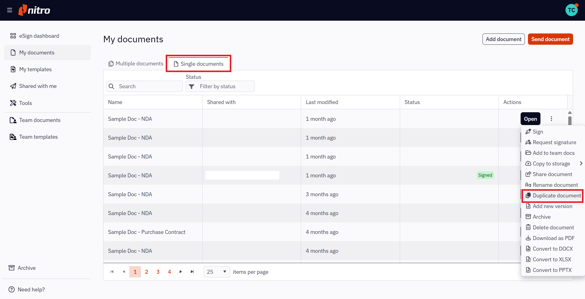
4. In the resulting po-pup, enter the name of the duplicate document and click Add.
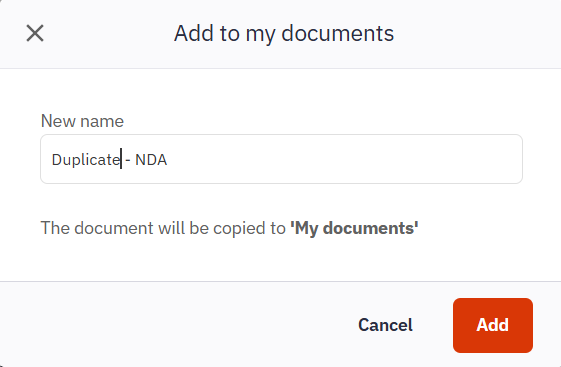
5. You will be notified once your document is duplicated. The duplicated document will be available in My documents in the Single documents tab.
How to Delete a Document from the eSign Dashboard
1. Select My documents in the left menu of the eSign dashboard
2. In the Single documents tab, select the document you want to delete
3. Click the Quick Actions menu icon next to the document name
4. Select Delete document in the resulting menu
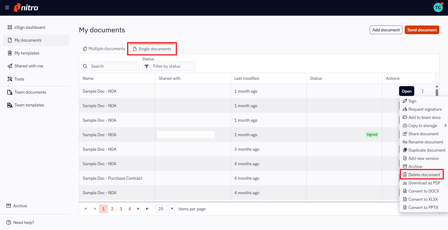
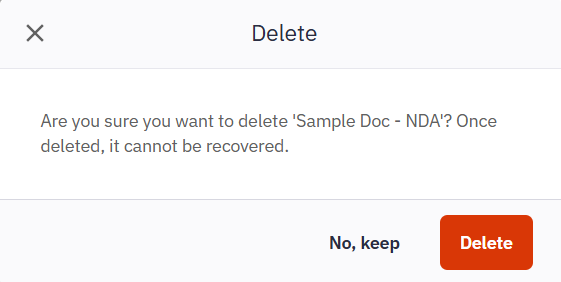
4. In the resulting po-pup, confirm that you have selected the correct document for deletion and finalize by clicking Delete
5. You will be notified once your document is deleted. The deleted document will no longer be available in My documents in the Single documents tab
How to Delete a Document from the Document
1. Open the document
2. Select File in the top ribbon
3. Select Delete document
.jpeg?width=670&height=317&name=download%20(5).jpeg)
4. In the resulting po-pup, confirm that you have selected the correct document for deletion and finalize by clicking Delete
5. You will be notified once your document is deleted. The deleted document will no longer be available in My documents in the Single documents tab