
How to use the Auto Detect Fields feature in Nitro Sign
Notes
- This feature is not available in all Sign plans. To find out more please check our Plans & Pricing page or contact your sales rep.
-
Like other AI-powered and Text Extract features in Nitro, this feature in Nitro Sign requires that both 'Enable Advanced Tools' and 'Enable Generative AI Tools' are turned on in your Nitro Admin settings.
This option scans the documents and automatically detects recipients and fields for signing or filling.
-
On the Add recipients screen, click the Auto detect fields button.
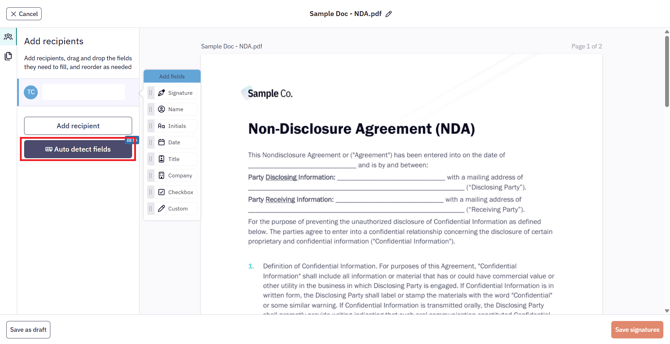
-
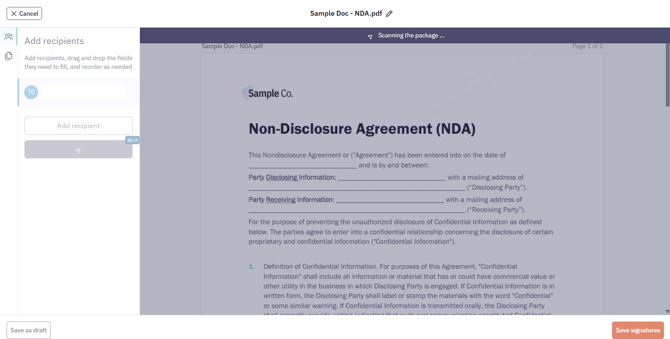
The system scans the documents in the envelope.
-
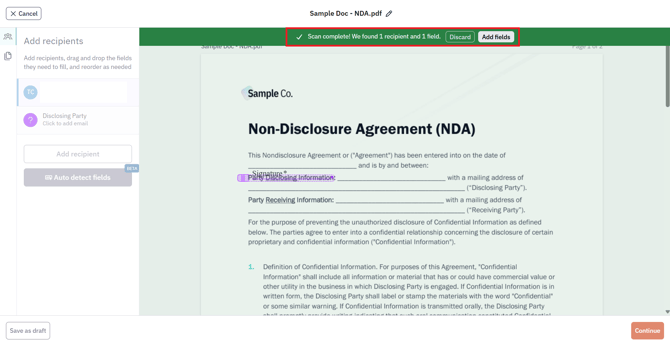
A banner appears at the top of the page displaying the scan status, the number of recipients identified, and the number of fields detected.
-
You can click Discard to remove the detected fields or click Add fields to keep them.
(Note: Auto-detected fields are visible in the documents)
-
To assign a field to a recipient, select Click to add email below the recipient's role.
-
In the pop-up window, fill in the recipient’s information: Name (optional) and Email (required).
-
Click Save to continue, or click Cancel to discard the action.
-
Click Continue to proceed and complete the Request Signature workflow.
Notes:
-
Envelopes can also be saved as a draft to be sent later.
-
Auto Detect Fields scans documents and suggests recipients and fields for signing or filling. If an uploaded PDF already contains fillable form fields or signature fields, those fields may be flattened during upload and may not be preserved as editable Nitro Sign fields. You can use Auto Detect Fields or manually add fields before sending.