
With Nitro Sign, you can quickly and easily add your electronic signature to any document.
How to sign a document
1. Select Tools in the left meny of the eSign dashboard
2. Select Sign
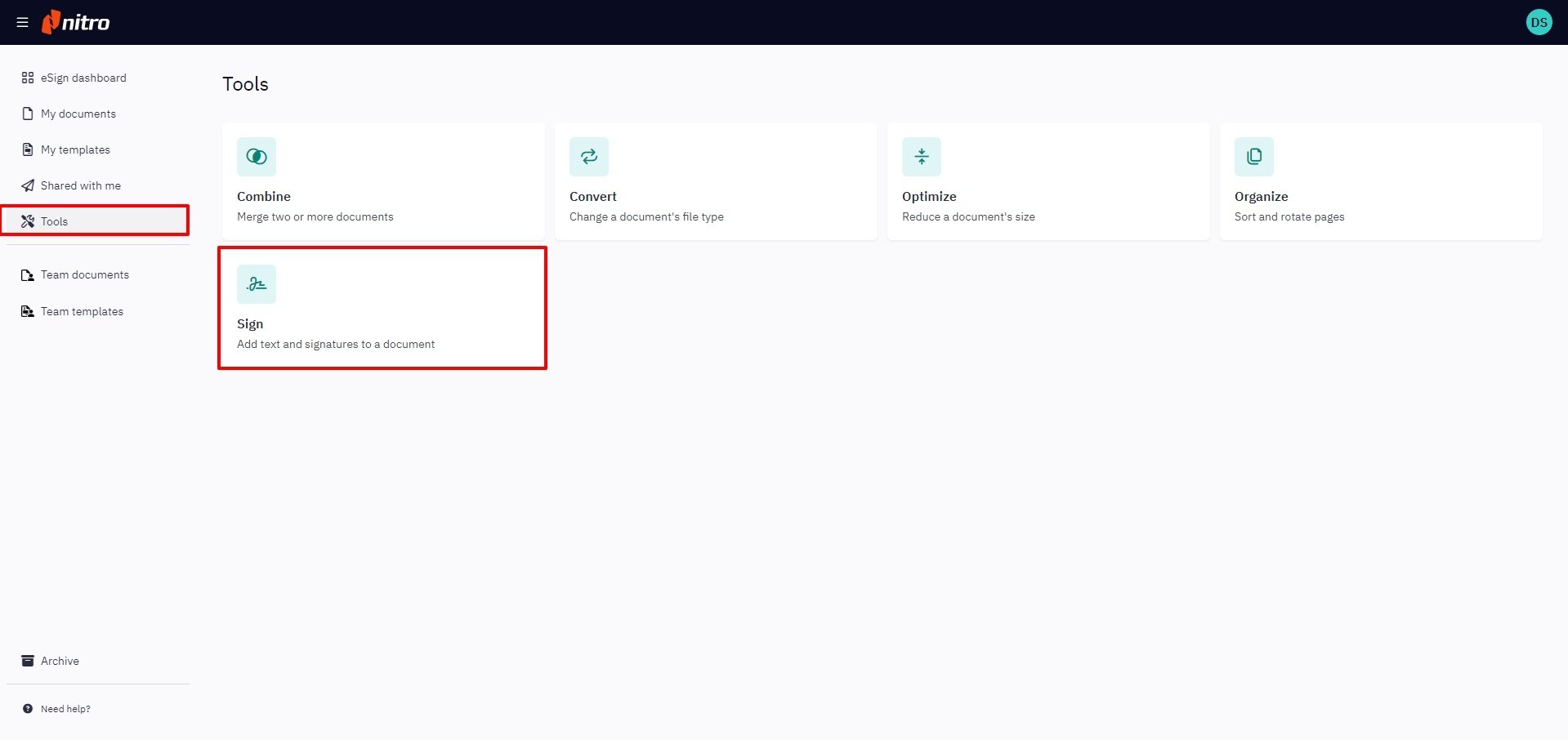
Alternatively, click the Send documents button on the eSign dashboard or the My documents list.
2. On the resulting screen, choose one or more documents from your local desktop, any of the cloud storage providers, or a pre-existing Nitro Sign document
3. Click Continue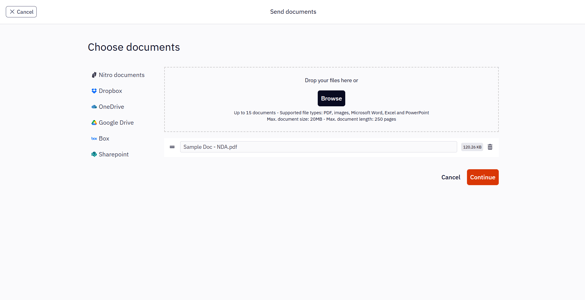
Note: Nitro Sign imposes following limits with regards to envelopes and the documents they contain:
-
Maximum number of documents per envelope: 15
-
Maximum document size: 20MB
-
Maximum number of pages per document: 250
-
It can occur that non-PDF files, such as .docx or .jpg, exceed above document limits after conversion to PDF. If this occurs the converted file will not be accepted.
-
Maximum total size of the envelope: 300MB
-
Maximum amount of recipients per envelope: 200
-
Password protected or restricted PDFs are not allowed for signing
3. Once the workflow editor is shown, click on your name/email in the Signers panel on the left of your screen to reveal a list of field options.
4. Drag and drop the required fields onto the documents. The fields will be pre-populated with stored signatures, and other information - if available - will be editable.
5. Each field can be moved and resized, and by clicking the tooltip you can change the field type.
6. After verifying the information in the fields added, click Save signatures.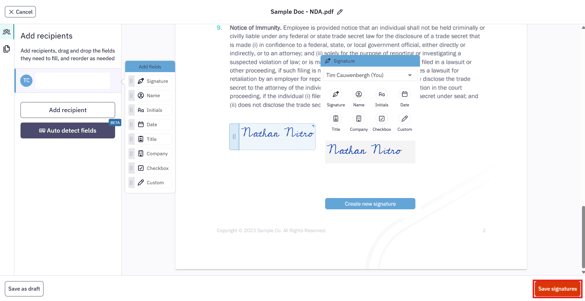
Note: You can easily navigate or manage the documents in your envelope by clicking on the Documents icon next to the Recipients panel.
%20(1).png?width=670&height=345&name=Step-1%20(9)%20(1).png)
7. Once the envelope is saved, you will be notified, and your signed documents will be available in My documents. The envelope status will be updated to Signed.