
How to cancel an eSignature request
1. Select Waiting for signature tab on the eSign dashboard
2. The Waiting for signature tab lists the five most recent envelopes that you have sent for signature.
Note: If the envelope you're looking to cancel appears, click on the Quick Actions menu icon, select Cancel request and skip to Step 5.
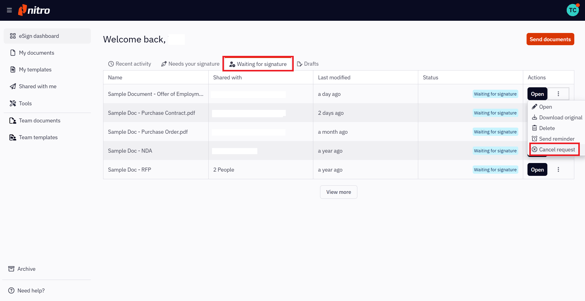
3. If the envelope you're looking to cancel is not displayed in the list, click the View more button at the bottom.
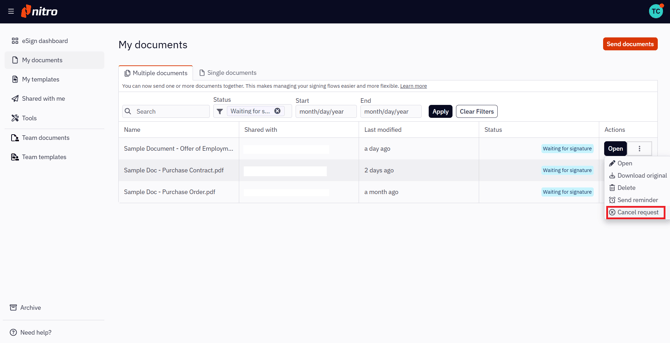
4. You will be brought to My documents with all of your envelopes that have been sent for signature, but still aren't completed. From here, you can either:
-
Click on the Quick Actions menu icon next to the name of the desired envelope and select Cancel request
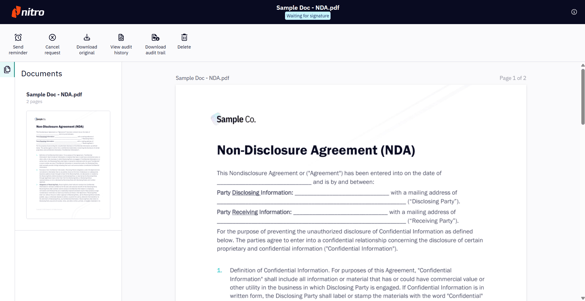
- Or, click on the Open button next to the desired envelope and select Cancel request in the ribbon.
5. A pop-up will open to confirm that you want to cancel the signature request. Click Cancel request to cancel.
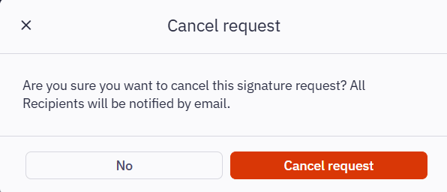
Your envelope will then be available to view and edit under the Drafts section of the eSign dashboard.