How to enable 2FA with SMS on an eSignature request
This feature is not available in all Sign plans. To find out more please check our Plans & Pricing page or contact your sales rep.
Users can choose to enable multi-factor authentication with SMS delivery for Nitro Sign eSignature requests.
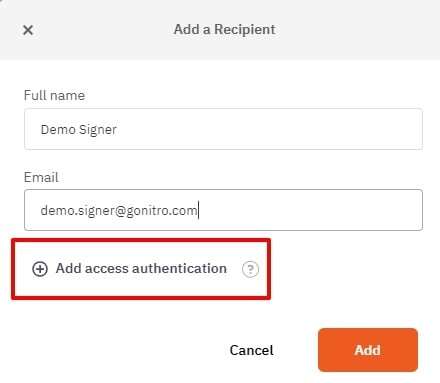
2. On preparing the request, enter the recipient's information in the fields provided, then click Add access authentication.
3. In the Access Code dropdown, select SMS and add the recipient's country code and mobile phone number.
4. Click Save. 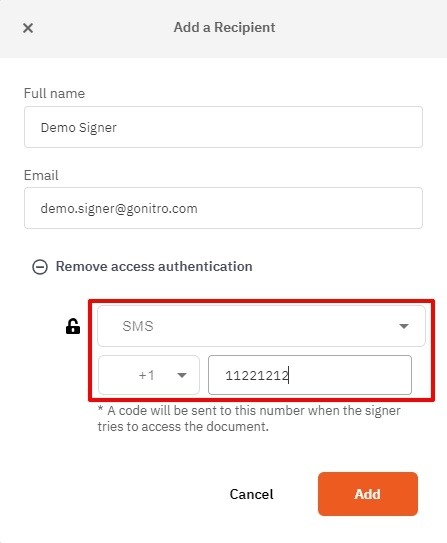
5. Click Add
6. Continue on to complete the rest of the Request Signature workflow.
Signer's Experience
1. When the signature request has been sent, the signer will receive an email notification containing a link to the envelope. Upon clicking the link, they will be redirected to a page where they can request the access code via SMS.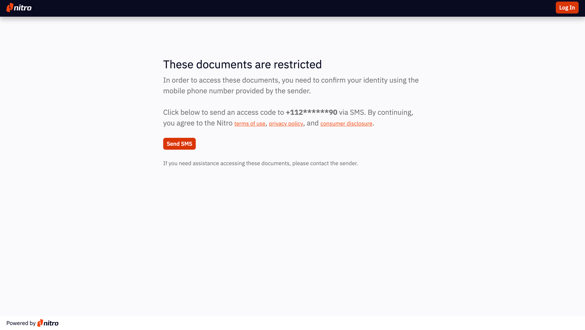
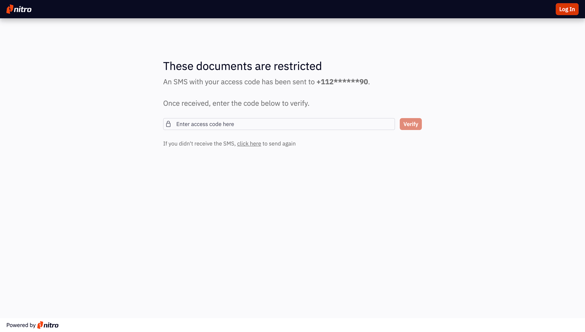
2. Clicking Send SMS will deliver a unique access code via SMS to the signer's mobile phone. When the code is correctly entered in to the field provided, the signer will be granted access to view and sign the documents. Entry of an incorrect code will prevent access to the document.