
There's a Faster Way to Do This!
The following User Guide provides instructions to manually redact sensitive information. We also offer, Smart Redact which scans your document and surfaces sensitive data automatically, so you don't have to search page by page.
- Detects 30+ categories of PII, including unstructured content that basic search misses
- Works on scanned files and images
- Groups suggestions by category with real-time preview
Redaction permanently removes sensitive text or images from a PDF, replacing them with black rectangles. The rest of the document stays intact and usable.
Redaction is a two-step process:
- Mark the content you want removed (non-destructive, you can undo or adjust marks).
- Apply the redactions (permanent, cannot be undone).
Note: Once you apply redactions, it's permanent and cannot be undone. Redactions aren't saved to disk until you save the file, if you apply one by mistake, close without saving and reopen the original.
Good to know:
- Nitro PDF Pro will prompt you to save the redacted file with
_redactedappended to the name, so your original stays untouched. - Redaction only affects the content layer (text and images). To remove annotations or vector graphics, right-click them and choose Delete instead.
- Redaction does not strip metadata, that's a separate step (see Remove Metadata).
Marking Content for Redaction
- Go to the Erase tab>Mark for Redaction

- The cursor adapts to what you're pointing at
- Click or drag to mark text, images, or entire pages (via the Pages panel on the left).
Stacking behavior:
- If text sits on top of an image, redacting the text also blacks out the image underneath it.
- If an image is behind text and you redact the image, the text in front is untouched, even if the redaction color matches, the text remains selectable.
Marked areas show as red shading by default. Hover over a mark to preview how it'll look once applied (a solid black box).
Repeat a mark across pages:
-
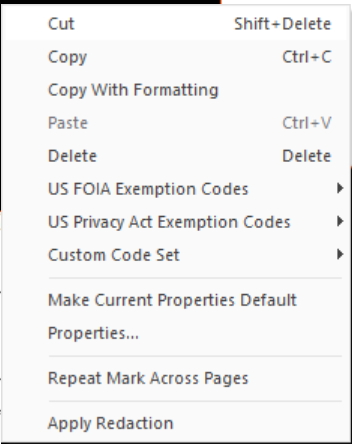
Right-click the mark
-
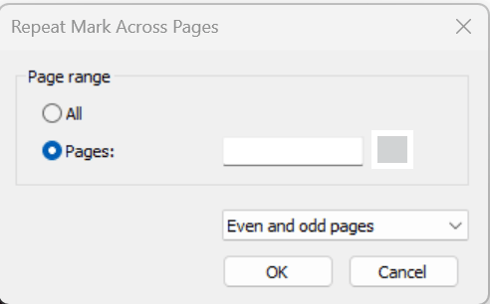
Select Repeat Mark Across Pages
-
Choose a page range and filter (all/odd/even)
-
Click OK
Remove a mark before applying it:
Select it and do one of the following:
-
Click on an area marked for redaction, and press Delete
- Right-click an area marked for redaction, and select Delete from the menu
Applying Redactions
- One mark: right-click it >Apply Redaction
- All marks: Redact tab >Apply All Redactions
Note: When you Save or Save As your PDF file after applying a redaction, Nitro Pro prompts you to append _redacted to the filename so the original PDF file is not overwritten.
Redaction Properties & Codes
How to configure default redaction properties:
-
On the Erase tab, click Mark for Redaction, and select Redaction Mark Properties

-
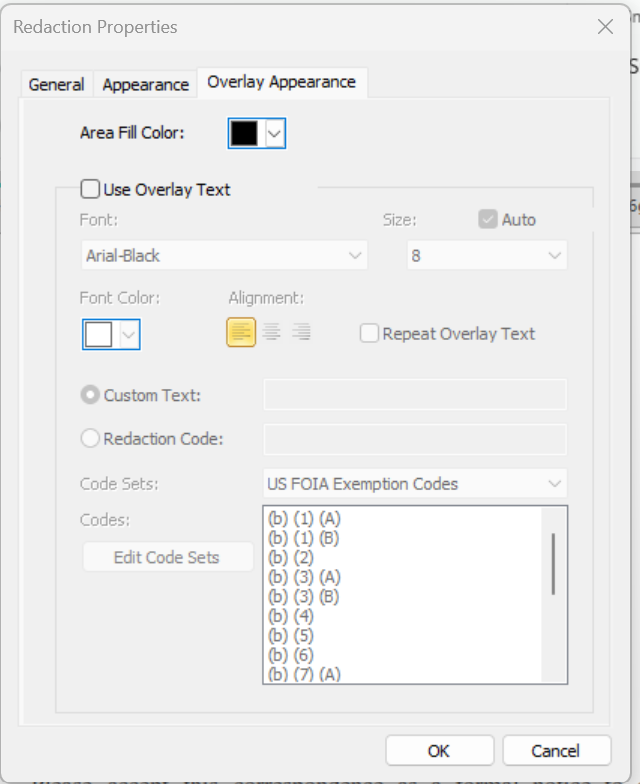
The Redaction Properties dialog appears
-
On the Overlay Appearance tab, specify your default redaction properties, such as the color of redaction marks
-
Click OK
How to customize redaction properties for a specific redaction mark:
-
Right-click the redaction mark and select Properties
- The Redaction Properties dialog appears
- Specify properties such as colors and redaction codes, which are different to the default properties
- These settings override the defaults set via the Redaction Mark Properties button, and apply to the selected redaction mark only
Search and Redact
Find and mark multiple instances of a word or phrase at once:
- Go to the Erase tab>Search and Redact
- Enter a term and click Search. Matches appear in a list (click + to expand).
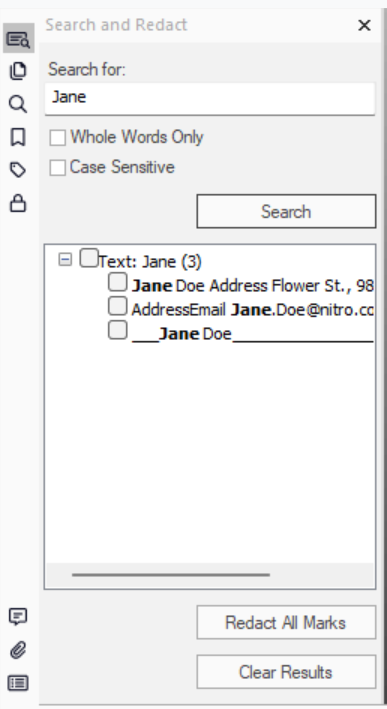
- Check the boxes next to the matches you want marked (uncheck to remove a mark).
- Click Redact All Marks to apply every marked instance at once.
Tip: Clicking a result jumps to its location in the document so you can preview it in context.