
With Nitro Pro, users can merge multiple file formats (Word, Excel, PPT, Image) into a single PDF documents - or files in these formats into a single PDF.
Simply select your documents, choose the order, and combine them while controlling output quality. This guide shows step-by-step how to merge PDFs from a folder, your desktop, or directly within Nitro Pro.
How do I merge files from a PDF folder to desktop?
You can quickly combine multiple documents without opening Nitro Pro by using your file system. This method is useful when you want to merge several files at once without launching the application.
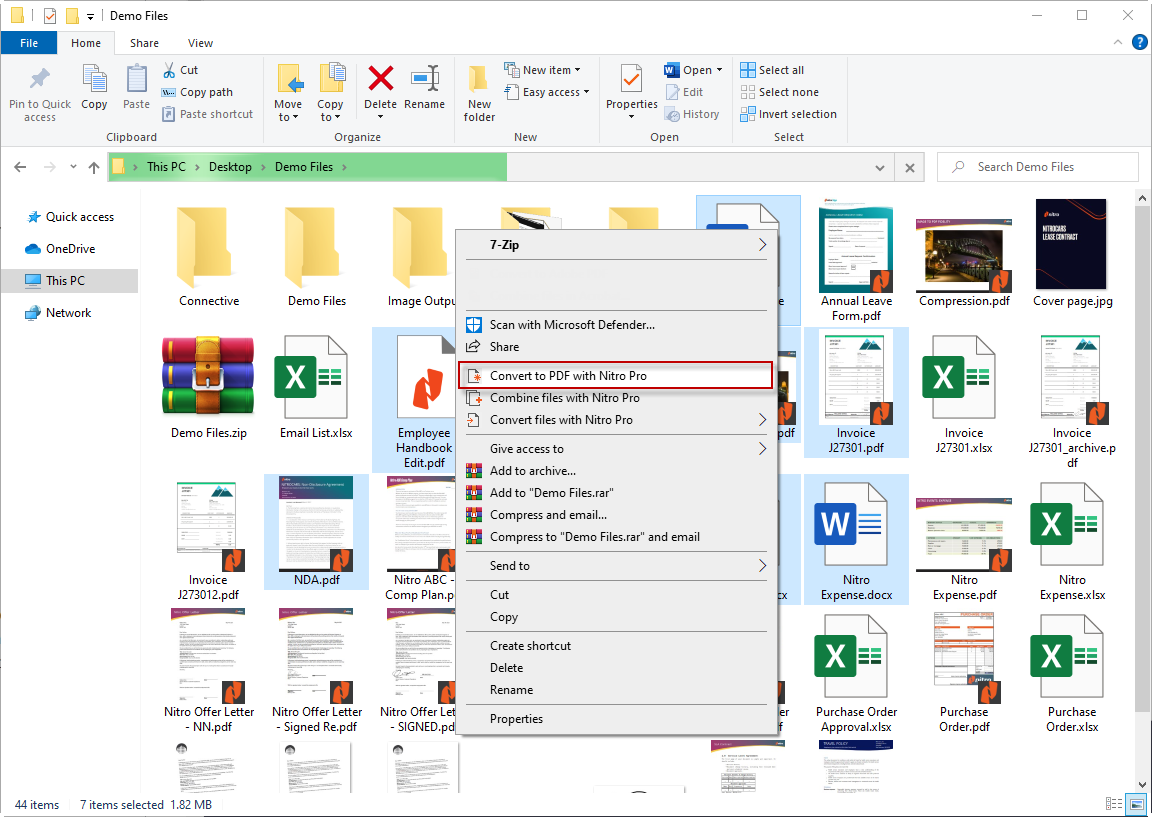
- Open the folder that contains the files you want to combine
- Hold down CTRL and click the files you want to select
- Right-click, and then choose Combine files with Nitro
- Click Move Up and Move Down to reorder the files as desired
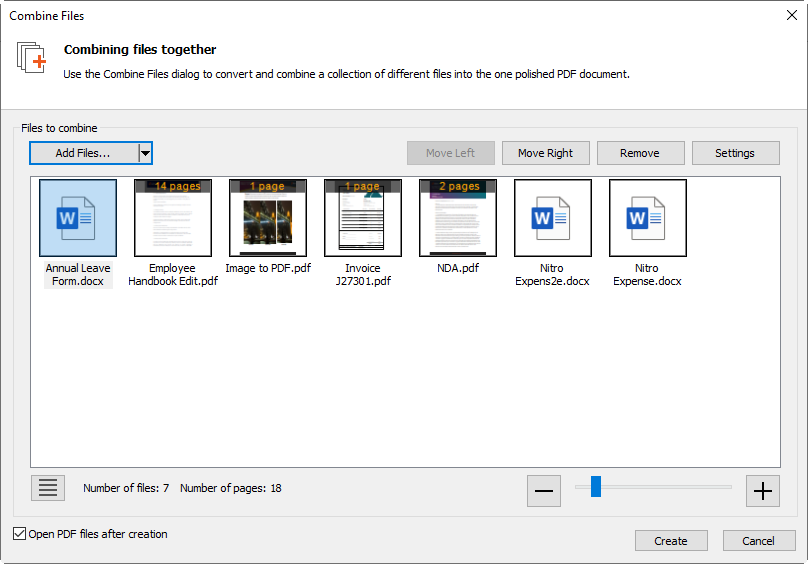
- In the Make PDF files list do one of the following, depending on whether file size or print quality is more important to you:
- If the document requires high print quality, click Print-ready
- If the print quality is less important than file size, click Office-ready
- If a small file size is the most important quality, click Web-ready
- In the Save PDF to list, select the location you want to save the file to
- Click Create
How do I merge files to PDF in Nitro Pro?
You can also merge files directly within Nitro Pro, giving you more control over the order, view mode, and output settings. This is ideal for combining files while actively working in the application.
- On the Home tab, in the Create group, click Combine

- On the Combine Files dialog, click the Add Files button, select the files to convert and then click Open.
- Click and drag the files to visually define the order in which they will be combined. You can change the view mode from a List to Thumbnails by clicking the button beneath the file viewer. The zoom controls only work when thumbnail view is used.
- Click the Settings button to set one of the following, depending on whether file size or print quality is more important to you:
- If the document requires high print quality, click Print-ready
- If the print quality is less important than file size, click Office-ready
- If a small file size is the most important quality, click Web-ready
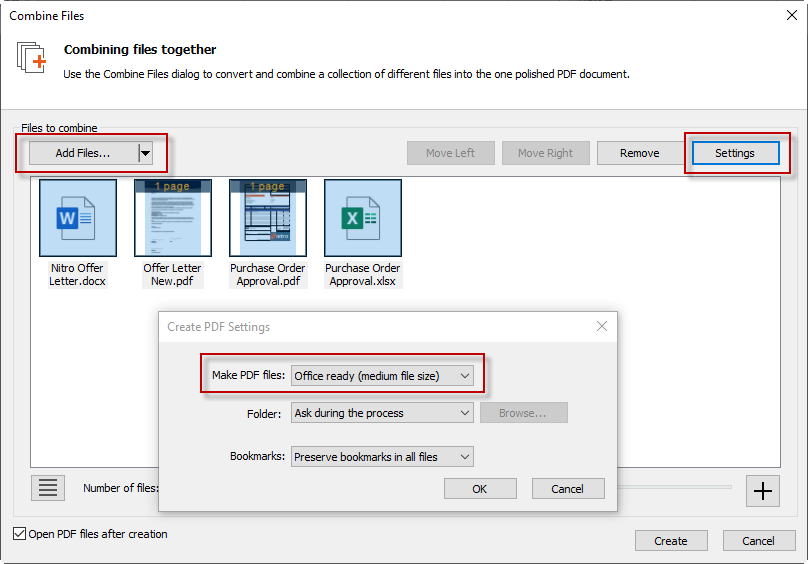
- In the Folder list, select the location you want to save the file to
- Click Create