
Step 1: Get the Additional Reply URL from the Nitro Admin Portal
1. Log in to the Nitro Admin Portal.
2. Select Settings from the left navigation pane.
3. Navigate to the SSO & Provisioning tab.4. In the Assertion Consumer Service URL [ACS] section, click Copy URL for Reply URL 2.
Step 2: Add the Additional URL to Your Microsoft Azure AD Setup
1. Login to Microsoft Azure.
2. Go to Microsoft Entra ID.
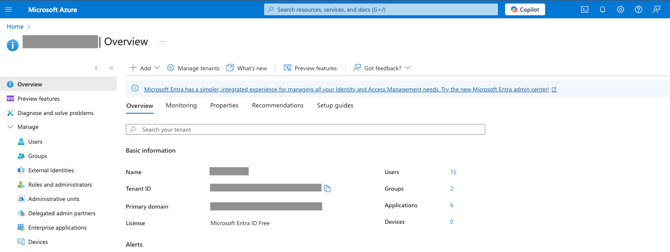
3. Select Enterprise Applications.
4. Choose Nitro from your list of SSO applications.
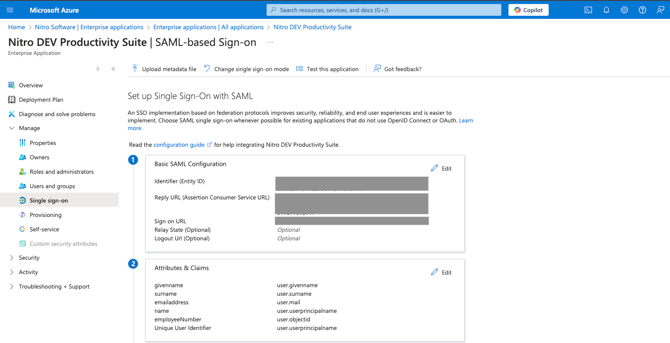
5. Under the Manage menu, click Single sign-on.
6. In the Basic SAML Configuration section, click Edit.
7. Click Add reply URL under Reply URL (Assertion Consumer Service URL).
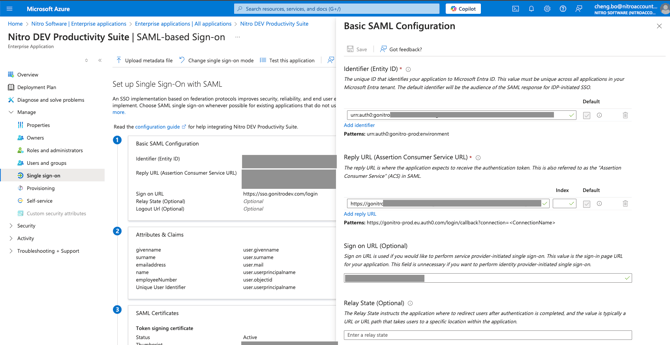
8. Paste the Reply URL you copied from Nitro Admin Portal (You do not need to specify a value for Index or Default.)
For each Reply URL, create two entries in the ACS URL section:
You should end up with 4 total ACS URLs:
-
Reply URL #1 — with the connection parameter (Default: True)
-
Reply URL #1 — without the connection parameter
-
Reply URL #2 — with the connection parameter
-
Reply URL #2 — without the connection parameter
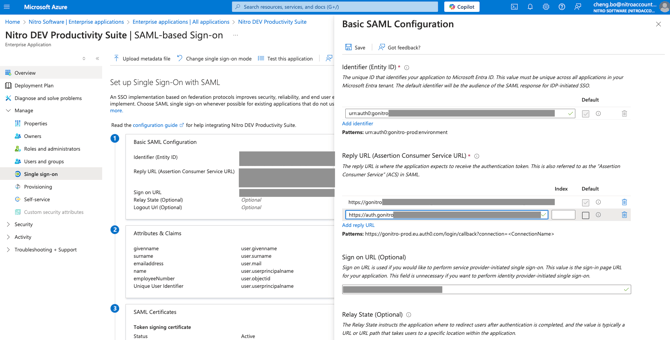
9. Click Save.