How to Download and Store your Documents from the eSign Dashboard
1. Select My documents in the left menu of the eSign dashboard
2. In the Single documents tab, select the document you want to download
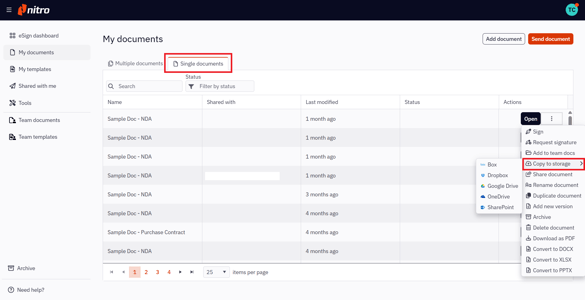
3. Click the Quick Actions menu icon next to the document name:
-
To copy a document to a supported cloud storage provider, select Copy to storage
-
To save the file to your local machine, select Download as PDF
Note: You will be notified once your document has been downloaded or copied to a cloud storage account.
How to Download and Store your Documents from the Document
1. Select My documents in the left menu of the eSign dashboard
2. In the Single documents tab, select the document you want to download
3. Click Open button
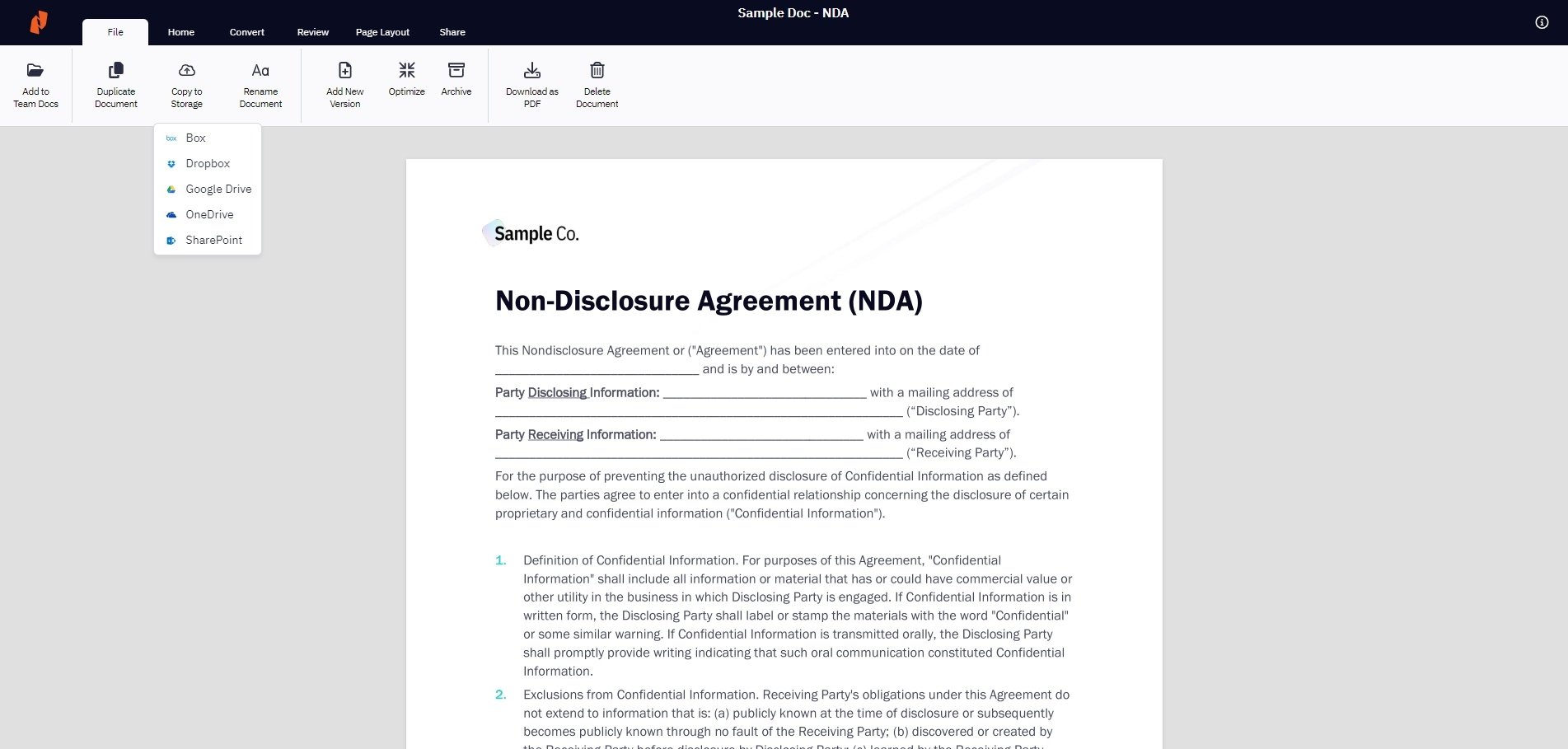
4. Select File in the top ribbon:
-
To copy a document to a supported cloud storage provider, select Copy to storage
-
To save the file to your local machine, select Download as PDF
Note: You will be notified once your document has been downloaded or copied to a cloud storage account.
How to Download and Store Documents Sent to you
Note: To be able to download documents that have been sent to you, you need to log into or sign up for an account
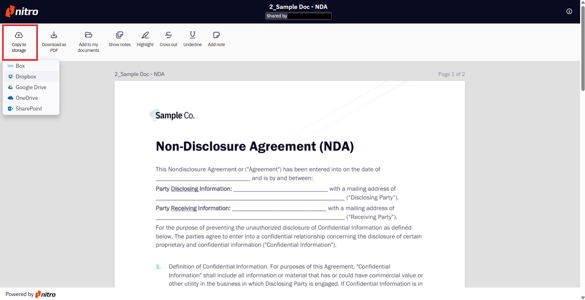
1. When viewing the document sent to you, select Copy to storage or Download as PDF in the top ribbon. Log in or sign up if required. Once logged in, the file will download.
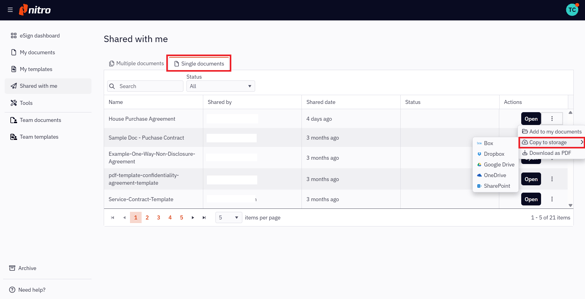
2. To access documents the other users sent you, select Shared with me in the left menu of the eSign dashboard. Then select the Single documents tab. From the Quick Actions menu, you can download the document or copy it to a cloud storage provider.