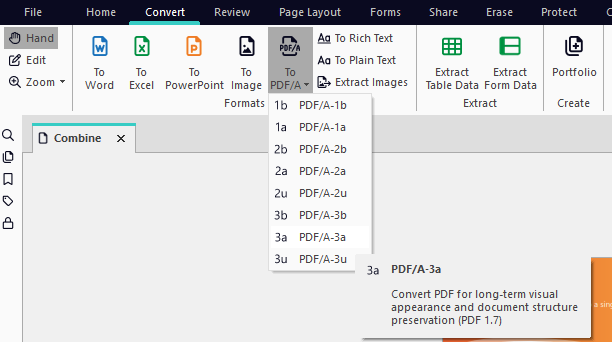
To create PDF/A-1b using the PDF from File tool:
-
On the Home tab, in the Create group, click the PDF button, then From File.
-
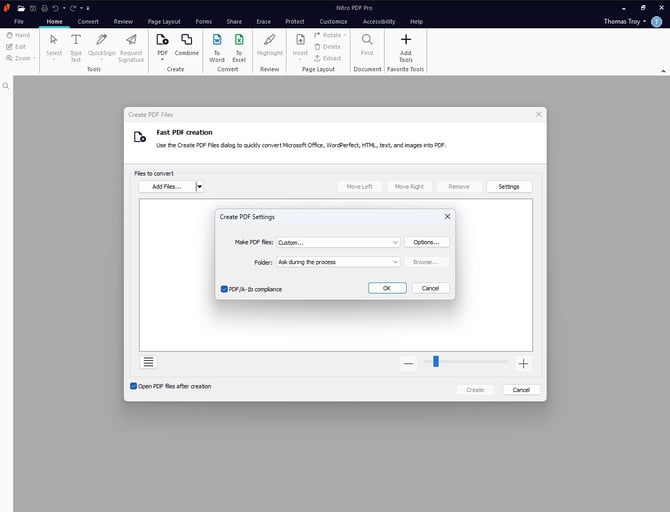
On the Create PDF Files dialog, click the Add Files button, and then select the files to convert.
-
Click the Settings button, and then tick the PDF/A1-b compatibility checkbox.
-
In the Folder menu, select one of the following: If you would like to specify a single folder in which to place the created PDF(s),
- If you would like to specify a single folder in which to place the created PDF(s), click Specific folder. Click the Browse button to select a folder.
- If you would like the created PDF(s) to be placed in the same folder as the original file, click Folder of original file.
- If you would like to specify a location for each file as it is converted, click Ask during the process.
-
Click Create.
To create PDF/A-1b from Microsoft Office 2007 onwards:
-
In the Nitro Pro tab, from the Creation group, tick the Comply With PDF/A-1b checkbox
-
Click Create PDF or Create PDF and Email

To create PDF/A-1b from a scanner:
-
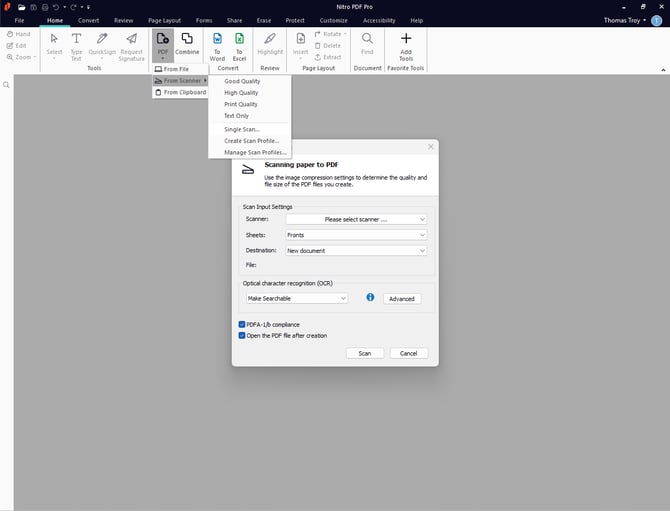
On the Home tab in Nitro Pro click the PDF button, and then click From Scanner
-
In the Scan Settings dialog, select your scanner, the sheets to scan, image compression, and then specify the destination
-
Select the PDF/A1-b compatibility checkbox.
-
Click Scan to open your default scanning software
-
Select the mode of scanning-color, grayscale, or monochrome/black-and-white
-
Select the menu command to return to Nitro Pro
-
Select the Finish option to end your scanning job, or select Scan front of sheet two to continue scanning
To convert an open PDF file to PDF/A-1b, PDF/A-2b, PDF/A-2u, PDF/A-3b, PDF/A-3a, or PDF/A-3u
-
Open a regular PDF, or PDF/A, file in Nitro Pro
-
On the Convert tab, in the Formats group, Click To PDF/A button
-
Select which format you wish to convert from the button menu
-
Enter a name for the new file and choose a destination to save it
-
Click Save