
PDF/A is an ISO standard for long-term archiving of electronic documents. It ensures that documents can be viewed and reproduced consistently over time.
PDF/A files must be self-contained, with all fonts, images, graphics, and color information embedded in the file. The format also restricts features that are not suitable for archiving, such as external links, audio and video content, JavaScript, and encryption. It requires standardized metadata and device-independent color spaces.
PDF/A includes several compliance levels:
- PDF/A-1a: Preserves structure and supports accessibility and content reuse.
- PDF/A-1b: Ensures visual fidelity of the document.
- PDF/A-2b: Based on PDF 1.7 and allows more features than PDF/A-1b.
- PDF/A-2u: Requires Unicode mapping for text.
- PDF/A-3a: Fully compliant with accessibility and structural requirements while allowing embedded files in any format.
- PDF/A-3u: Compliant with Unicode text mapping requirements while allowing embedded files in any format.
To convert an open PDF file to PDF/A-1b, PDF/A-2b, PDF/A-2u, PDF/A-3b, PDF/A-3a, or PDF/A-3u
- Open a regular PDF, or PDF/A file in Nitro PDF Pro
- On the Convert tab, in the Formats group, click To PDF/A button
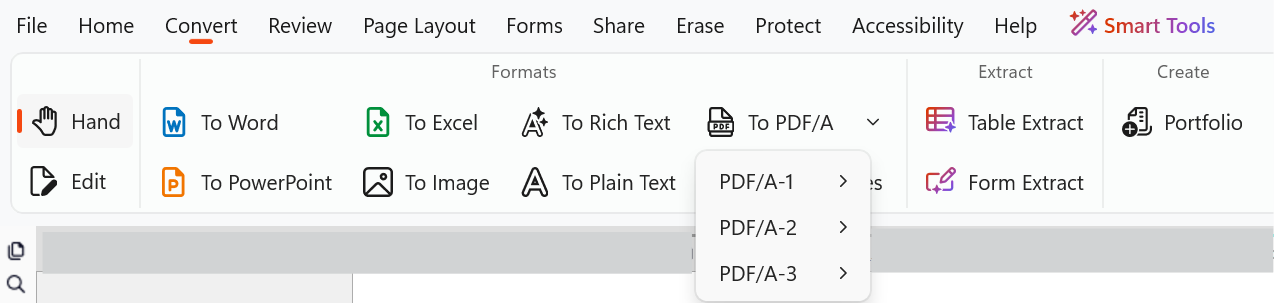
- Select which format you wish to convert from the button menu
- Enter a name for the new file and choose a destination to save it
- Click Save
To create PDF/A-1b using the PDF from File tool
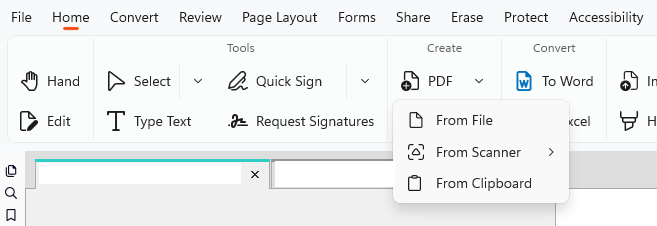
- On the Home tab, in the Create group, click the PDF button, then From File
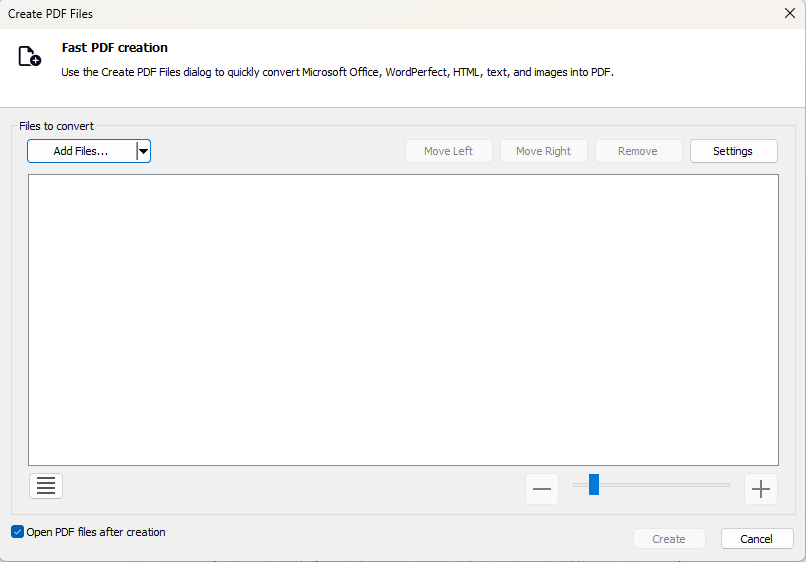
- In the Create PDF Files dialog, click the Add Files button, and then select the files to convert
- Click the Settings button, and then tick the PDF/A1-b compatibility checkbox
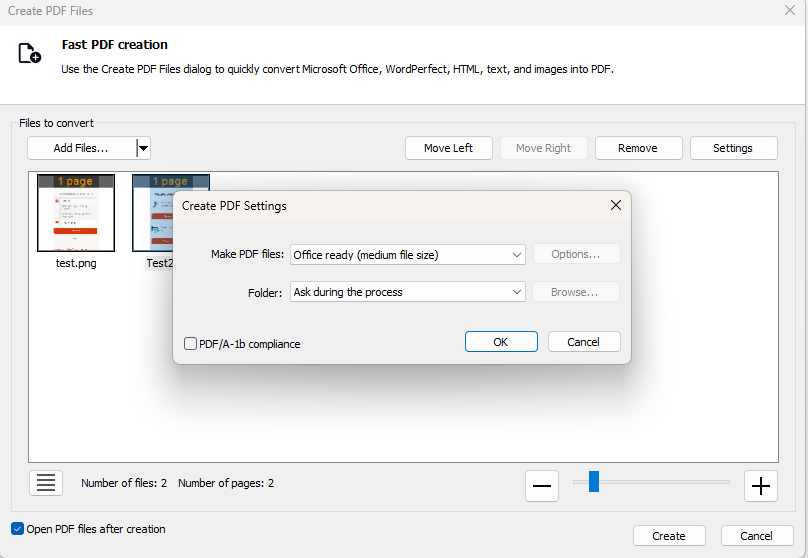
- In the Folder menu, select one of the following:
- If you would like to specify a single folder in which to place the created PDF(s), click Specific folder, and then click the Browse button to select a folder
- If you would like the created PDF(s) to be placed in the same folder as the original file, click Folder of original file
- If you would like to specify a location for each file as it is converted, click Ask during the process
- Click Create
To create PDF/A-1b from a Scanner
- On the Home tab, in the Create group, click the PDF button, then click From Scanner
- In the Scan Settings dialog:
- In Scan Input Settings, select your scanner, the pages to scan, and specify the destination
- In the PDF Output Settings, select the scan mode (Color/ Grayscale and Monochrome) and quality
- In Optical Character Recognition (OCR), select one of the following options: Do not use OCR, Make Searchable, or Make Searchable and Editable
For OCR advanced settings, select Advanced. For more information about these settings, see the OCR article.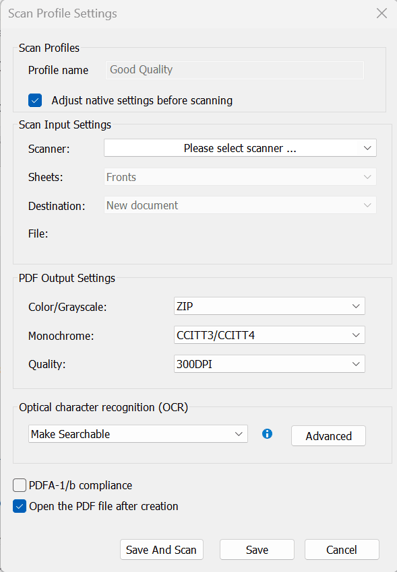
- Select the PDF/A1-b compatibility checkbox
- Click Save and Scan to open your default scanning software
- Click Save to save your settings or select Cancel to discard the settings