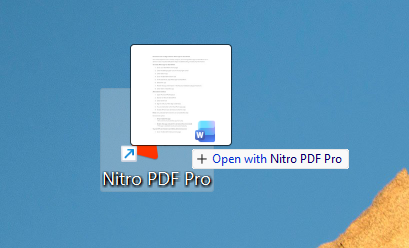
Dynamic drag-and-drop PDF file creation allows you to create a PDF file from any folder or window. Nitro PDF Pro does not have to be running for you to start creating a PDF file.
Create a PDF using drag-and-drop
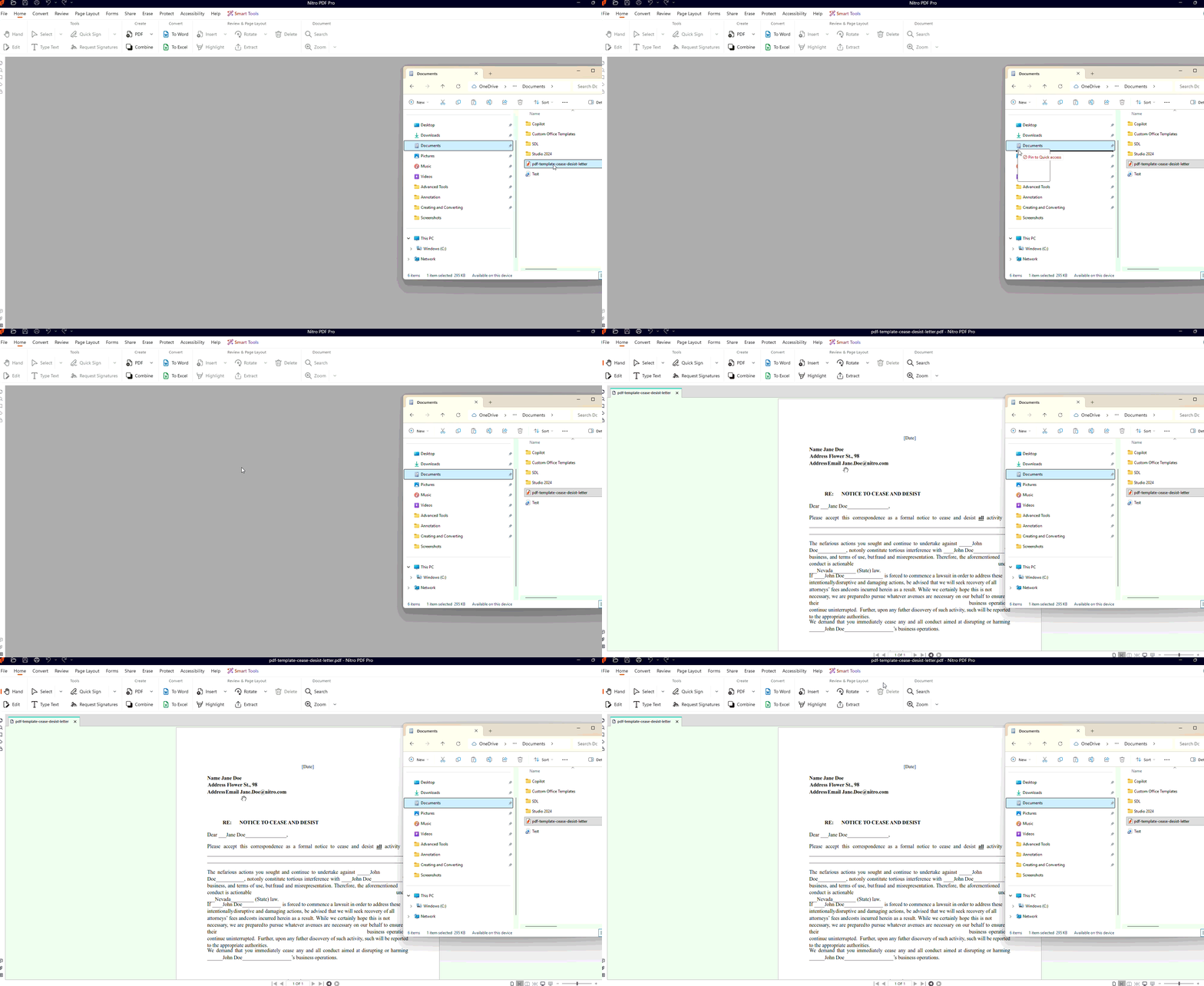
To drag a file into Nitro PDF Pro:1. Run Nitro PDF Pro
2. Open a Windows Explorer window, and locate the file you want to convert to PDF.
3. Drag the file from Explorer into Nitro PDF Pro to begin the creation process
4. When creation is complete, the PDF document appears in Nitro PDF Pro
To drag a file onto the Desktop shortcut:
1. Confirm that Nitro PDF Pro has a shortcut on the Desktop. If necessary, create a new Desktop shortcut:
- In the Windows Start menu, right-click Nitro PDF Pro and select Send to Desktop.
2. From a Windows Explorer window, or from the Desktop, drag a file onto the desktop shortcut.
3. Nitro PDF Pro runs automatically, and begins the creation process.
4. When creation is complete, the PDF document will open in your default PDF viewer.