
A PDF file contains two main layers: the content layer and the annotation layer.
The content layer contains images, form fields, and most text. When you convert a Microsoft Word document to PDF, the original content becomes part of the content layer. Many PDF files contain only the content layer.
The annotation layer sits above the content layer. It contains comments and markup. You can edit, move, or delete annotations without changing the content layer.
When you save a PDF file, both layers are saved in the same file as separate objects.
Annotation types
Annotations include the following objects. You can access them from the Review tab:
- Sticky note
- Shapes: Arrow, Rectangle, Oval, Line, Cloud, Polygon, Polygon Line
- Drawing
- Text box
- Callout
- Stamp
- Type text
- Form fields
- Links

Examples
- Changes to a letterhead affect the content layer.
- Filling in a form or adding a signature affects the annotation layer. This does not change the original form fields, such as Name or Address.
Identify annotations
Use these indicators to identify annotations:
- When you hover over an annotation with the Hand or Select tool, the pointer changes to a solid black arrow.
- When you select an annotation, a bounding box with handles appears.
- You can drag an annotation to move it.
Flatten annotations
Flattening moves content from the annotation layer to the content layer.
Use one of the following methods:
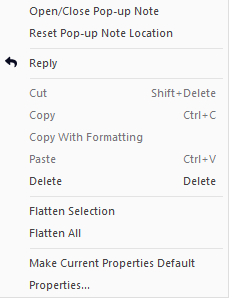
- Flatten selection: Right-click the mark-up and select the option Flatten Selection
- Flatten all: Right-click the mark-up and select the option Flatten All
- Save as flattened PDF: Flatten all annotations and save the file.
Print options
By default, only the content layer is printed. You can choose to include annotations.
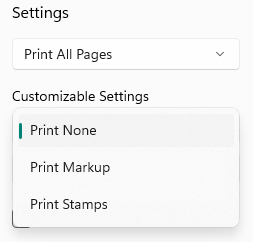
Select one of the following options:
- Document only
- Document with markup
- Document and stamps
For more information about printing, visit the Print a PDF User Guide.