
Nitro PDF Pro includes tools to add, edit, move, and flatten text in PDF documents without reopening the original source file.
Use the Type Text tool to add new text anywhere in a PDF, even if the document does not contain interactive form fields. You can control the font, size, and color of the text.
Use the Edit tool to modify existing text within a paragraph. Nitro PDF Pro automatically reflows text within the bounding box as you edit or resize it.
Tip: Text reflow works at the paragraph level. To move a paragraph, use the Edit tool.
Nitro PDF Pro also lets you add headers, footers, and Bates numbers to document pages.
Note: If you need to make many small edits or major layout changes, edit the original source file instead of the PDF when possible. This provides better layout control and may allow automated updates. You can also convert the PDF to Microsoft Word or Rich Text Format (RTF) for editing.
Add Text
- On the Home tab, in the Tools group, select Type Text

- Click the page where you want to add text
- On the Format tab, select the text formatting options you want, such as font, size, and color

- Type the text
- Press Esc or select Finish when you finish typing
If spell check identifies an error, right-click the text to:
- View suggested corrections
- Change the spell check language
Tip: By default, Nitro PDF Pro inserts typed text on the annotation layer. To insert text on the content layer, press Ctrl and click the page where you want to add text.
Use Smart Alignment with Type Text
Smart Alignment displays visual guides to help align text with existing content on the page.
When Smart Alignment is enabled, the cursor snaps to horizontal or vertical alignment guides as you move the pointer.
Enable or Disable Smart Alignment
- On the Home tab, select Type Text
- Click the document page to begin typing
- On the Format tab, in the Alignment group:
- Select Smart Alignment to enable the feature
- Clear Smart Alignment to disable the feature

Edit Text
- Select Edit on the left side of the ribbon
- Double-click the text you want to edit
- Place the cursor where you want to add or modify text
- Edit the text as needed
As you type, Nitro PDF Pro automatically resizes the bounding box to fit the text.
When you select text, a floating toolbar appears. Use the toolbar to change:
- Font
- Text case
- Color
- Font size
When you finish editing:
- Press Esc
- Click outside the page
- Or select Finish
If spell check identifies an error, right-click the text to:
- View suggested corrections
- Change the spell check language
Note: If the required font is not installed, Nitro PDF Pro attempts to use a similar font automatically. If Nitro PDF Pro cannot find a similar font, it uses a generic font. Verify that the replacement font matches the original appearance.
Move Text
- Select the Edit tool
- Select the paragraph or heading
Do one of the following:
- Drag the bounding box to a new location
- Use the keyboard arrow keys to move the text in small increments
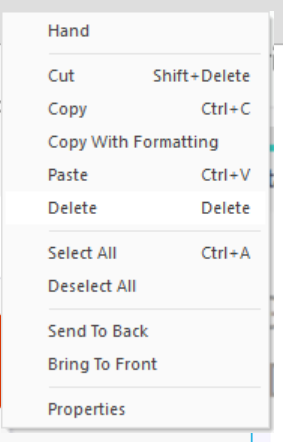
Delete a Paragraph or Image
- Select the paragraph or image
- When the light blue bounding box appears, do one of the following:
- Press Delete
- Right-click the object and select Delete
Flatten Text
Flattening moves text from the annotation layer to the content layer.
Flatten Selected Text
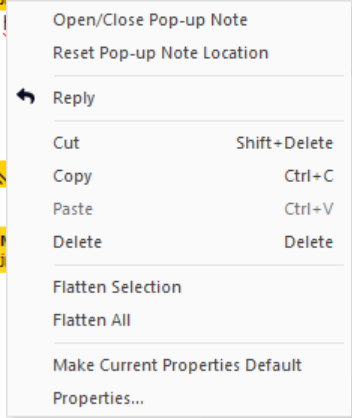
- Right-click the text annotation
- Select Flatten Selection
Flatten All Text Annotations
- Right-click a text annotation
- Select Flatten All
Flatten All Annotations and Save the PDF
- Open the File menu
- Select Save As > Flattened PDF
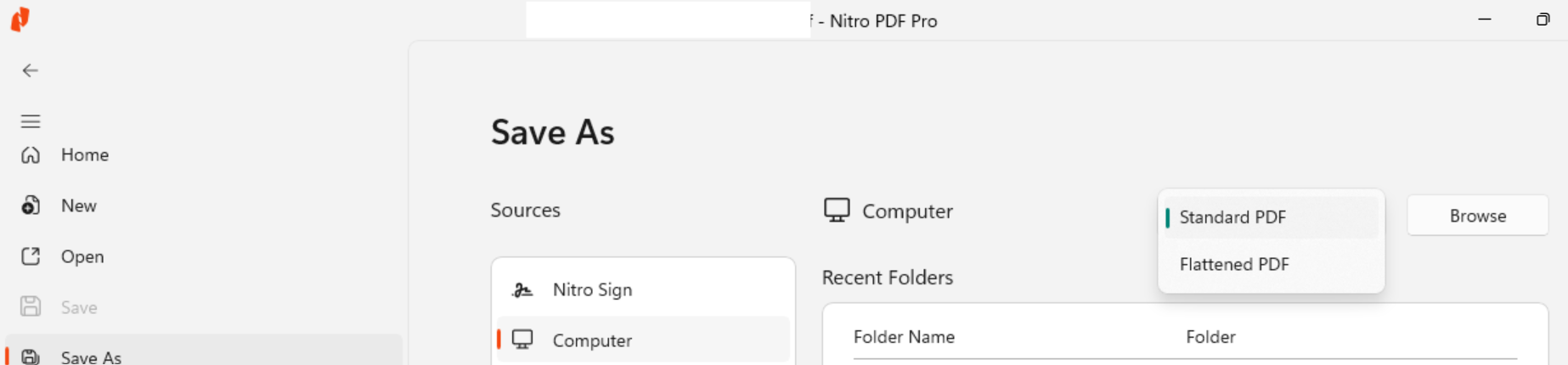
This action flattens all annotations, including:
- Form fields
- Sticky notes
- Links
- Markup annotations
For more information, see Annotation layer and content layer.