
For Microsoft Office (Word, PowerPoint, and Excel)
Installing Nitro for Microsoft Office (Word, PowerPoint, and Excel)
To install Nitro for Microsoft Office, you can use either of the following methods:
Through the Microsoft Office program:-
Open the Microsoft office program
-
Navigate to Home and select Add-ins
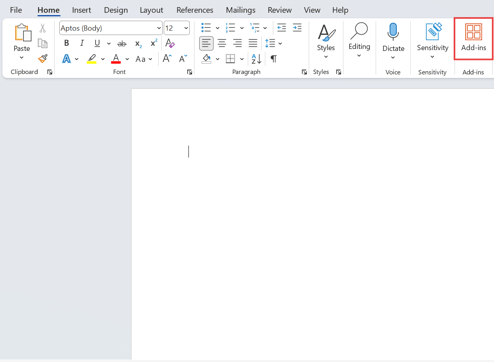
-
On the Store tab, search for Nitro
- Click Add
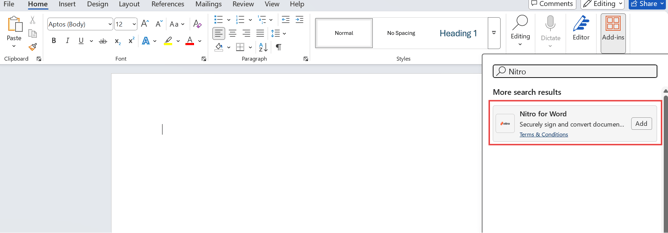
- In the pop-up window, click continue to install the add-in or cancel to stop the action
- Open the Microsoft App Source store
- On the store header, search for Nitro
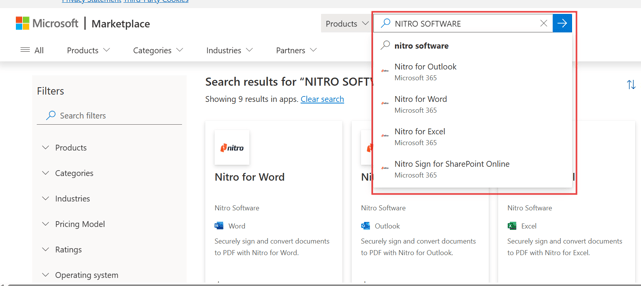
- Select between the options Word, Outlook, PowerPoint, and Excel
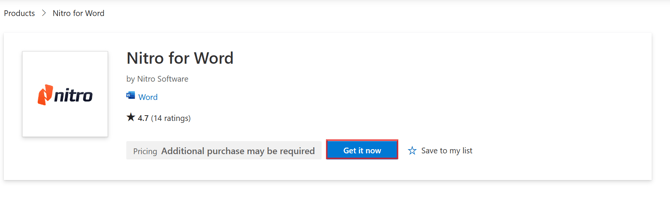
- Click Get it now
Converting to PDF for Microsoft Office (Word, PowerPoint, and Excel)
-
Open the Microsoft Office program
-
Open the document
-
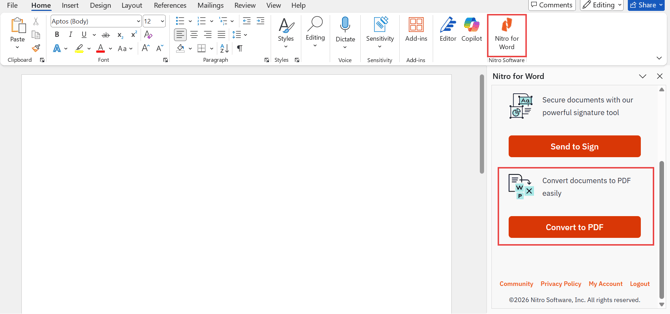
On the Home tab, click the Nitro icon
-
Select Convert to PDF
-
To stop the process, click Cancel
-
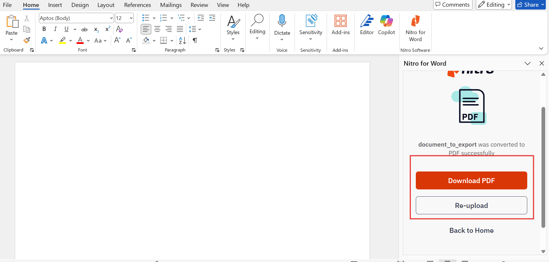
Click Download PDF to save the file or to Re-upload to restart
Sending the files for Signature for Microsoft Office (Word, PowerPoint, and Excel)
- Open the Microsoft Office program
- Open the document
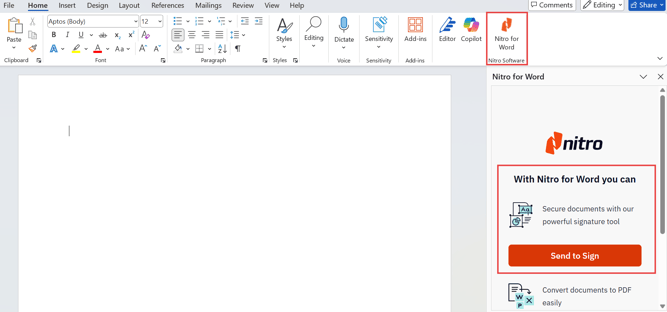
- On the Home tab, click the Nitro icon
- Select Send to Sign
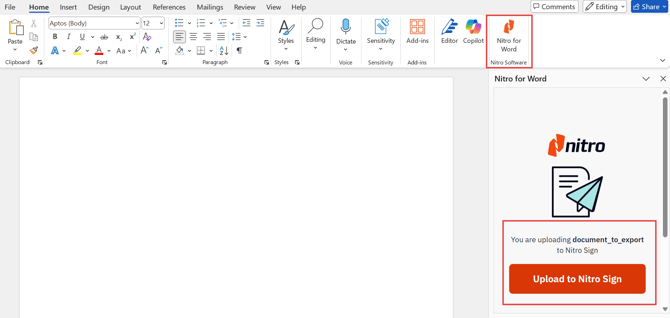
- Select Upload to Nitro Sign
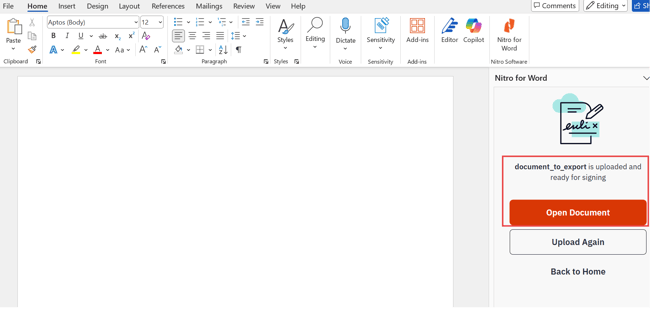
- Select Open Document
Nitro for Microsoft Outlook
Installing Nitro for Microsoft Outlook
- Open Microsoft Outlook
- Navigate to Apps and select Add apps
- On the App page, search for Nitro
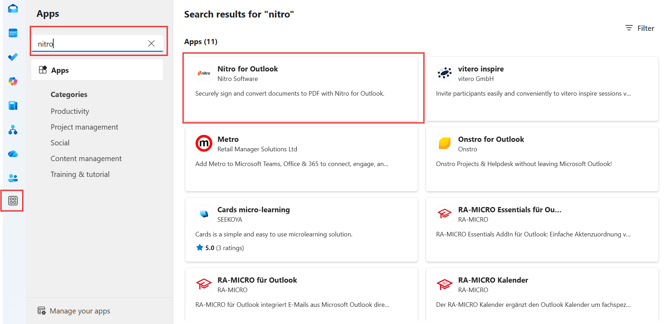
- Click Add
- In the pop-up window, click Continue to install the app or cancel to stop the action
Converting to PDF for Microsoft Outlook
- Open Microsoft Outlook
- Open the email
- Click the Nitro icon located on the right
- Select Convert to PDF
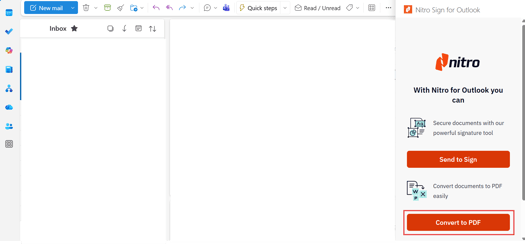
- To stop the process, click Cancel
- Click Download PDF to save the file or to Re-upload to restart
Send for Signature for Microsoft Outlook
- Open Microsoft Outlook
- Open the email with attachments
- Click the Nitro icon located on the right
-
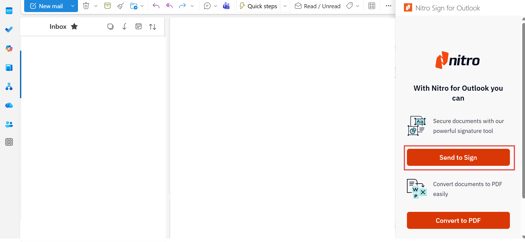
Select Send to Sign
-
Select Upload to Nitro Sign
-
Select Open Document
If the email has two or more attachments:
- Select the file
- Select Open in Nitro Sign
- Once the file is uploaded, select Upload another or Open Document