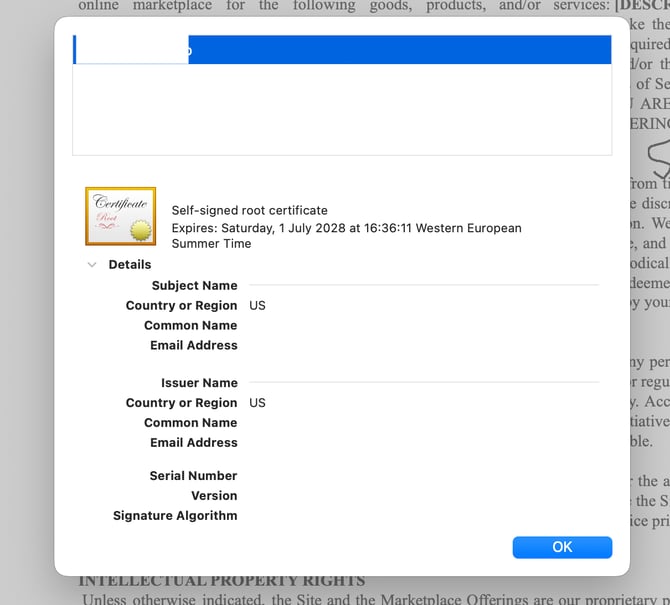
Add a digital signature field to a PDF, and apply a digital signature to verify your identity and help protect the document from unauthorized changes.
- Open a PDF file
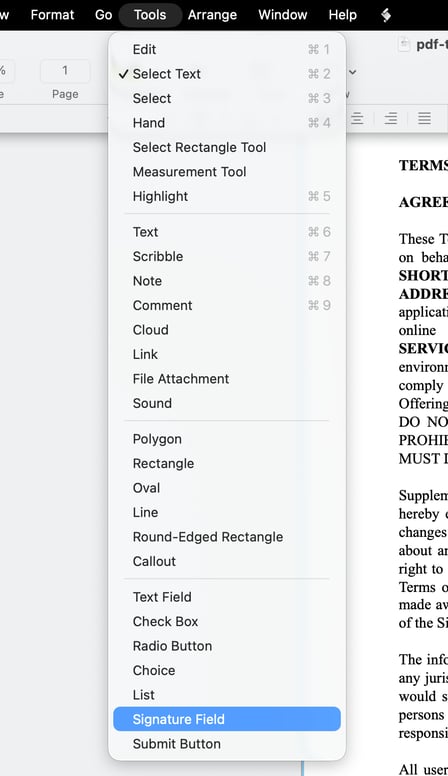
- Go to Tools
- Select Signature Field
- Place the signature field in the document
Note: If you use a trackpad to sign, click the signature field to enter signing mode.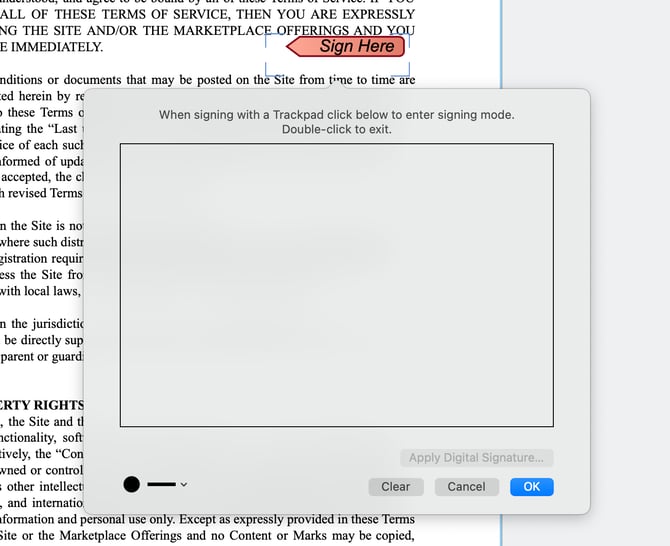
- Sign the document
- Double-click outside the signature field to exit signing mode
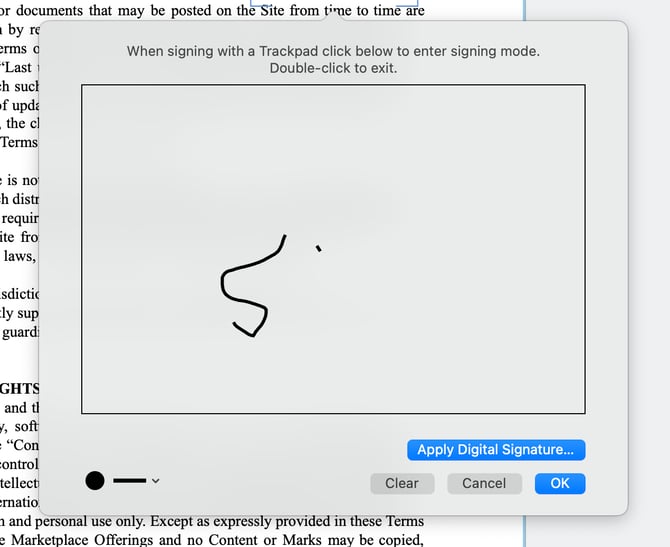
- Click Apply Digital Signature
- Select a signing identity, or create a new signing identity
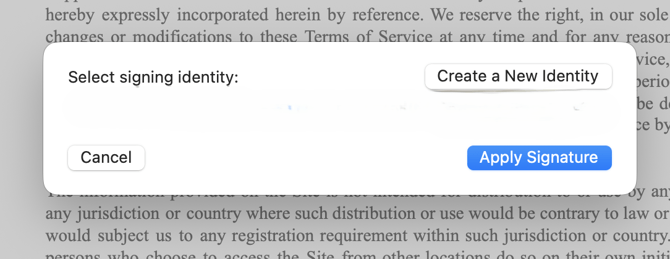
- Click Apply Signature, or click Cancel to close the window without applying a signature
- A Digital Signature Indicator appears in the upper-right corner of the file
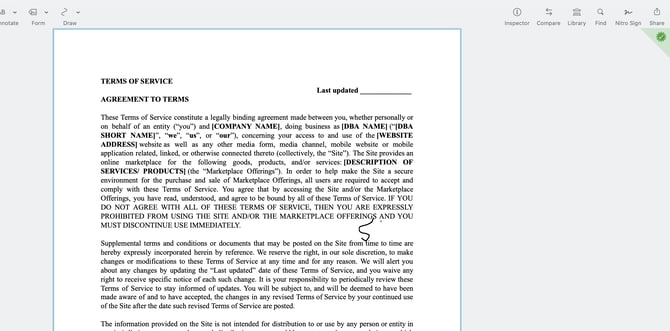
- Click the Digital Signature Indicator to view the certification details