
Convert several files to a different document format, print in batch, or run OCR on many image-based PDF files to make their text fully searchable. You can also create custom batch sequences to simplify the tasks you perform most frequently.
Run a Batch Process
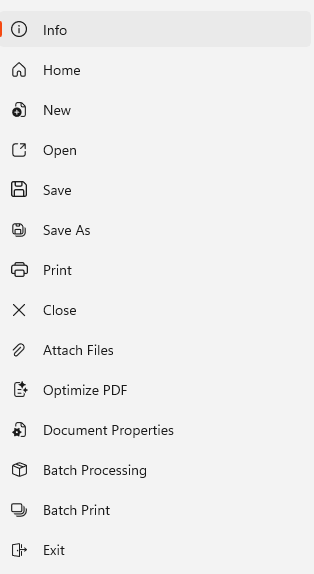
A batch process is a single task that can be automated for several files, e.g. print.- In the File menu, click Batch Processing
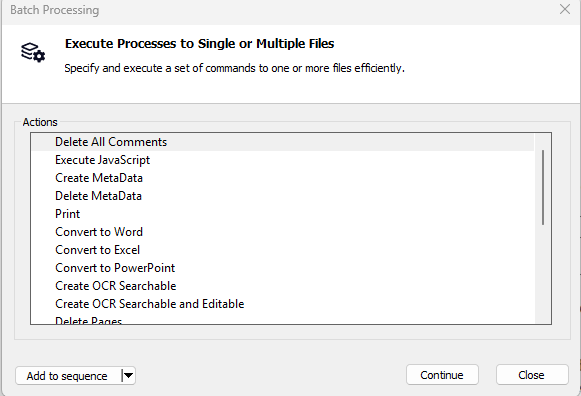
- Right-click an action in the Actions list, and then click Continue
- In the Settings area, use the buttons to select a folder containing the required files and select a folder where the new files will be saved
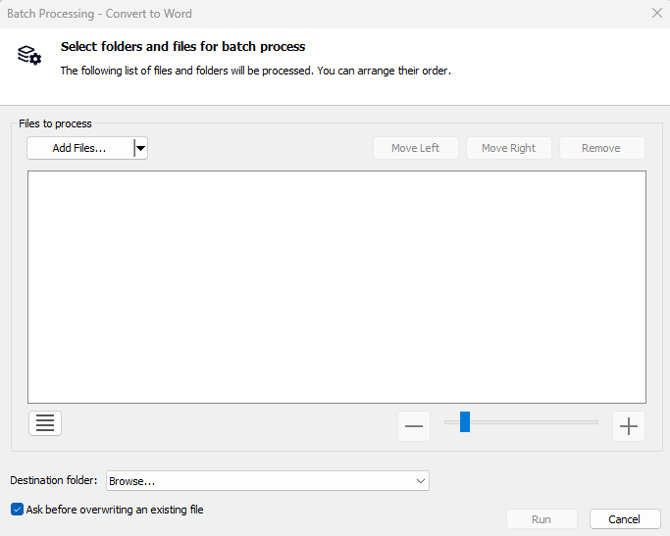
- Click Run to perform the batch process
Run a Batch Sequence
A batch sequence consists of a sequence of batch processes; e.g. create PDF file, apply password security and then print.- In the File menu, click Batch Processing
- Right-click a sequence in the Actions sequences list, and then click Continue
- In the Settings area, use the buttons to select a folder containing the required files and select a folder where the new files will be saved
- Tick Overwrite prompt to be alerted when a file must be overwritten
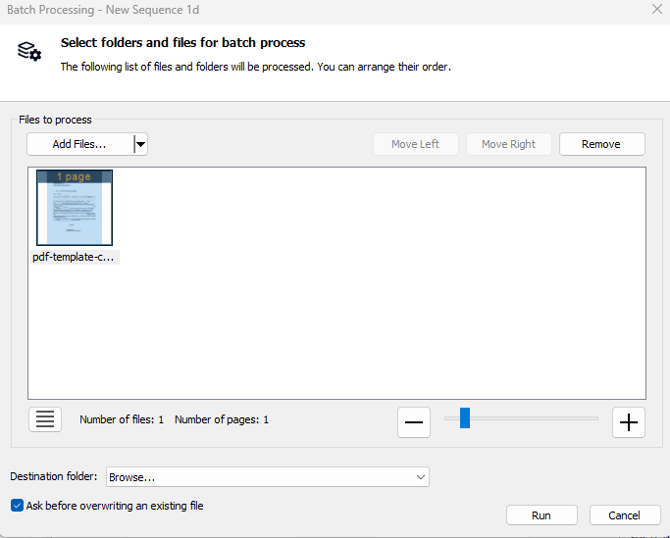
- Click Run to perform the batch sequence
Create a New Batch Sequence
- In the File menu, click Batch Processing
- In the Actions list, right-click the action you need to perform and then click Add to sequence, followed by New
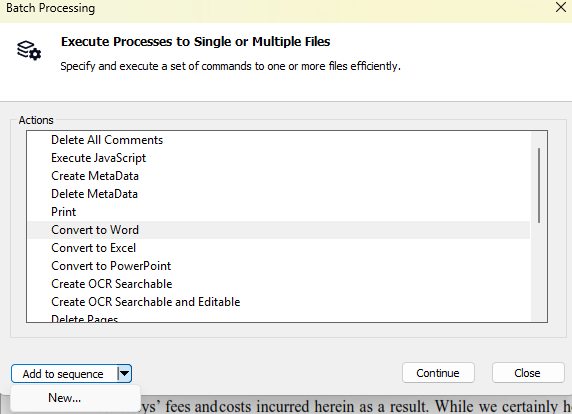
- In the Actions Sequences list, double-click on New Sequence to name the sequence
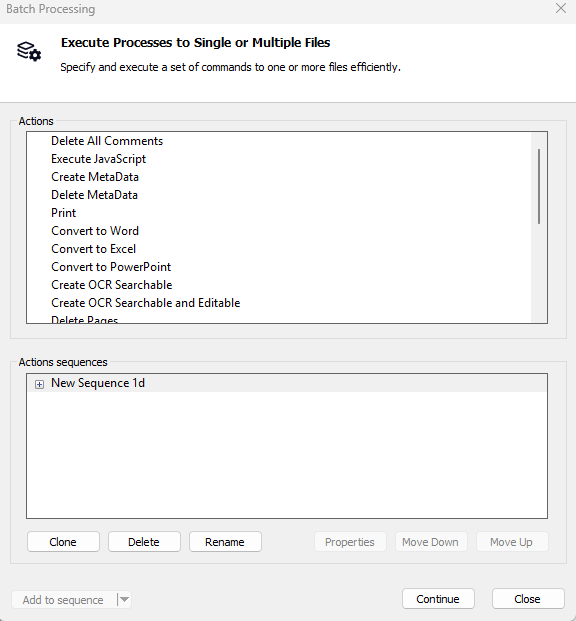
- Once again, in the Actions list, right-click another action and then click Add to sequence followed by the name of your custom sequence. Repeat this task for all the actions you need
- Left-click an action in your sequence and then click Properties to configure the default settings for the action
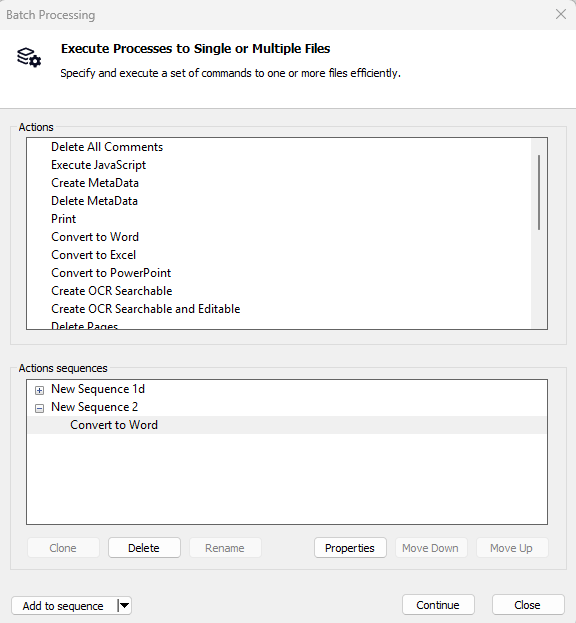
- Left-click your actions sequence to select it, and then click Run. Alternatively, click Close to exit the tool
Edit a Batch Sequence
1. In the File menu, click Batch Processing
2. Left-click your actions sequence to select it, and then click one of the following:
- Clone: duplicate the batch sequence to use it as a template for another sequence
- Delete: permanently delete a batch sequence
- Rename: set a new name for a batch sequence
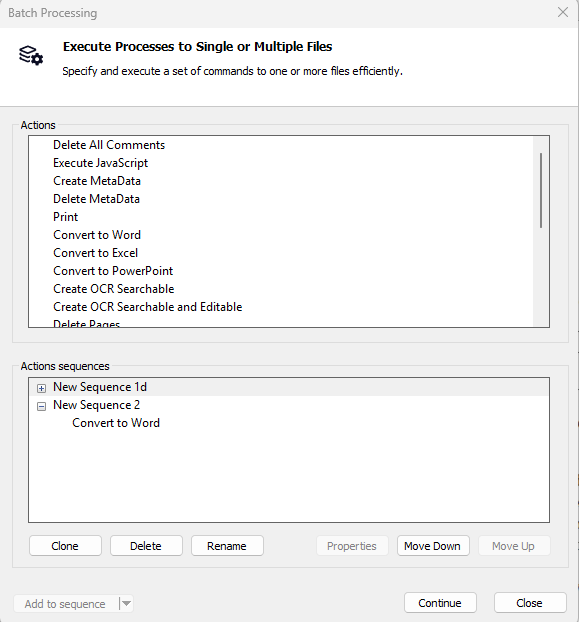
3. Click Move down or Move up to reorder your actions sequence
4. Click Continue and then Run to perform the batch process