
A Digital ID is used to verify your identity and secure PDF files.
You can use a Digital ID to:
- Create digital signatures
- Encrypt PDF files
- Control access and usage rights per user
- Validate document authenticity
A Digital ID includes a public key and a private key.
- Public key: Contains certificate and identity information. You share it with other users
- Private key: Remains secure and is never shared. It is used to decrypt files and apply signatures
How Digital IDs work
- Users share public keys
- Public keys are used to encrypt documents
- Only the matching private key can decrypt the document
- This protects document integrity and access
Digital ID types
PKCS#12 Digital ID file
- Can be used on multiple computers
- Requires a password during import
- Suitable for portable use (desktop and laptop)
Windows Certificate Store
- Stored in the Windows user profile
- Cannot be copied to another computer
- Suitable for single-device use
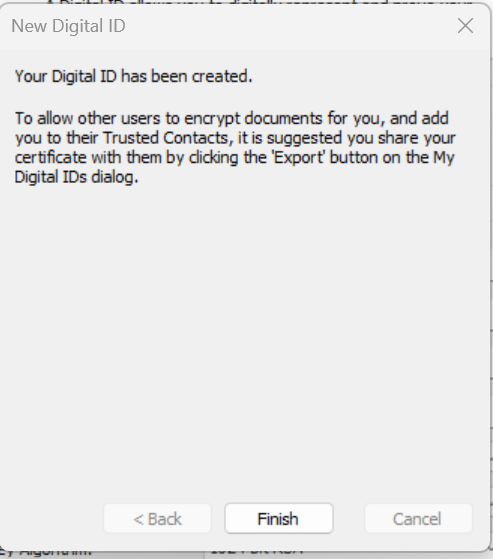
To create a Digital ID
- On the Protect tab, in the Identification group, click My Digital IDs

- Click New
- Enter your identity details
- Select intended usage
- Click Finish
To import a Digital ID
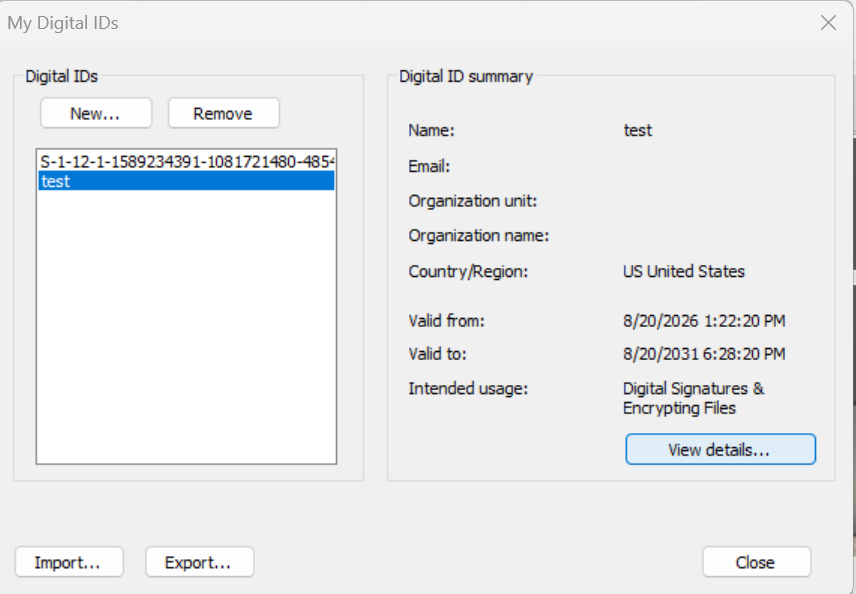
- On the Protect tab, click My Digital IDs
- Click Import
- Select the Digital ID file
- Click Open
To export a Digital ID
- On the Protect tab, click My Digital IDs
- Select a Digital ID
- Click Export
- Select Save data to file
- Click Next
- Select a location
- Click Save
To send a Digital ID by email
- On the Protect tab, click My Digital IDs
- Select a Digital ID
- Click Export
- Select Send data to others via email
- Click Next
- Enter the recipient email address
- Review the message
- Click Send
An email opens in the default email application with the Digital ID attached.
To delete a Digital ID
- On the Protect tab, click My Digital IDs
- Select a Digital ID
- Click Remove