
You can select multiple form fields in Nitro PDF Pro to edit properties, align fields, and adjust spacing. This improves consistency and reduces manual adjustments.
Use the Select Fields tool to select multiple fields.
Select multiple fields
- Open the PDF in Nitro PDF Pro
- On the Forms tab, in the Form Fields group, click Select Fields

- Select the fields using one of the following methods:
- Drag a selection box around the fields
- Hold Ctrl and select fields individually
Edit multiple field appearance
- Select the required fields
- Open the properties using one of the following methods:
- Use the Properties context tab

- Right-click and select Properties
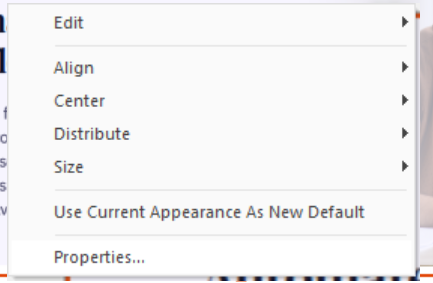
- Use the Properties context tab
- Update the appearance settings as required
Align and space multiple fields
- Open the PDF in Nitro PDF Pro
- On the Forms tab, in the Form Fields group, click Select Fields

- Select the fields using one of the following methods:
- Drag a selection box around the fields
- Hold Ctrl and select fields individually
- Align or space the fields using one of the following methods:
- Use the Alignment context tab

- Right-click and select an alignment or spacing option
- Use the Alignment context tab
Tip: Use the Alignment context tab for faster editing. You can also use Undo to quickly reverse changes.
View or hide the grid
- Open the Forms tab
- In the View group, select or clear Show Grid
- Select the option to display the grid
- Clear the option to hide the grid
Turn Snap to Grid on or off
- Open the Forms tab
- In the View group, select or clear Snap to Grid
- Select the option to enable snapping
- Clear the option to disable snapping
Customize grid settings
- Click File
- Click Preferences
- Select Units and Grid
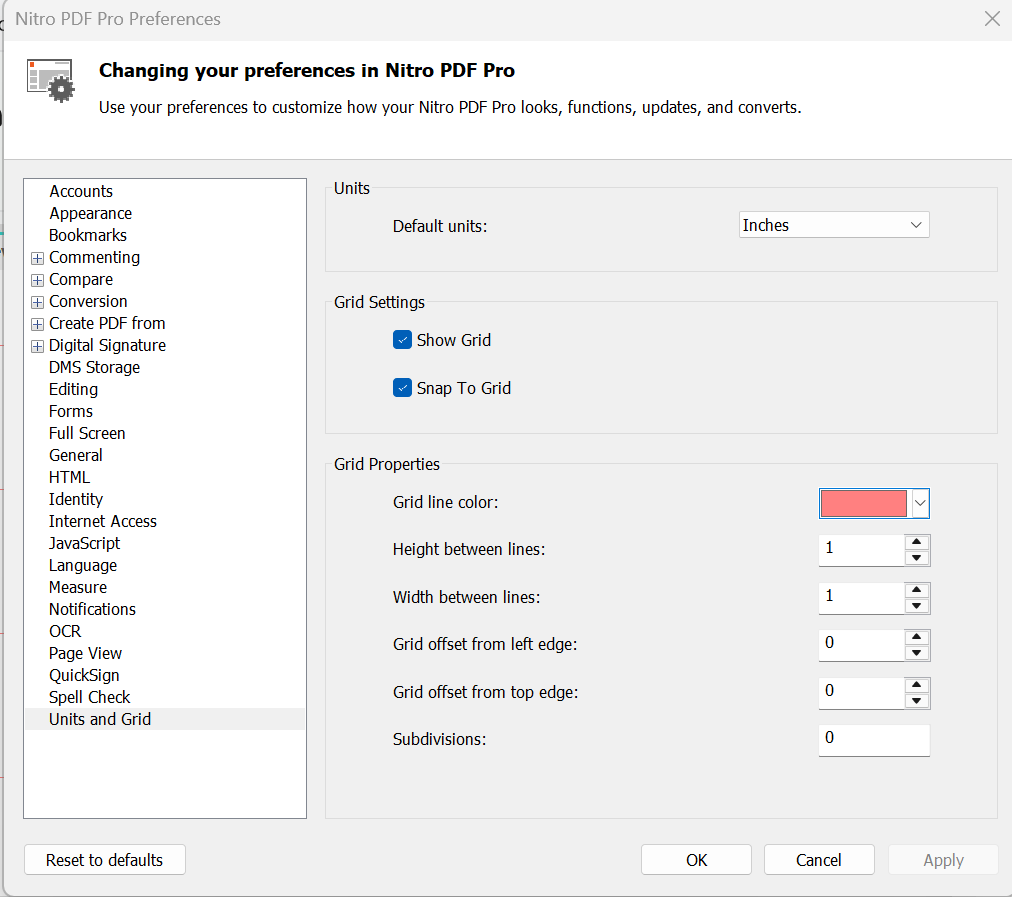
- Configure the settings
- Click Apply and OK
Units and Grid settings
- Default Units: Set the measurement unit
- Show Grid: Display the grid on the page
- Snap to Grid: Align objects to the nearest grid line
- Grid Line Color: Select the grid color
- Height Between Lines: Set vertical spacing (0–1000)
- Width Between Lines: Set horizontal spacing (0–1000)
- Grid Offset from Left Edge: Set horizontal grid start position
- Grid Offset from Top Edge: Set vertical grid start position
- Subdivisions: Set the number of subdivisions per grid section
Tip: If an object does not move as expected, turn off Snap to Grid.