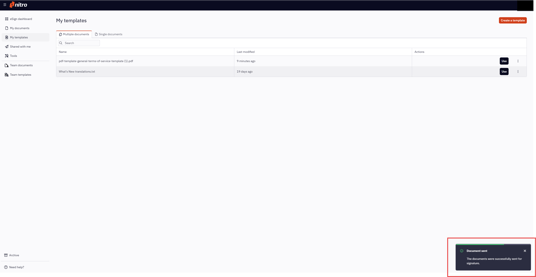
Nitro Sign lets you send one or multiple documents to multiple recipients as an eSignature request by using the Bulk Signing feature.
Please note:
-
This feature is available to Enterprise customers, as well as customers on the Sign Plus, or higher plans.
-
Save the document as a single-signer template
-
You cannot use multi-signer templates for bulk signing
-
Sign in to your Nitro Sign account
-
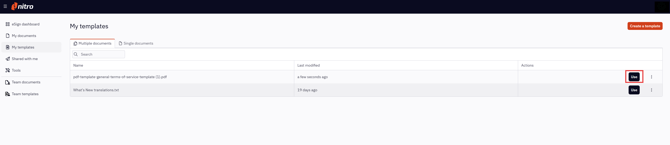
In the left navigation pane, select My templates
To create a template, see: Create a Signing Template
-
Select the template you want to use
-
Click Use
-
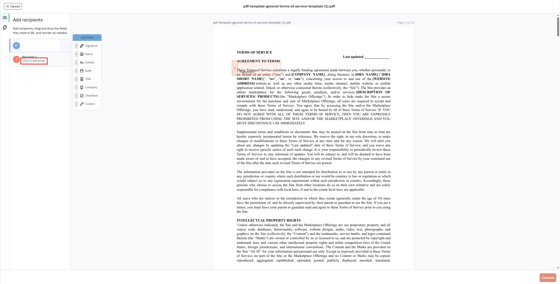
On the next page, under the recipient section, select Click to add email
-
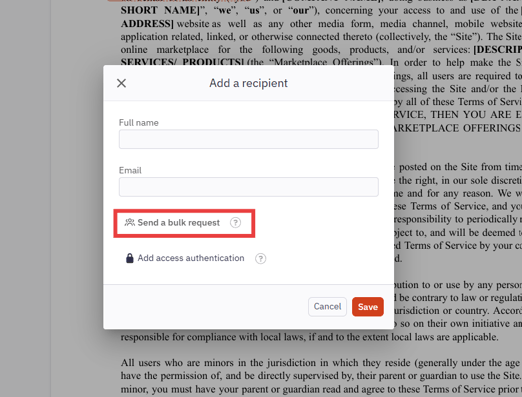
In the dialog box, select Send a bulk request
-
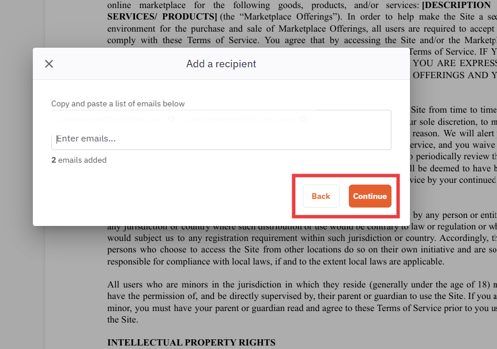
Enter the email addresses of all recipients
Note: A bulk signing request supports a maximum of 250 recipients per request
-
Click Continue to process with the action or Click Back if you want to return to the previous page
-
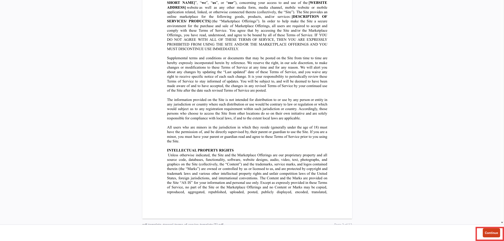
Click Continue again at the bottom right of the page
-
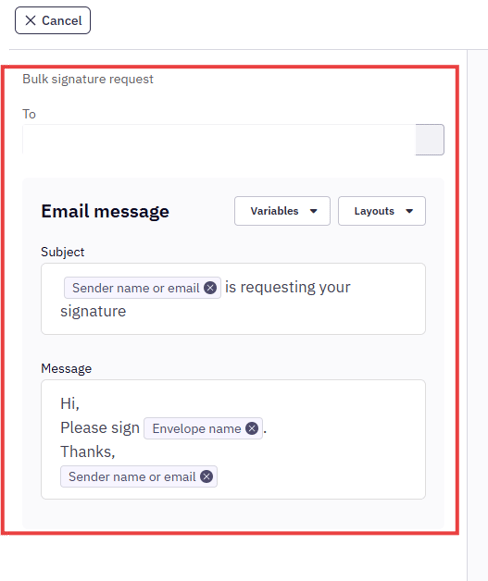
Edit the email message
-
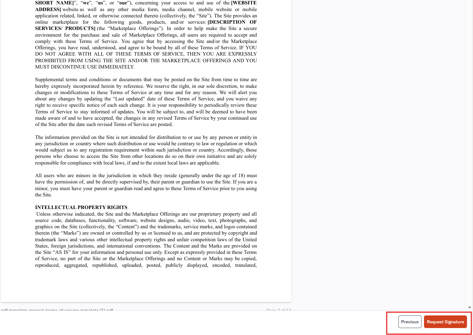
Click Request Signature or Click Previous if you want make a change on your signature request
-
After clicking Request Signature, you will be redirected to the main page and you will receive a notification confirming that the bulk request was sent