
Using OCR in Nitro PDF Pro
OCR (Optical Character Recognition) is a technology that converts scanned documents and images into editable and searchable text. It extracts text from non-editable content, such as scanned PDFs or images, so the user can search, edit, and reuse it in other applications.
After OCR processing, the user can:
• Search and select text
• Use markup tools
• Edit text (depending on the OCR mode)
OCR adds an invisible text layer over the original document or image.
Run OCR on a document
- Open the PDF in Nitro PDF Pro
- On the Review tab, in the Document group, click the OCR button

- In the OCR dialog box, select one option:
- Make Searchable: Enables text selection and markup
- Make Searchable and Editable: Enables text selection, markup, and editing
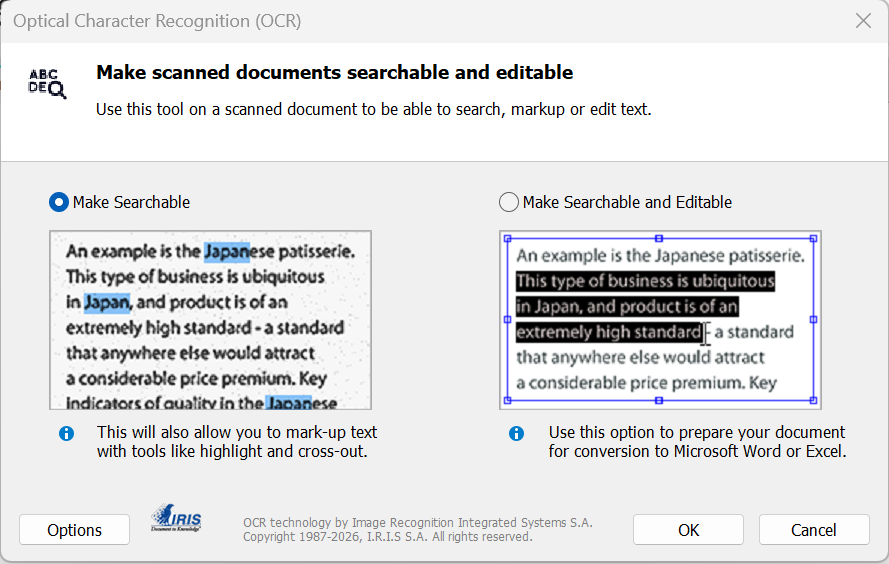
- To select pages for OCR, select Options
- Click OK
OCR a scanned document (automatic prompt)
When you open a scanned PDF, Nitro PDF Pro may display a prompt:
- Cancel: Do not run OCR
- OCR Page: OCR the current page
- OCR Document: OCR all pages
Configure OCR Settings
- Go to Preferences on the Home page
- Select OCR
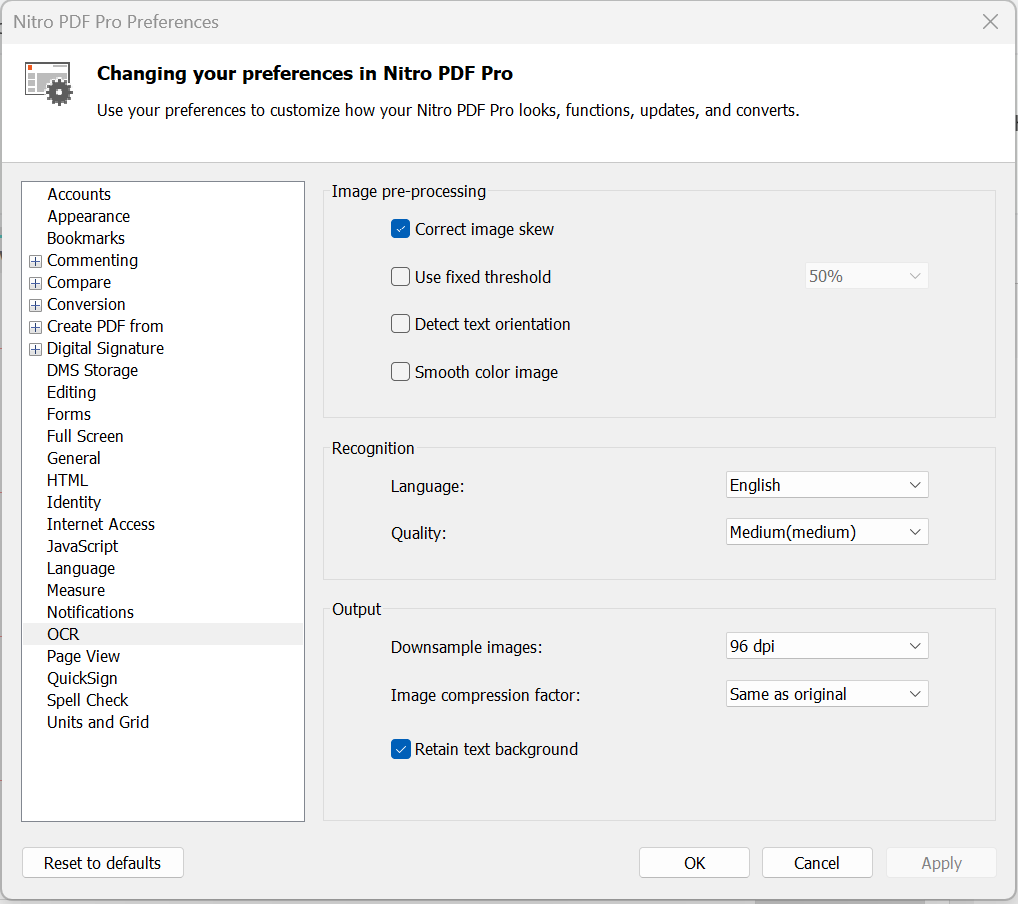
OCR settings
- Correct image skew: Straighten tilted pages
- Detect text orientation: Rotate pages automatically
- Use fixed threshold: Improve recognition for uneven backgrounds
- Smooth color image: Reduce image noise and compression artifacts
- Language: Select the document language
- Quality:
- Low: Faster processing
- Medium: Balanced speed and accuracy
- High: Best accuracy, slower processing
- Downsample images: Reduce image resolution after OCR
- Image compression factor: Control file size vs quality
- Select Retain text background to keep the text background
Click Apply, then OK
Scan and OCR a document
- On the Home tab, in the Create group, click PDF, then select From Scanner
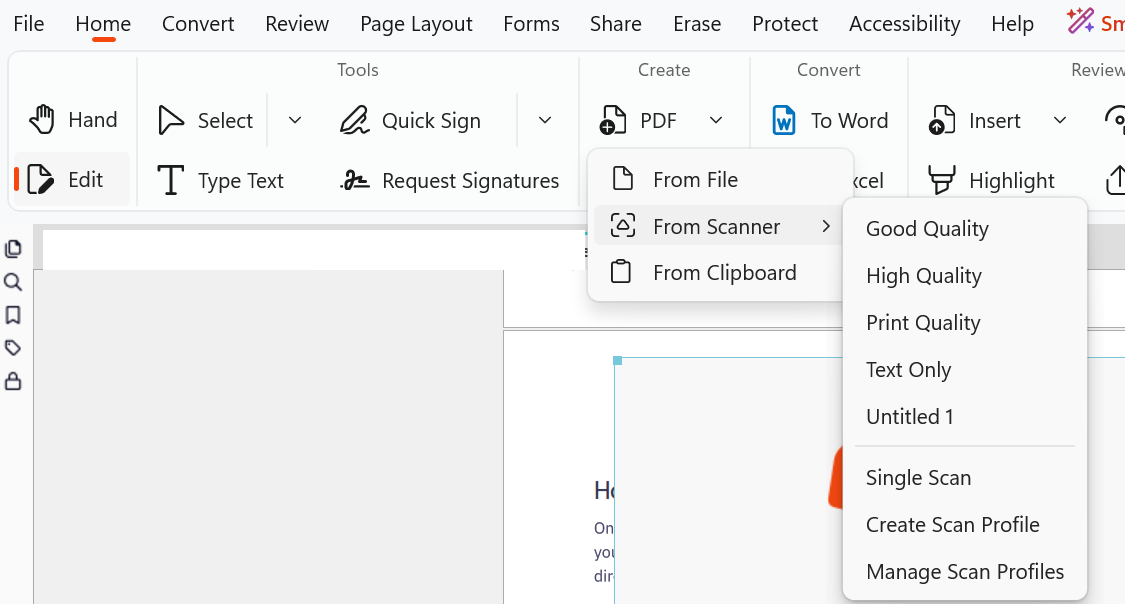
- Select your scanner device
- In Scan Settings, select Make searchable or Make searchable and Editable
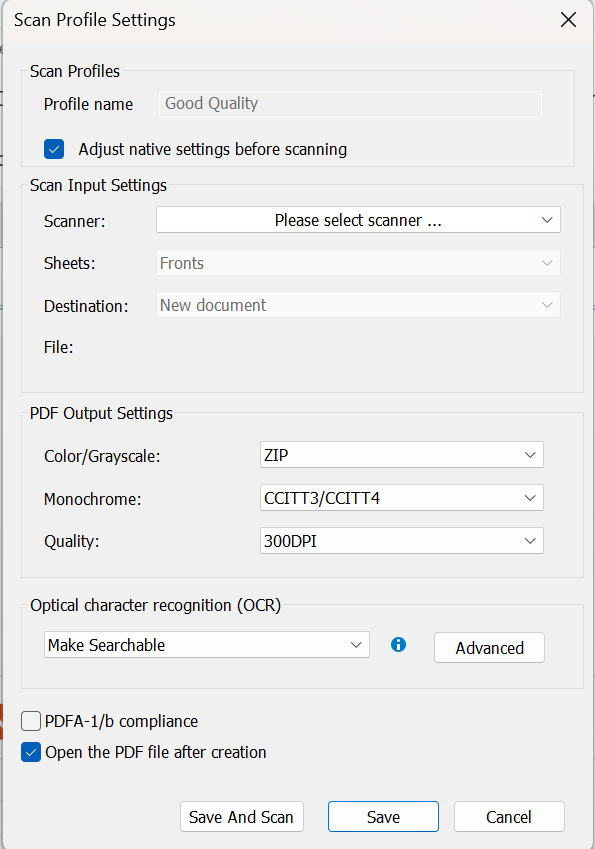
- Click Advanced to configure OCR settings
- Click Apply and OK
- Click Scan
- Click Finish to complete scanning
Improve OCR results
- Use clear, high-quality scans
- Align pages correctly when scanning
- Increase contrast for faded documents
- Deskew images if pages are tilted
Notes
- OCR accuracy depends on document quality
- Some text recognition errors may require manual correction