
Use the Measure tool to calculate distance, area, or perimeter based on a defined scale.
Some PDF files include an embedded scale. If a scale is present, the Measure tool uses it automatically.
Calibrate the Measure tool
If the PDF file does not include a scale, calibrate the document before you measure.
- On the Review tab, in the Review Tools group, click the arrow under Measure
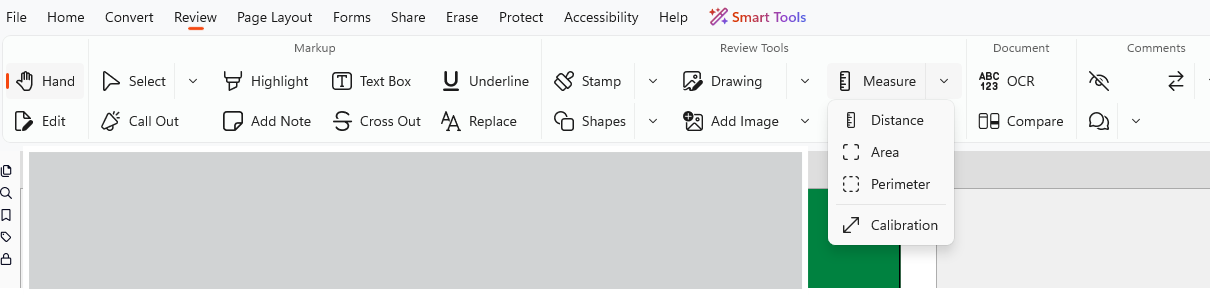
- Select Calibration
- Click the page to set the start point
- Click again to set the end point
- In the Calibration dialog box:
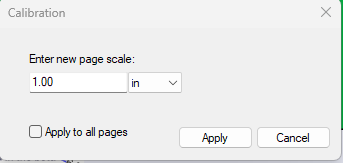
- Enter the measurement value
- Select a unit
- Optional: Select Apply to all pages
- Click Apply
Measure distance
- On the Review tab, click the arrow under Measure, then select Distance
- Click the page to set the start point
- Click to set the end point
- Move the pointer to position the measurement, then click to finish
Measure area
- On the Review tab, click the arrow under Measure, then select Area
- Click to set the start point
- Click to add points along the boundary
- Right-click, then select Complete
Measure perimeter
- On the Review tab, click the arrow under Measure, then select Perimeter
- Click to set the start point
- Click to add points along the path
- Right-click, then select Complete
Note: The start and end points do not need to connect.
View or edit a measurement
- Double-click the measurement to open the annotation
- Edit the value or add comments as required
Set Measure tool preferences
- On the File menu, click Settings
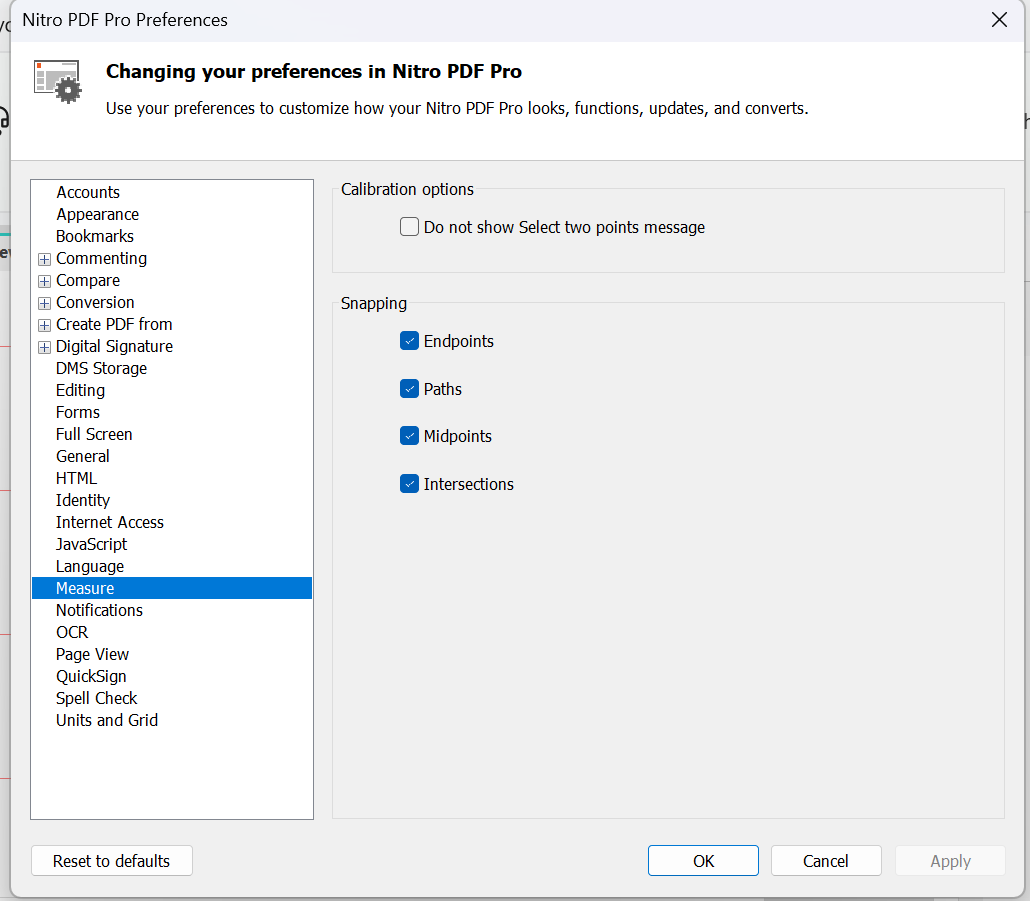
- Select the Measure category
- Configure the following options:
- Calibration: Disable the calibration prompt
- Snapping: Define how the pointer snaps to points and paths
- Click Apply and OK